> ## Documentation Index
> Fetch the complete documentation index at: https://docs.autosend.com/llms.txt
> Use this file to discover all available pages before exploring further.
# Connect AutoSend MCP to Claude
> Set up AutoSend MCP server in Claude Desktop and Claude Code.
export const CLAUDE_CODE = "https://docs.anthropic.com/en/docs/claude-code/overview";
export const AUTOSEND_PATHS = {
dashboard: 'https://autosend.com/dashboard',
apiKey: 'https://autosend.com/account/api-key',
faqs: 'https://autosend.com/faq',
marketingEmails: 'https://autosend.com/marketing-emails',
webhooks: 'https://autosend.com/webhooks',
composeByAutoSend: 'https://autosend.com/compose',
emailActivity: 'https://autosend.com/email-activities',
team: 'https://autosend.com/settings/team',
pricing: 'https://autosend.com/pricing',
verifyEmail: 'https://autosend.com/compose/email-builder?template=verify-email',
welcomeEmail: 'https://autosend.com/compose/email-builder?template=welcome-email',
productUpdate: 'https://autosend.com/compose/email-builder?template=product-update',
newsletter: 'https://autosend.com/compose/email-builder?template=newsletter',
automations: 'https://autosend.com/automations',
globalSuppressions: 'https://autosend.com/suppressions/global',
signup: 'https://autosend.com/signup',
domains: 'https://autosend.com/settings/domains',
smtpKey: 'https://autosend.com/settings/smtp',
logoKit: 'https://asend.email/logo',
contactsPage: 'https://autosend.com/contacts/list-and-segments',
accountBilling: 'https://autosend.com/account/billing',
accountUsage: 'https://autosend.com/account/usage',
terms: 'https://autosend.com/legal/terms',
inbound: 'https://autosend.com/email-activities/inbound'
};
export const APP_PATHS = {
home: '/',
quickstart: '/quickstart',
domainConfiguration: '/domain',
apiReference: '/api-reference',
sendEmail: '/api-reference/mails/send',
bulkSendEmail: '/api-reference/mails/bulk',
upsertContactApiRef: '/api-reference/contacts/upsert-contact',
transactional: '/transactional-emails',
emailActivity: '/transactional-emails/email-activity',
emailTemplates: '/transactional-emails/email-templates',
sendingEmail: '/quickstart/email-using-api',
transactionalTroubleshooting: '/transactional-emails/troubleshooting',
marketing: '/marketing-emails',
campaigns: '/marketing-emails/campaigns',
contacts: '/marketing-emails/contacts',
contactsIntroduction: '/marketing-emails/contacts/introduction',
contactsImportCsv: '/marketing-emails/contacts/import-csv',
contactsLists: '/marketing-emails/contacts/lists',
contactsSegments: '/marketing-emails/contacts/segments',
contactsCustomFields: '/marketing-emails/contacts/contact-properties',
contactsContactProperties: '/marketing-emails/contacts/contact-properties',
createContactPropertyApiRef: '/api-reference/contact-properties/create',
listContactPropertiesApiRef: '/api-reference/contact-properties/list',
getContactPropertyApiRef: '/api-reference/contact-properties/get-by-name',
deleteContactPropertyApiRef: '/api-reference/contact-properties/delete',
sender: '/marketing-emails/sender',
unsubscribeGroups: '/others/unsubscribe-groups',
webhookIntroduction: '/others/webhooks/introduction',
webhookEventType: '/others/webhooks/event-type',
webhookRetries: '/others/webhooks/retries',
webhookVerifyRequests: '/others/webhooks/verify-requests',
dynamicTemplates: '/dynamic-templates',
guides: '/guides',
sitemap: '/sitemap.xml',
team: '/others/team',
automations: '/automations',
events: '/automations/events',
sendEventApi: '/api-reference/events/send-event',
smtpIntroduction: '/quickstart/smtp',
betterAuth: '/guides/better-auth',
convexGuide: '/guides/convex',
templateVariables: '/transactional-emails/variables',
suppressions: '/others/suppressions',
rateLimit: '/api-reference/rate-limit',
nodejsSdk: '/sdk/nodejs',
smtpIntegrationGuides: '/guides/smtp',
apiKeys: '/api-keys',
encryptedPayloads: '/others/encrypted-payloads',
apiReferenceIntroduction: '/api-reference/introduction',
lovableGuide: '/ai/integrations/lovable',
aiIntroduction: '/ai/introduction',
aiSkills: '/ai/skills',
aiMcpServer: '/ai/mcp-server',
aiLovable: '/ai/integrations/lovable',
aiBolt: '/ai/integrations/bolt',
aiV0: '/ai/integrations/v0',
aiReplit: '/ai/integrations/replit',
mcpClaude: '/ai/mcp-clients/claude',
mcpCursor: '/ai/mcp-clients/cursor',
mcpCopilot: '/ai/mcp-clients/copilot',
mcpWindsurf: '/ai/mcp-clients/windsurf',
mcpCodex: '/ai/mcp-clients/codex',
mcpAntigravity: '/ai/mcp-clients/antigravity',
mcpChatgpt: '/ai/mcp-clients/chatgpt',
mcpRaycast: '/ai/mcp-clients/raycast',
domainWarmup: '/marketing-emails/domain-warmup',
projects: '/projects',
createAutomationApi: '/api-reference/automations/create-automation',
migrationSendgrid: '/migration/sendgrid',
migrationResend: '/migration/resend',
auth0CustomAction: '/guides/auth0-custom-action',
accountBilling: '/others/account/billing',
accountUsage: '/others/account/usage',
inboundIntroduction: '/inbound/introduction',
listInboundMessagesApi: '/api-reference/inbound-emails/list-messages',
getInboundMessageApi: '/api-reference/inbound-emails/get-message',
downloadInboundAttachmentApi: '/api-reference/inbound-emails/download-attachment',
replyToInboundMessageApi: '/api-reference/inbound-emails/reply-to-message',
wikiDailySendingLimit: '/wiki/daily-sending-limit'
};
## Claude Desktop
We'll start by connecting AutoSend MCP to Claude Desktop, which will allow you to use AutoSend tools and workflows directly within the Claude interface.
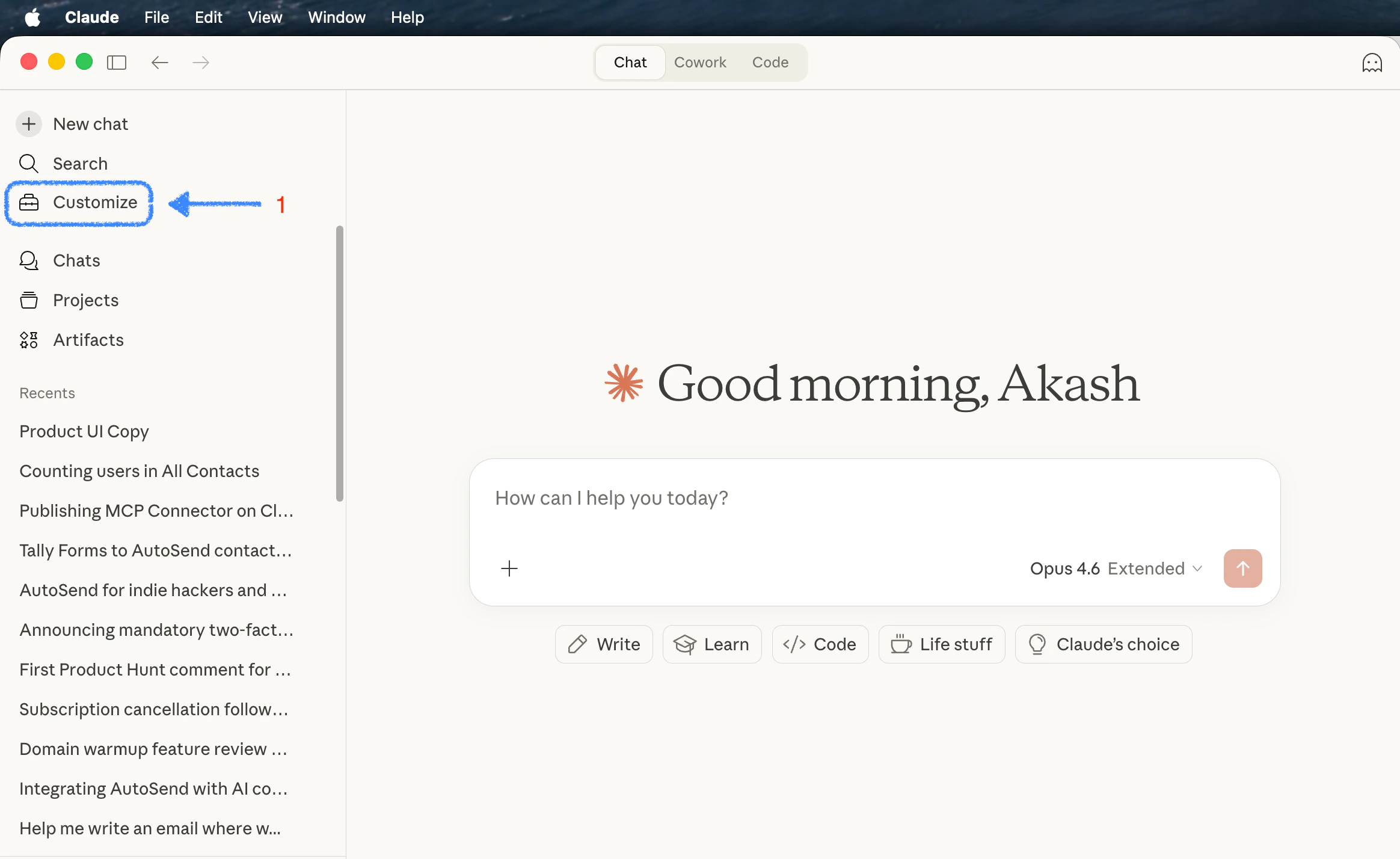
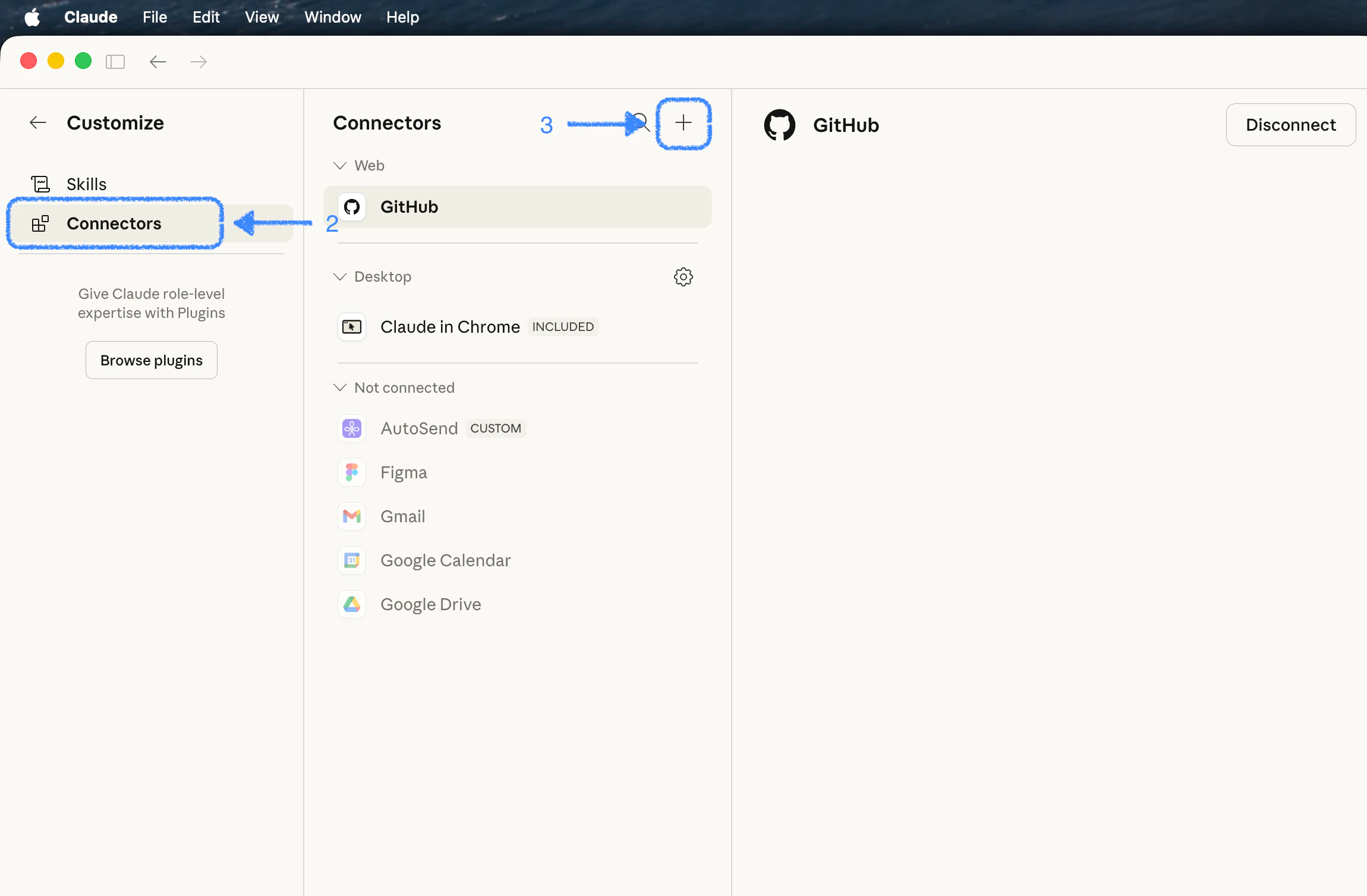
Open Claude Desktop and click **Customize** in the top-left corner, then click **Connectors**.
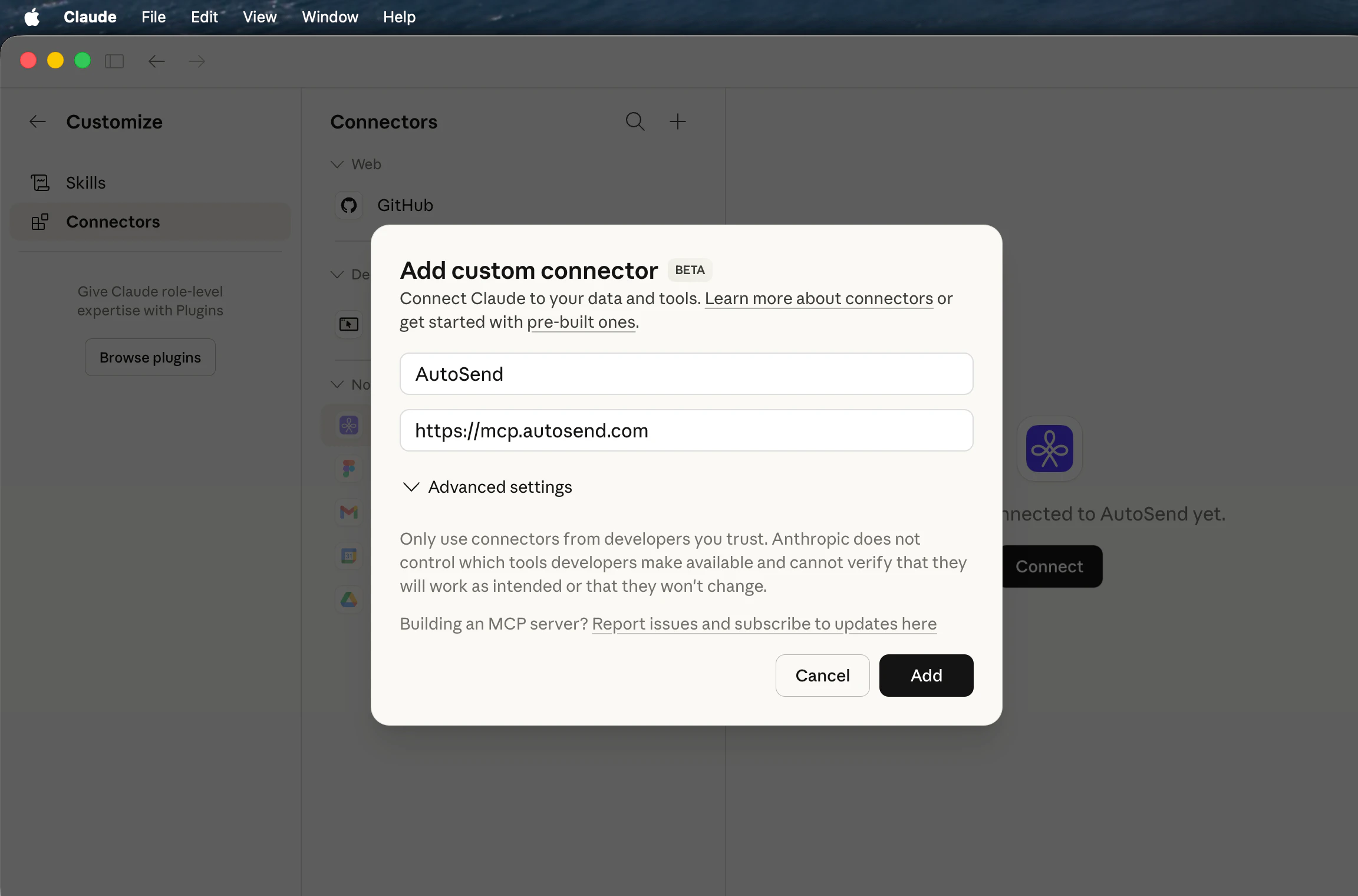
Click the **+** button and select **Add custom connector**.
Enter the name as `AutoSend` and the URL as `https://mcp.autosend.com/`.
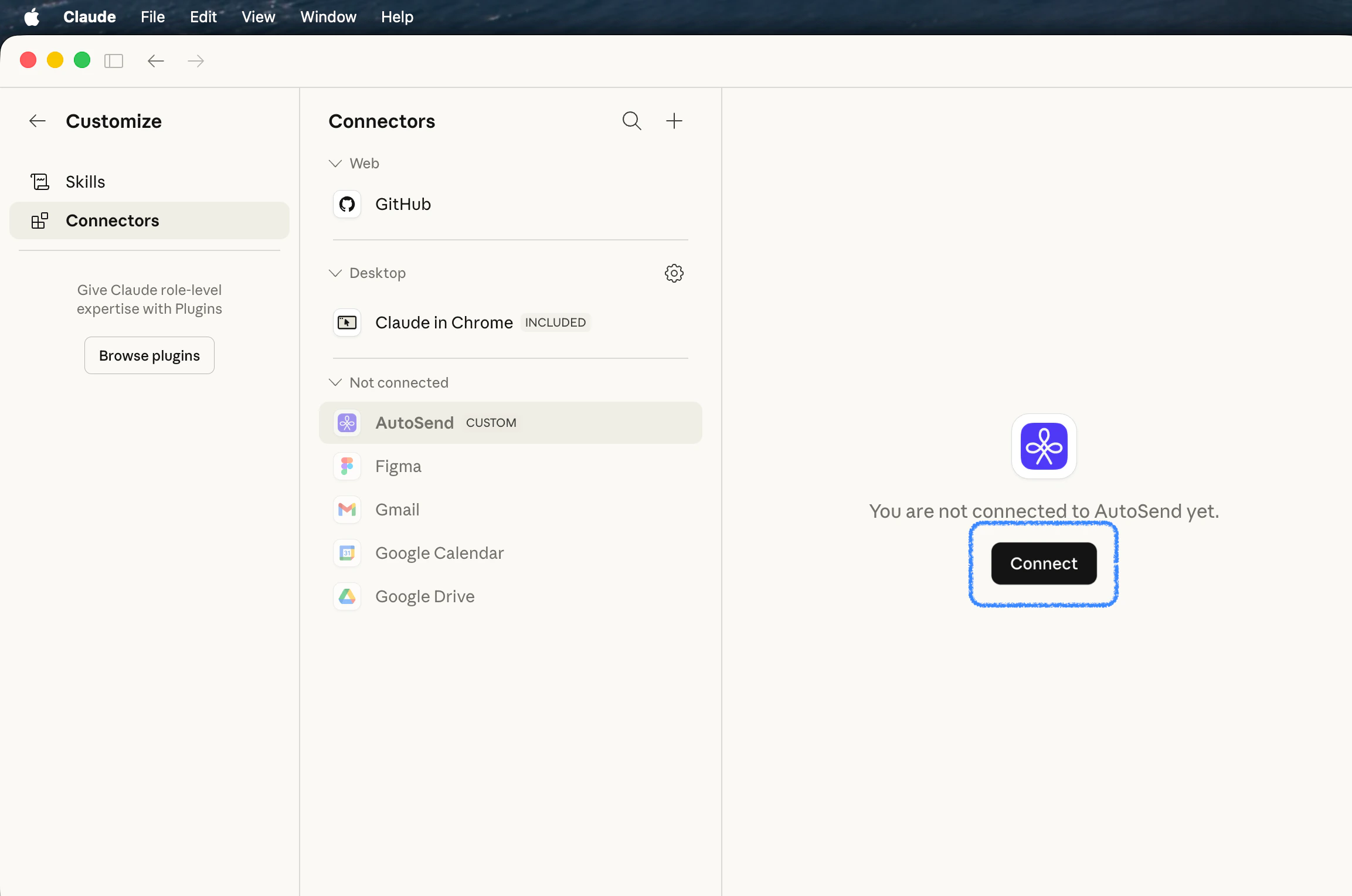
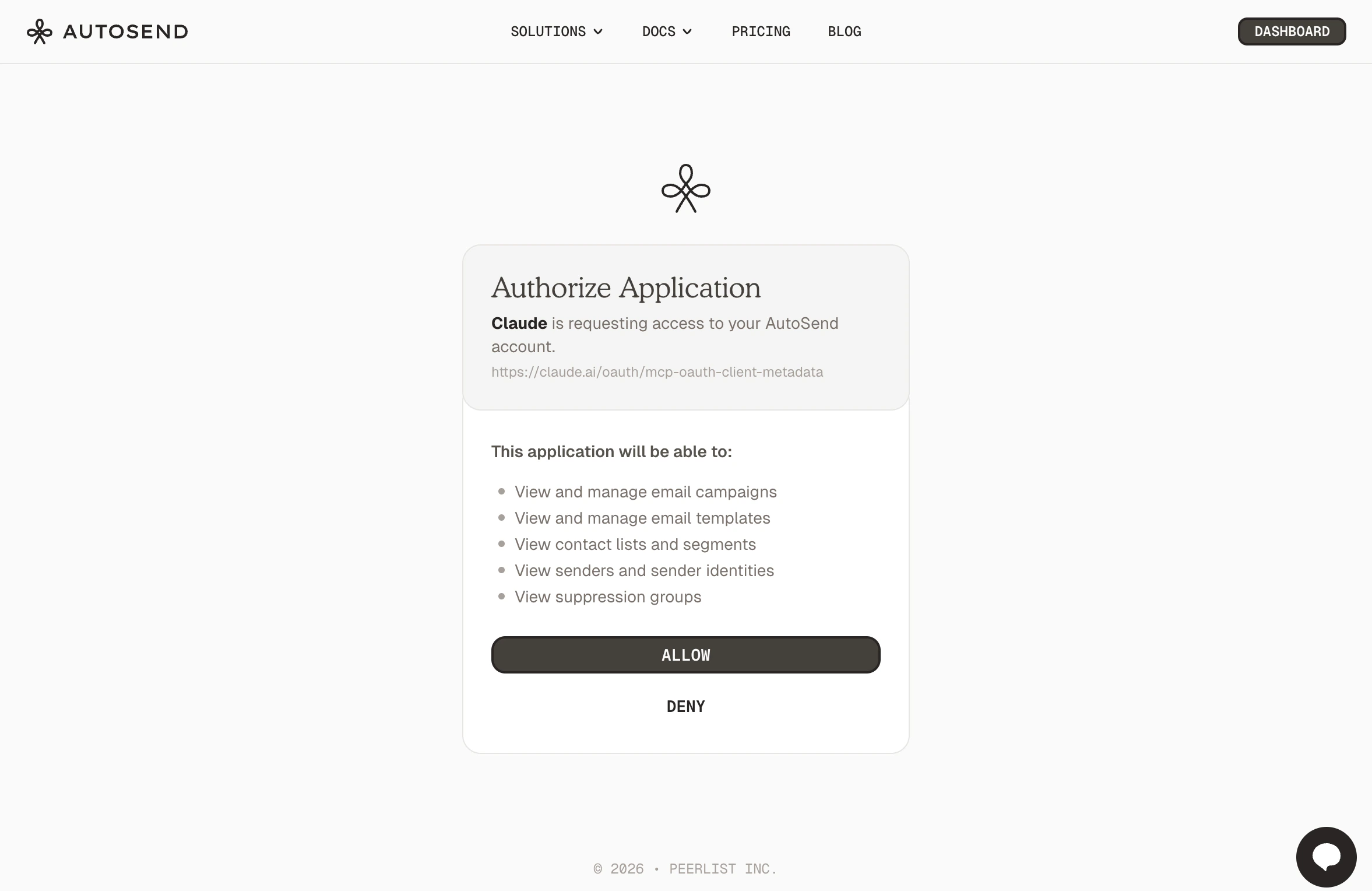
Click on the **Connect** and follow the OAuth prompt to log in to your AutoSend account.
Claude Desktop does not support remote MCP servers via the `claude_desktop_config.json` file. You
must add remote servers through **Connectors**.
## Claude Code
Run the following command in your terminal:
```bash theme={null}
claude mcp add autosend --transport http https://mcp.autosend.com/
```
When you first use the MCP tools, Claude Code will open your browser to authorize the connection with your AutoSend account.
## Next Steps
See all available tools, guided workflows, and examples.
Install skill files for additional AI agent context.
 ## Claude Desktop
We'll start by connecting AutoSend MCP to Claude Desktop, which will allow you to use AutoSend tools and workflows directly within the Claude interface.
## Claude Desktop
We'll start by connecting AutoSend MCP to Claude Desktop, which will allow you to use AutoSend tools and workflows directly within the Claude interface.