> ## Documentation Index
> Fetch the complete documentation index at: https://docs.autosend.com/llms.txt
> Use this file to discover all available pages before exploring further.
# Branching
> Branching lets you send different emails to different contacts within the same automation, based on contact properties or event properties.
export const APP_PATHS = {
home: '/',
quickstart: '/quickstart',
domainConfiguration: '/domain',
apiReference: '/api-reference',
sendEmail: '/api-reference/mails/send',
bulkSendEmail: '/api-reference/mails/bulk',
upsertContactApiRef: '/api-reference/contacts/upsert-contact',
transactional: '/transactional-emails',
emailActivity: '/transactional-emails/email-activity',
emailTemplates: '/transactional-emails/email-templates',
sendingEmail: '/quickstart/email-using-api',
transactionalTroubleshooting: '/transactional-emails/troubleshooting',
marketing: '/marketing-emails',
campaigns: '/marketing-emails/campaigns',
contacts: '/marketing-emails/contacts',
contactsIntroduction: '/marketing-emails/contacts/introduction',
contactsImportCsv: '/marketing-emails/contacts/import-csv',
contactsLists: '/marketing-emails/contacts/lists',
contactsSegments: '/marketing-emails/contacts/segments',
contactsCustomFields: '/marketing-emails/contacts/contact-properties',
contactsContactProperties: '/marketing-emails/contacts/contact-properties',
createContactPropertyApiRef: '/api-reference/contact-properties/create',
listContactPropertiesApiRef: '/api-reference/contact-properties/list',
getContactPropertyApiRef: '/api-reference/contact-properties/get-by-name',
deleteContactPropertyApiRef: '/api-reference/contact-properties/delete',
sender: '/marketing-emails/sender',
unsubscribeGroups: '/others/unsubscribe-groups',
webhookIntroduction: '/others/webhooks/introduction',
webhookEventType: '/others/webhooks/event-type',
webhookRetries: '/others/webhooks/retries',
webhookVerifyRequests: '/others/webhooks/verify-requests',
dynamicTemplates: '/dynamic-templates',
guides: '/guides',
sitemap: '/sitemap.xml',
team: '/others/team',
automations: '/automations',
events: '/automations/events',
sendEventApi: '/api-reference/events/send-event',
smtpIntroduction: '/quickstart/smtp',
betterAuth: '/guides/better-auth',
convexGuide: '/guides/convex',
templateVariables: '/transactional-emails/variables',
suppressions: '/others/suppressions',
rateLimit: '/api-reference/rate-limit',
nodejsSdk: '/sdk/nodejs',
smtpIntegrationGuides: '/guides/smtp',
apiKeys: '/api-keys',
encryptedPayloads: '/others/encrypted-payloads',
apiReferenceIntroduction: '/api-reference/introduction',
lovableGuide: '/ai/integrations/lovable',
aiIntroduction: '/ai/introduction',
aiSkills: '/ai/skills',
aiMcpServer: '/ai/mcp-server',
aiLovable: '/ai/integrations/lovable',
aiBolt: '/ai/integrations/bolt',
aiV0: '/ai/integrations/v0',
aiReplit: '/ai/integrations/replit',
mcpClaude: '/ai/mcp-clients/claude',
mcpCursor: '/ai/mcp-clients/cursor',
mcpCopilot: '/ai/mcp-clients/copilot',
mcpWindsurf: '/ai/mcp-clients/windsurf',
mcpCodex: '/ai/mcp-clients/codex',
mcpAntigravity: '/ai/mcp-clients/antigravity',
mcpChatgpt: '/ai/mcp-clients/chatgpt',
mcpRaycast: '/ai/mcp-clients/raycast',
domainWarmup: '/marketing-emails/domain-warmup',
projects: '/projects',
createAutomationApi: '/api-reference/automations/create-automation',
migrationSendgrid: '/migration/sendgrid',
migrationResend: '/migration/resend',
auth0CustomAction: '/guides/auth0-custom-action',
accountBilling: '/others/account/billing',
accountUsage: '/others/account/usage',
inboundIntroduction: '/inbound/introduction',
listInboundMessagesApi: '/api-reference/inbound-emails/list-messages',
getInboundMessageApi: '/api-reference/inbound-emails/get-message',
downloadInboundAttachmentApi: '/api-reference/inbound-emails/download-attachment',
replyToInboundMessageApi: '/api-reference/inbound-emails/reply-to-message',
wikiDailySendingLimit: '/wiki/daily-sending-limit'
};
## What is branching in AutoSend?
By default, every contact in an automation receives the same emails in the same order. Branching lets you change that. You define separate paths inside a single automation, and each path has its own conditions, emails, and timing. When a contact reaches a branch, AutoSend checks their properties and sends them down every path they match.
This means you can handle multiple cases without building separate automations for each one. A new user on a free plan and a new user on a paid plan can both enter the same automation, but from the branch onwards, each receives emails written specifically for them.
## How to branch your automations
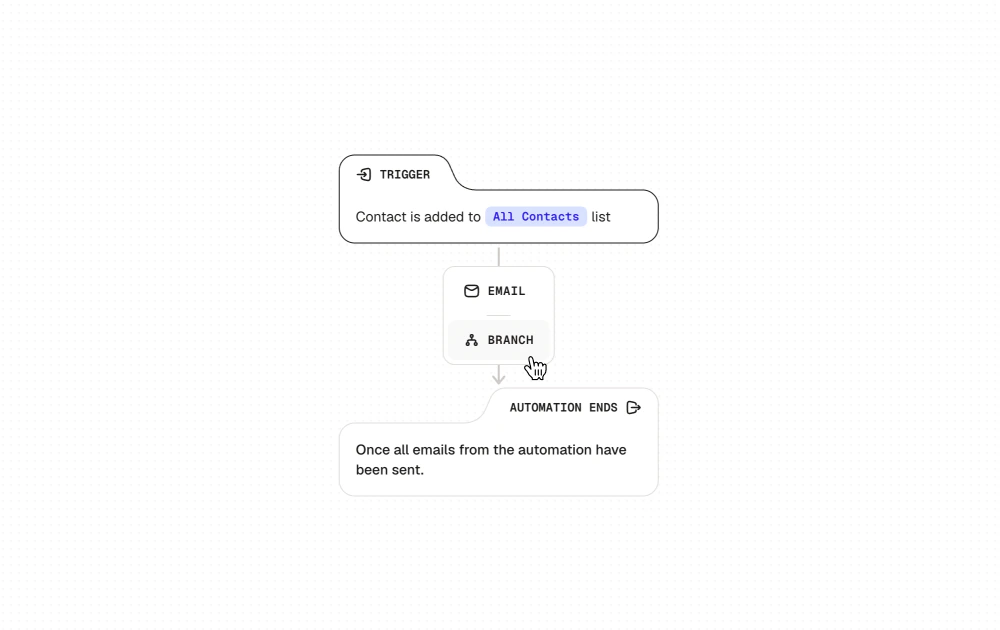
Click the **+** button below any email in your automation. This gives you two options: **Add Email** or **Create Branch**. Select **Create Branch**.
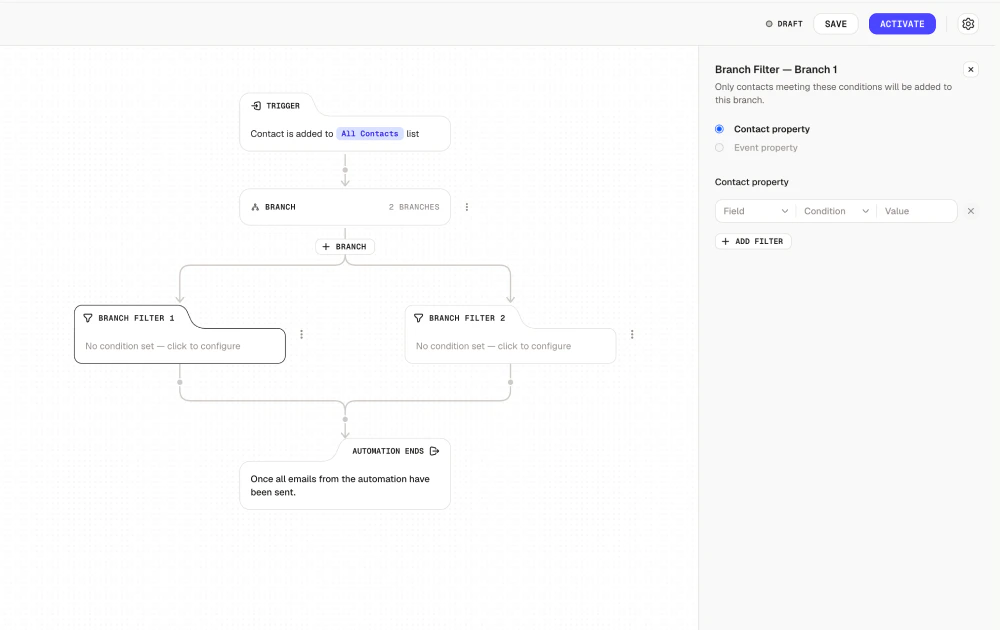
 Click on a **Branch Filter** to open the condition panel. Each lane supports two filter modes:
* **Contact property** - filter on a property stored on the contact record (default).
* **Event property** - filter on a property from the event that started the automation. Only available when the automation's entry trigger is **Event Received**.
### Contact property
Select **Contact property**, then set the field, condition, and value.
Click on a **Branch Filter** to open the condition panel. Each lane supports two filter modes:
* **Contact property** - filter on a property stored on the contact record (default).
* **Event property** - filter on a property from the event that started the automation. Only available when the automation's entry trigger is **Event Received**.
### Contact property
Select **Contact property**, then set the field, condition, and value.
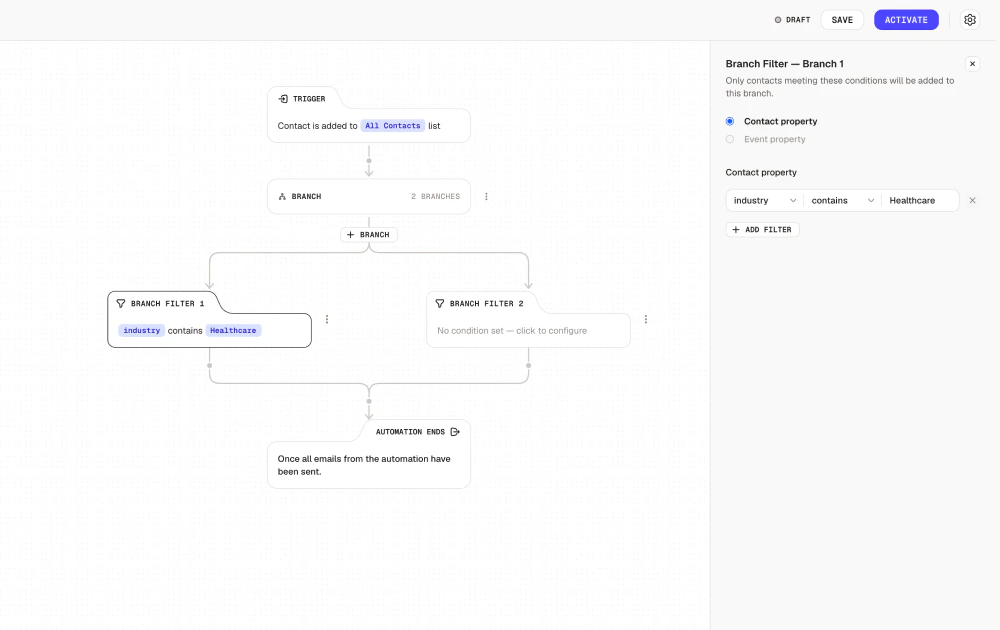
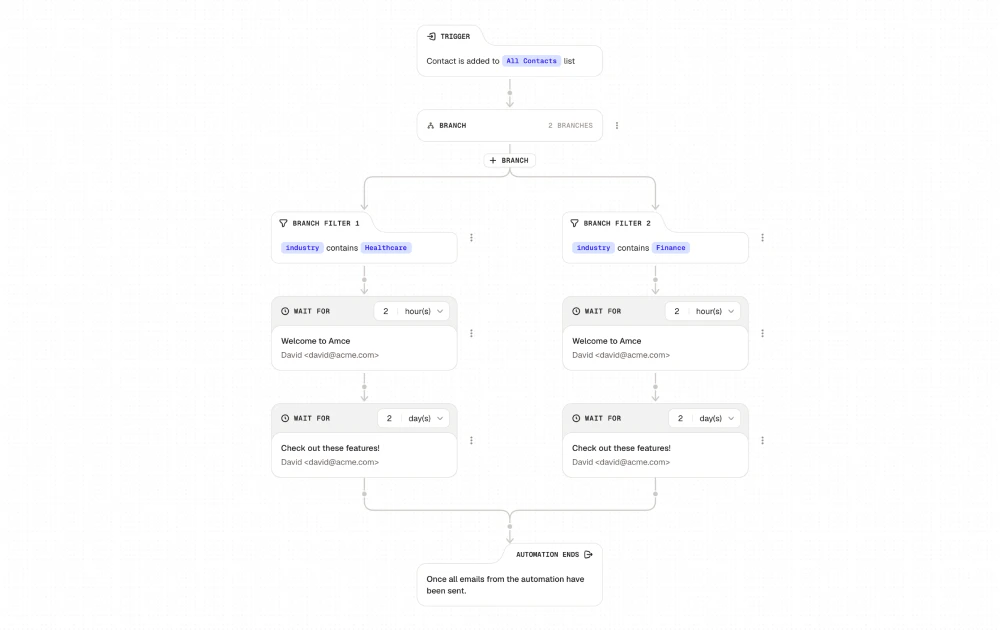
 For example, to route contacts by industry:
* Branch Filter 1: `industry` contains `Healthcare`
* Branch Filter 2: `industry` contains `Finance`
For example, to route contacts by industry:
* Branch Filter 1: `industry` contains `Healthcare`
* Branch Filter 2: `industry` contains `Finance`
 Click **+ Add Filter** to add more conditions to the same branch. Use **AND** / **OR** to combine them:
* **AND** - contact must match all conditions
* **OR** - contact must match at least one condition
Property values are case-sensitive. `Healthcare` and `healthcare` are treated as different values.
### Event property
When your automation's trigger is **Event Received**, you can branch on the data carried in the event itself instead of the contact record. Select **Event property** in the filter mode.
Click **+ Add Filter** to add more conditions to the same branch. Use **AND** / **OR** to combine them:
* **AND** - contact must match all conditions
* **OR** - contact must match at least one condition
Property values are case-sensitive. `Healthcare` and `healthcare` are treated as different values.
### Event property
When your automation's trigger is **Event Received**, you can branch on the data carried in the event itself instead of the contact record. Select **Event property** in the filter mode.
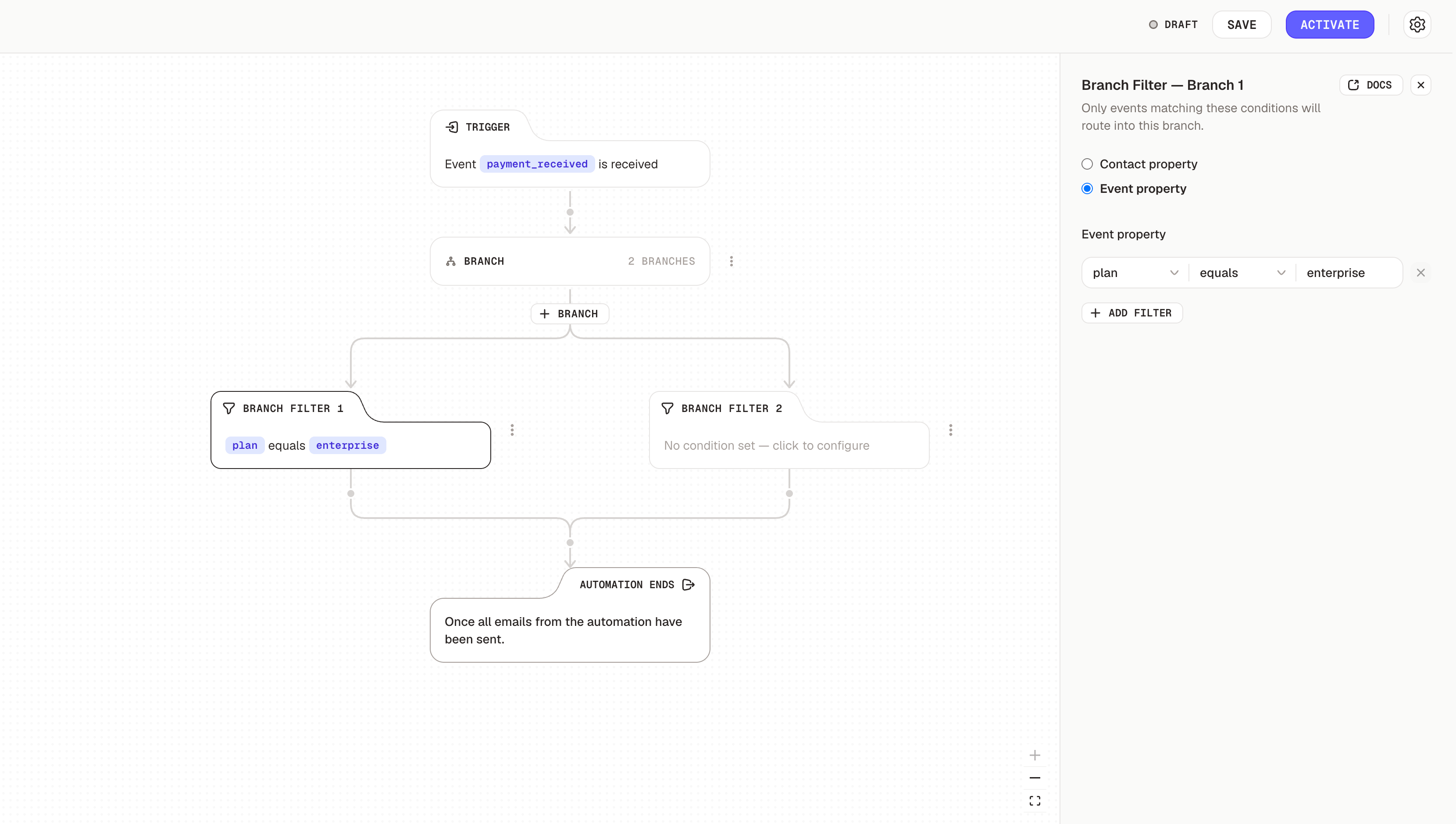 The **Property** dropdown lists the properties declared on the entry event (e.g. `country`, `plan`, `amount`) rather than the contact's custom fields. Operators and value inputs work the same as for contact properties, and are matched per property type (string, number, date, or boolean).
For example, on an automation triggered by `order_completed`:
* Branch Filter 1: `order_total` greater than `100`
* Branch Filter 2: `order_total` less than or equal to `100`
The lane header copy changes to reflect the new mode: *"Only events matching these conditions will route into this branch."*
**Event property** is only enabled when the automation's entry trigger is **Event Received**. On other trigger types it appears disabled with a tooltip explaining the requirement.
Switching a lane between **Contact property** and **Event property** clears that lane's existing filter, because the field universes don't overlap. Set the mode first, then build the filter.
#### Suggested values for string properties
If you defined **suggested values** for a string property on the event (see Events), the value input becomes a combobox: pick an existing suggestion from the dropdown, or type a brand-new value and select **Use '…'** to apply it.
The **Property** dropdown lists the properties declared on the entry event (e.g. `country`, `plan`, `amount`) rather than the contact's custom fields. Operators and value inputs work the same as for contact properties, and are matched per property type (string, number, date, or boolean).
For example, on an automation triggered by `order_completed`:
* Branch Filter 1: `order_total` greater than `100`
* Branch Filter 2: `order_total` less than or equal to `100`
The lane header copy changes to reflect the new mode: *"Only events matching these conditions will route into this branch."*
**Event property** is only enabled when the automation's entry trigger is **Event Received**. On other trigger types it appears disabled with a tooltip explaining the requirement.
Switching a lane between **Contact property** and **Event property** clears that lane's existing filter, because the field universes don't overlap. Set the mode first, then build the filter.
#### Suggested values for string properties
If you defined **suggested values** for a string property on the event (see Events), the value input becomes a combobox: pick an existing suggestion from the dropdown, or type a brand-new value and select **Use '…'** to apply it.
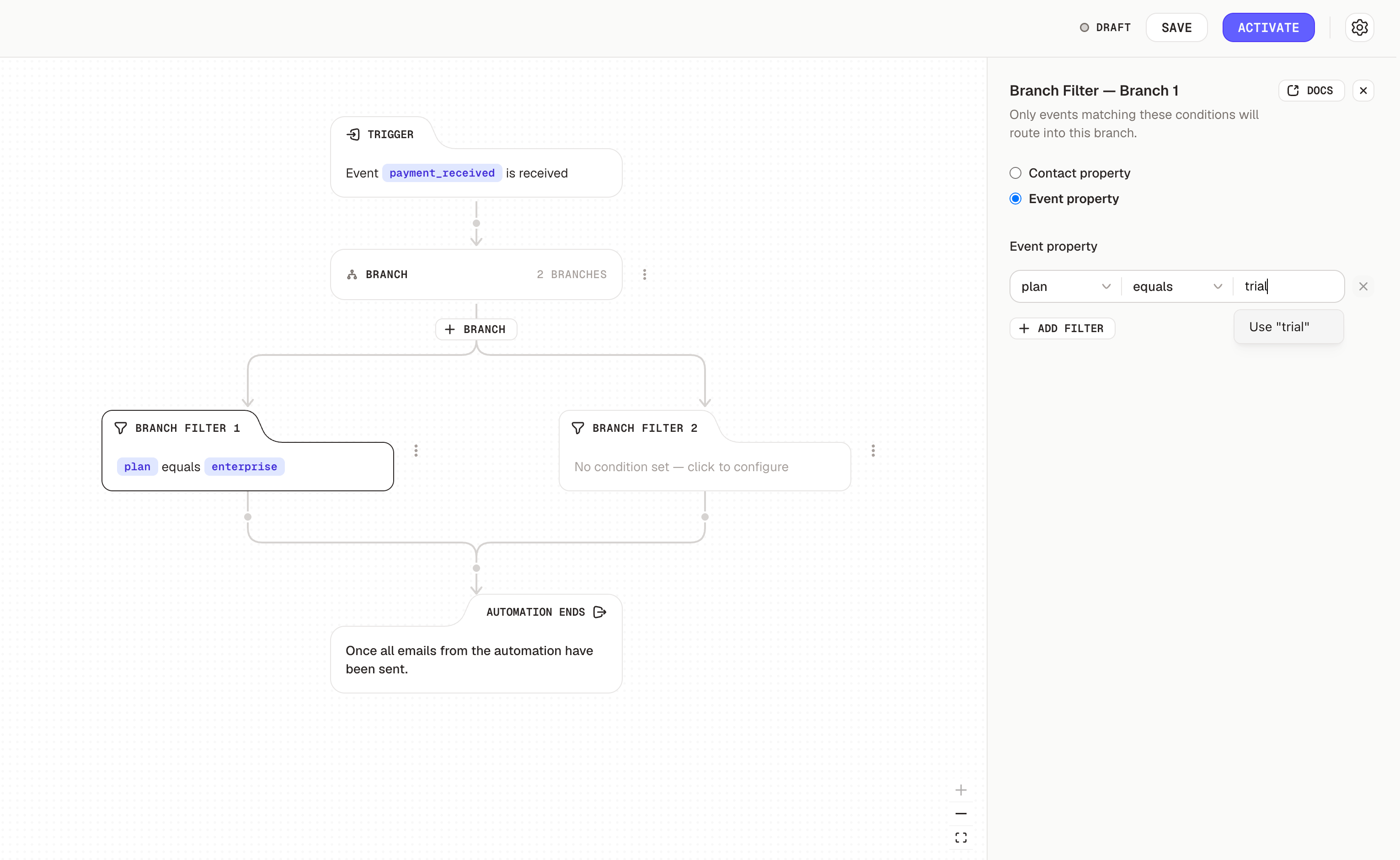 New values typed through **Use '…'** are saved back to the event definition automatically, so the next person editing a filter on that property sees them as existing options without having to edit the event.
Once your filters are set, click **Add Email** inside each branch to build out that path's sequence. Each branch has its own **Wait For** timing, so you can space emails out differently per audience.
New values typed through **Use '…'** are saved back to the event definition automatically, so the next person editing a filter on that property sees them as existing options without having to edit the event.
Once your filters are set, click **Add Email** inside each branch to build out that path's sequence. Each branch has its own **Wait For** timing, so you can space emails out differently per audience.
 ### **Adding more branches**
Click **+ Branch** below the Branch node to add more paths. You can create upto 10 branches in an automation.
### **Adding more branches**
Click **+ Branch** below the Branch node to add more paths. You can create upto 10 branches in an automation.
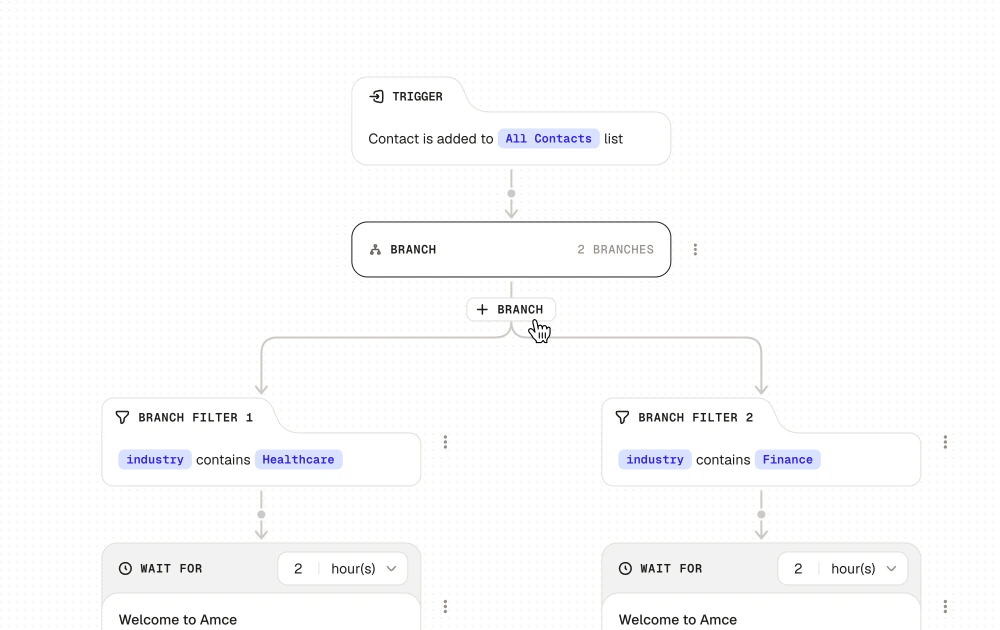 Branches are prioritized from left to right. A contact enters the first branch they match and won’t be checked against any remaining branches after that. If you have multiple branches, make sure to order them with the important conditions first.
## Use cases
* **Free vs. paid users** - Show different features or CTAs based on a contact's plan
* **Role-based content** - Send engineers to API guides and marketers to campaign tips based on their `role`
* **Industry-specific emails** - Share relevant case studies based on a contact's `industry`
* **Regional content** - Deliver localized messaging based on `region`
* **Onboarding by product** - Guide contacts through different setup flows depending on which product they signed up for
* **Trial expiry** - Send a different automation to contacts whose trial is expiring soon vs. those who still have time left
* **Company size** - Tailor emails for individual users vs. teams vs. enterprise accounts based on `company_size`
* **Signup source** - Follow up differently depending on whether a contact came from a demo, a referral, or organic signup
* **Order value (event property)** - On an automation triggered by `order_completed`, route high-value orders to a VIP thank-you and lower-value orders to a standard receipt sequence
* **Plan picked at signup (event property)** - On a `signup_completed` event carrying a `plan` property, send each plan into its own onboarding
Branches are prioritized from left to right. A contact enters the first branch they match and won’t be checked against any remaining branches after that. If you have multiple branches, make sure to order them with the important conditions first.
## Use cases
* **Free vs. paid users** - Show different features or CTAs based on a contact's plan
* **Role-based content** - Send engineers to API guides and marketers to campaign tips based on their `role`
* **Industry-specific emails** - Share relevant case studies based on a contact's `industry`
* **Regional content** - Deliver localized messaging based on `region`
* **Onboarding by product** - Guide contacts through different setup flows depending on which product they signed up for
* **Trial expiry** - Send a different automation to contacts whose trial is expiring soon vs. those who still have time left
* **Company size** - Tailor emails for individual users vs. teams vs. enterprise accounts based on `company_size`
* **Signup source** - Follow up differently depending on whether a contact came from a demo, a referral, or organic signup
* **Order value (event property)** - On an automation triggered by `order_completed`, route high-value orders to a VIP thank-you and lower-value orders to a standard receipt sequence
* **Plan picked at signup (event property)** - On a `signup_completed` event carrying a `plan` property, send each plan into its own onboarding