> ## Documentation Index
> Fetch the complete documentation index at: https://docs.autosend.com/llms.txt
> Use this file to discover all available pages before exploring further.
# Events
> Events are actions from your app, like signups or purchases, that you can use to trigger automations, create segments, and more.
export const AUTOSEND_PATHS = {
dashboard: 'https://autosend.com/dashboard',
apiKey: 'https://autosend.com/account/api-key',
faqs: 'https://autosend.com/faq',
marketingEmails: 'https://autosend.com/marketing-emails',
webhooks: 'https://autosend.com/webhooks',
composeByAutoSend: 'https://autosend.com/compose',
emailActivity: 'https://autosend.com/email-activities',
team: 'https://autosend.com/settings/team',
pricing: 'https://autosend.com/pricing',
verifyEmail: 'https://autosend.com/compose/email-builder?template=verify-email',
welcomeEmail: 'https://autosend.com/compose/email-builder?template=welcome-email',
productUpdate: 'https://autosend.com/compose/email-builder?template=product-update',
newsletter: 'https://autosend.com/compose/email-builder?template=newsletter',
automations: 'https://autosend.com/automations',
globalSuppressions: 'https://autosend.com/suppressions/global',
signup: 'https://autosend.com/signup',
domains: 'https://autosend.com/settings/domains',
smtpKey: 'https://autosend.com/settings/smtp',
logoKit: 'https://asend.email/logo',
contactsPage: 'https://autosend.com/contacts/list-and-segments',
accountBilling: 'https://autosend.com/account/billing',
accountUsage: 'https://autosend.com/account/usage',
terms: 'https://autosend.com/legal/terms',
inbound: 'https://autosend.com/email-activities/inbound'
};
export const APP_PATHS = {
home: '/',
quickstart: '/quickstart',
domainConfiguration: '/domain',
apiReference: '/api-reference',
sendEmail: '/api-reference/mails/send',
bulkSendEmail: '/api-reference/mails/bulk',
upsertContactApiRef: '/api-reference/contacts/upsert-contact',
transactional: '/transactional-emails',
emailActivity: '/transactional-emails/email-activity',
emailTemplates: '/transactional-emails/email-templates',
sendingEmail: '/quickstart/email-using-api',
transactionalTroubleshooting: '/transactional-emails/troubleshooting',
marketing: '/marketing-emails',
campaigns: '/marketing-emails/campaigns',
contacts: '/marketing-emails/contacts',
contactsIntroduction: '/marketing-emails/contacts/introduction',
contactsImportCsv: '/marketing-emails/contacts/import-csv',
contactsLists: '/marketing-emails/contacts/lists',
contactsSegments: '/marketing-emails/contacts/segments',
contactsCustomFields: '/marketing-emails/contacts/contact-properties',
contactsContactProperties: '/marketing-emails/contacts/contact-properties',
createContactPropertyApiRef: '/api-reference/contact-properties/create',
listContactPropertiesApiRef: '/api-reference/contact-properties/list',
getContactPropertyApiRef: '/api-reference/contact-properties/get-by-name',
deleteContactPropertyApiRef: '/api-reference/contact-properties/delete',
sender: '/marketing-emails/sender',
unsubscribeGroups: '/others/unsubscribe-groups',
webhookIntroduction: '/others/webhooks/introduction',
webhookEventType: '/others/webhooks/event-type',
webhookRetries: '/others/webhooks/retries',
webhookVerifyRequests: '/others/webhooks/verify-requests',
dynamicTemplates: '/dynamic-templates',
guides: '/guides',
sitemap: '/sitemap.xml',
team: '/others/team',
automations: '/automations',
events: '/automations/events',
sendEventApi: '/api-reference/events/send-event',
smtpIntroduction: '/quickstart/smtp',
betterAuth: '/guides/better-auth',
convexGuide: '/guides/convex',
templateVariables: '/transactional-emails/variables',
suppressions: '/others/suppressions',
rateLimit: '/api-reference/rate-limit',
nodejsSdk: '/sdk/nodejs',
smtpIntegrationGuides: '/guides/smtp',
apiKeys: '/api-keys',
encryptedPayloads: '/others/encrypted-payloads',
apiReferenceIntroduction: '/api-reference/introduction',
lovableGuide: '/ai/integrations/lovable',
aiIntroduction: '/ai/introduction',
aiSkills: '/ai/skills',
aiMcpServer: '/ai/mcp-server',
aiLovable: '/ai/integrations/lovable',
aiBolt: '/ai/integrations/bolt',
aiV0: '/ai/integrations/v0',
aiReplit: '/ai/integrations/replit',
mcpClaude: '/ai/mcp-clients/claude',
mcpCursor: '/ai/mcp-clients/cursor',
mcpCopilot: '/ai/mcp-clients/copilot',
mcpWindsurf: '/ai/mcp-clients/windsurf',
mcpCodex: '/ai/mcp-clients/codex',
mcpAntigravity: '/ai/mcp-clients/antigravity',
mcpChatgpt: '/ai/mcp-clients/chatgpt',
mcpRaycast: '/ai/mcp-clients/raycast',
domainWarmup: '/marketing-emails/domain-warmup',
projects: '/projects',
createAutomationApi: '/api-reference/automations/create-automation',
migrationSendgrid: '/migration/sendgrid',
migrationResend: '/migration/resend',
auth0CustomAction: '/guides/auth0-custom-action',
accountBilling: '/others/account/billing',
accountUsage: '/others/account/usage',
inboundIntroduction: '/inbound/introduction',
listInboundMessagesApi: '/api-reference/inbound-emails/list-messages',
getInboundMessageApi: '/api-reference/inbound-emails/get-message',
downloadInboundAttachmentApi: '/api-reference/inbound-emails/download-attachment',
replyToInboundMessageApi: '/api-reference/inbound-emails/reply-to-message',
wikiDailySendingLimit: '/wiki/daily-sending-limit'
};
Custom events are point-in-time signals you send to AutoSend from your application. Unlike contact properties, which describe a contact's current state, events describe something that just happened, and they can carry a typed payload (order total, plan name, country) that your automations can react to.
Use events when you want to:
* Trigger an automation the moment something happens (a signup, a purchase, a cart abandon).
* Branch contacts inside an automation based on data from the event itself, not from the contact record.
## What is an event?
An event definition belongs to a project and consists of:
* An **event name** (e.g. `order_completed`, `signup_completed`). Names are unique within a project and cannot be renamed once created.
* An optional **description**.
* A **property schema**: zero or more properties, each with a name and a type. Supported types are `string`, `number`, `date`, and `boolean`.
Properties of type `string` can optionally declare **suggested values**, a short list of expected values (e.g. `USD`, `EUR`, `GBP`). Suggested values power the dropdown shown in branch filters and grow automatically as new values are used (see Branching).
## Create an event
From your project dashboard, open the **Events** page from the left navigation.
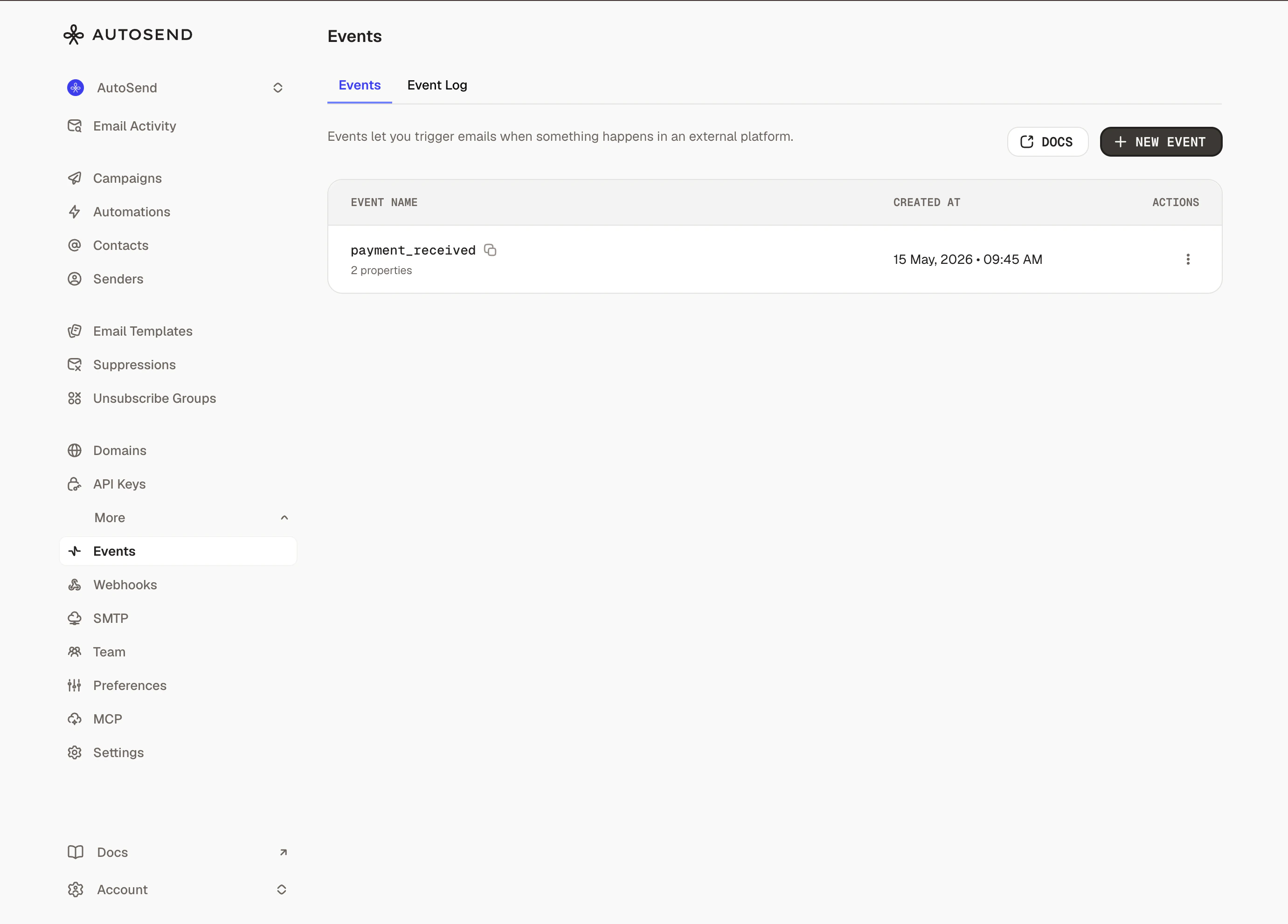 The Events page is part of the marketing feature set. On transactional-only projects, you'll see an upgrade prompt instead.
Click **New Event**, then enter an **Event Name** (e.g. `order_completed`) and an optional description. Event names should be lowercase and use underscores for readability.
The Events page is part of the marketing feature set. On transactional-only projects, you'll see an upgrade prompt instead.
Click **New Event**, then enter an **Event Name** (e.g. `order_completed`) and an optional description. Event names should be lowercase and use underscores for readability.
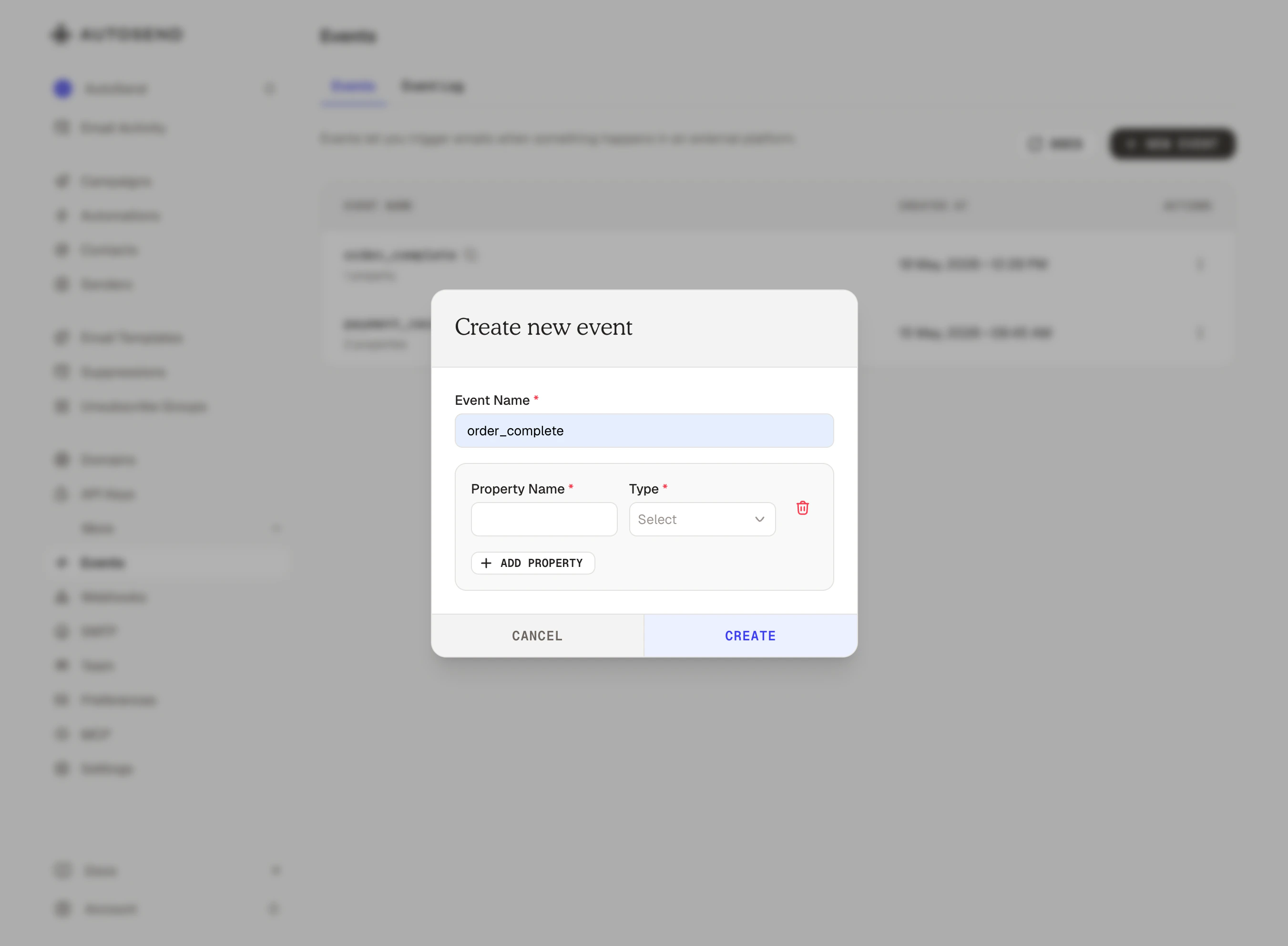 For each property you plan to send with the event, add a row with:
* **Property Name** (e.g. `order_total`, `currency`, `plan`).
* **Type**: `string`, `number`, `date`, or `boolean`.
* **Description** (optional).
* **Suggested values** (string properties only): expected values for the property.
For each property you plan to send with the event, add a row with:
* **Property Name** (e.g. `order_total`, `currency`, `plan`).
* **Type**: `string`, `number`, `date`, or `boolean`.
* **Description** (optional).
* **Suggested values** (string properties only): expected values for the property.
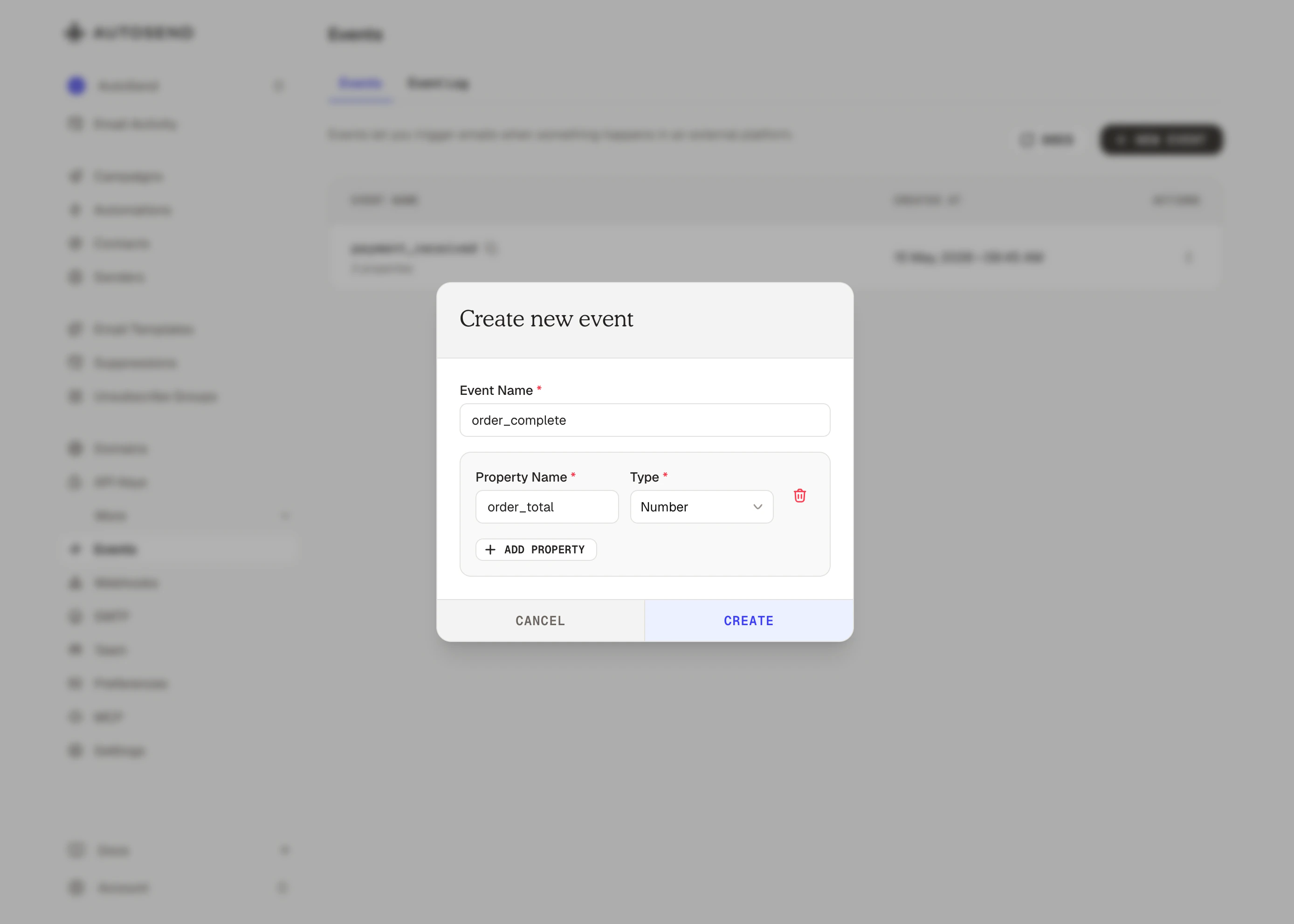 Once an event is referenced by an automation, its property names and types are locked to prevent breaking saved branch filters. You can still extend the schema by adding new properties, and you can keep editing suggested values.
Click **Save**. The event is now available to send from your application and to select as a trigger inside an automation.
## Send an event
Once defined, send an event from your backend using the Send Event API. Identify the contact with either `email` or `contactId` (one is required), and pass the property values in `eventProperties`.
```bash cURL theme={null}
curl --request POST \
--url https://api.autosend.com/v1/events/send \
--header 'Authorization: Bearer AS_your-project-api-key' \
--header 'Content-Type: application/json' \
--data '{
"eventName": "order_completed",
"email": "jane@example.com",
"eventProperties": {
"order_total": 129.50,
"currency": "USD"
}
}'
```
```javascript JavaScript theme={null}
await fetch('https://api.autosend.com/v1/events/send', {
method: 'POST',
headers: {
Authorization: 'Bearer AS_your-project-api-key',
'Content-Type': 'application/json',
},
body: JSON.stringify({
eventName: 'order_completed',
email: 'jane@example.com',
eventProperties: {
order_total: 129.5,
currency: 'USD',
},
}),
});
```
```python Python theme={null}
import requests
requests.post(
"https://api.autosend.com/v1/events/send",
headers={
"Authorization": "Bearer AS_your-project-api-key",
"Content-Type": "application/json",
},
json={
"eventName": "order_completed",
"email": "jane@example.com",
"eventProperties": {
"order_total": 129.50,
"currency": "USD",
},
},
)
```
You can identify the contact by `email` **or** `contactId`. Use `contactId` when you already have
the AutoSend contact ID stored in your application; it skips the email lookup and is the
recommended choice for high-volume event sources.
Example using `contactId`:
```json theme={null}
{
"eventName": "order_completed",
"contactId": "60d5ec49f1b2c72d9c8b8888",
"eventProperties": {
"order_total": 129.5,
"currency": "USD"
}
}
```
See the Send Event API reference for the full request schema, error codes, and language-specific examples.
## Events vs. contact properties
Both can drive automations, but they answer different questions:
* **Contact properties** describe who a contact is right now (`plan`, `country`, `verified`). They persist on the contact record. Use them when the trigger or branch logic depends on the contact's current state.
* **Events** describe what just happened, with a payload attached (`order_completed` with an `order_total`). They aren't stored on the contact. Use them when the trigger or branch logic depends on a specific occurrence and the data that came with it.
A common pattern is to use an event to start an automation, then branch on a property of that event, so a single automation can fan out (for example, different cart-recovery emails based on `cart_value`).
## Use events in automations
Once you've defined and started sending an event, you can:
* Trigger an automation from an event, so a sequence
starts the moment the event is received.
* Branch on event properties, so contacts
entering an event-triggered automation are routed by the data carried in the event.
Once an event is referenced by an automation, its property names and types are locked to prevent breaking saved branch filters. You can still extend the schema by adding new properties, and you can keep editing suggested values.
Click **Save**. The event is now available to send from your application and to select as a trigger inside an automation.
## Send an event
Once defined, send an event from your backend using the Send Event API. Identify the contact with either `email` or `contactId` (one is required), and pass the property values in `eventProperties`.
```bash cURL theme={null}
curl --request POST \
--url https://api.autosend.com/v1/events/send \
--header 'Authorization: Bearer AS_your-project-api-key' \
--header 'Content-Type: application/json' \
--data '{
"eventName": "order_completed",
"email": "jane@example.com",
"eventProperties": {
"order_total": 129.50,
"currency": "USD"
}
}'
```
```javascript JavaScript theme={null}
await fetch('https://api.autosend.com/v1/events/send', {
method: 'POST',
headers: {
Authorization: 'Bearer AS_your-project-api-key',
'Content-Type': 'application/json',
},
body: JSON.stringify({
eventName: 'order_completed',
email: 'jane@example.com',
eventProperties: {
order_total: 129.5,
currency: 'USD',
},
}),
});
```
```python Python theme={null}
import requests
requests.post(
"https://api.autosend.com/v1/events/send",
headers={
"Authorization": "Bearer AS_your-project-api-key",
"Content-Type": "application/json",
},
json={
"eventName": "order_completed",
"email": "jane@example.com",
"eventProperties": {
"order_total": 129.50,
"currency": "USD",
},
},
)
```
You can identify the contact by `email` **or** `contactId`. Use `contactId` when you already have
the AutoSend contact ID stored in your application; it skips the email lookup and is the
recommended choice for high-volume event sources.
Example using `contactId`:
```json theme={null}
{
"eventName": "order_completed",
"contactId": "60d5ec49f1b2c72d9c8b8888",
"eventProperties": {
"order_total": 129.5,
"currency": "USD"
}
}
```
See the Send Event API reference for the full request schema, error codes, and language-specific examples.
## Events vs. contact properties
Both can drive automations, but they answer different questions:
* **Contact properties** describe who a contact is right now (`plan`, `country`, `verified`). They persist on the contact record. Use them when the trigger or branch logic depends on the contact's current state.
* **Events** describe what just happened, with a payload attached (`order_completed` with an `order_total`). They aren't stored on the contact. Use them when the trigger or branch logic depends on a specific occurrence and the data that came with it.
A common pattern is to use an event to start an automation, then branch on a property of that event, so a single automation can fan out (for example, different cart-recovery emails based on `cart_value`).
## Use events in automations
Once you've defined and started sending an event, you can:
* Trigger an automation from an event, so a sequence
starts the moment the event is received.
* Branch on event properties, so contacts
entering an event-triggered automation are routed by the data carried in the event.