> ## Documentation Index
> Fetch the complete documentation index at: https://docs.autosend.com/llms.txt
> Use this file to discover all available pages before exploring further.
# Send emails from Auth0 with a Custom Email Provider Action
> Use the AutoSend API to deliver Auth0 authentication emails when SMTP is not an option.
export const APP_PATHS = {
home: '/',
quickstart: '/quickstart',
domainConfiguration: '/domain',
apiReference: '/api-reference',
sendEmail: '/api-reference/mails/send',
bulkSendEmail: '/api-reference/mails/bulk',
upsertContactApiRef: '/api-reference/contacts/upsert-contact',
transactional: '/transactional-emails',
emailActivity: '/transactional-emails/email-activity',
emailTemplates: '/transactional-emails/email-templates',
sendingEmail: '/quickstart/email-using-api',
transactionalTroubleshooting: '/transactional-emails/troubleshooting',
marketing: '/marketing-emails',
campaigns: '/marketing-emails/campaigns',
contacts: '/marketing-emails/contacts',
contactsIntroduction: '/marketing-emails/contacts/introduction',
contactsImportCsv: '/marketing-emails/contacts/import-csv',
contactsLists: '/marketing-emails/contacts/lists',
contactsSegments: '/marketing-emails/contacts/segments',
contactsCustomFields: '/marketing-emails/contacts/contact-properties',
contactsContactProperties: '/marketing-emails/contacts/contact-properties',
createContactPropertyApiRef: '/api-reference/contact-properties/create',
listContactPropertiesApiRef: '/api-reference/contact-properties/list',
getContactPropertyApiRef: '/api-reference/contact-properties/get-by-name',
deleteContactPropertyApiRef: '/api-reference/contact-properties/delete',
sender: '/marketing-emails/sender',
unsubscribeGroups: '/others/unsubscribe-groups',
webhookIntroduction: '/others/webhooks/introduction',
webhookEventType: '/others/webhooks/event-type',
webhookRetries: '/others/webhooks/retries',
webhookVerifyRequests: '/others/webhooks/verify-requests',
dynamicTemplates: '/dynamic-templates',
guides: '/guides',
sitemap: '/sitemap.xml',
team: '/others/team',
automations: '/automations',
events: '/automations/events',
sendEventApi: '/api-reference/events/send-event',
smtpIntroduction: '/quickstart/smtp',
betterAuth: '/guides/better-auth',
convexGuide: '/guides/convex',
templateVariables: '/transactional-emails/variables',
suppressions: '/others/suppressions',
rateLimit: '/api-reference/rate-limit',
nodejsSdk: '/sdk/nodejs',
smtpIntegrationGuides: '/guides/smtp',
apiKeys: '/api-keys',
encryptedPayloads: '/others/encrypted-payloads',
apiReferenceIntroduction: '/api-reference/introduction',
lovableGuide: '/ai/integrations/lovable',
aiIntroduction: '/ai/introduction',
aiSkills: '/ai/skills',
aiMcpServer: '/ai/mcp-server',
aiLovable: '/ai/integrations/lovable',
aiBolt: '/ai/integrations/bolt',
aiV0: '/ai/integrations/v0',
aiReplit: '/ai/integrations/replit',
mcpClaude: '/ai/mcp-clients/claude',
mcpCursor: '/ai/mcp-clients/cursor',
mcpCopilot: '/ai/mcp-clients/copilot',
mcpWindsurf: '/ai/mcp-clients/windsurf',
mcpCodex: '/ai/mcp-clients/codex',
mcpAntigravity: '/ai/mcp-clients/antigravity',
mcpChatgpt: '/ai/mcp-clients/chatgpt',
mcpRaycast: '/ai/mcp-clients/raycast',
domainWarmup: '/marketing-emails/domain-warmup',
projects: '/projects',
createAutomationApi: '/api-reference/automations/create-automation',
migrationSendgrid: '/migration/sendgrid',
migrationResend: '/migration/resend',
auth0CustomAction: '/guides/auth0-custom-action',
accountBilling: '/others/account/billing',
accountUsage: '/others/account/usage',
inboundIntroduction: '/inbound/introduction',
listInboundMessagesApi: '/api-reference/inbound-emails/list-messages',
getInboundMessageApi: '/api-reference/inbound-emails/get-message',
downloadInboundAttachmentApi: '/api-reference/inbound-emails/download-attachment',
replyToInboundMessageApi: '/api-reference/inbound-emails/reply-to-message',
wikiDailySendingLimit: '/wiki/daily-sending-limit'
};
export const AUTOSEND_PATHS = {
dashboard: 'https://autosend.com/dashboard',
apiKey: 'https://autosend.com/account/api-key',
faqs: 'https://autosend.com/faq',
marketingEmails: 'https://autosend.com/marketing-emails',
webhooks: 'https://autosend.com/webhooks',
composeByAutoSend: 'https://autosend.com/compose',
emailActivity: 'https://autosend.com/email-activities',
team: 'https://autosend.com/settings/team',
pricing: 'https://autosend.com/pricing',
verifyEmail: 'https://autosend.com/compose/email-builder?template=verify-email',
welcomeEmail: 'https://autosend.com/compose/email-builder?template=welcome-email',
productUpdate: 'https://autosend.com/compose/email-builder?template=product-update',
newsletter: 'https://autosend.com/compose/email-builder?template=newsletter',
automations: 'https://autosend.com/automations',
globalSuppressions: 'https://autosend.com/suppressions/global',
signup: 'https://autosend.com/signup',
domains: 'https://autosend.com/settings/domains',
smtpKey: 'https://autosend.com/settings/smtp',
logoKit: 'https://asend.email/logo',
contactsPage: 'https://autosend.com/contacts/list-and-segments',
accountBilling: 'https://autosend.com/account/billing',
accountUsage: 'https://autosend.com/account/usage',
terms: 'https://autosend.com/legal/terms',
inbound: 'https://autosend.com/email-activities/inbound'
};
 If SMTP isn't working for your Auth0 tenant, or you'd rather call the AutoSend API directly, you can configure Auth0's [Custom Email Provider Action](https://auth0.com/docs/customize/email/smtp-email-providers/custom/configure-action) to send authentication emails through the AutoSend Send Mail API.
## Prerequisites
Make sure you have a verified domain added in AutoSend to send emails from.
Create a new API key for the Custom Action or use an existing one.
## Configuration
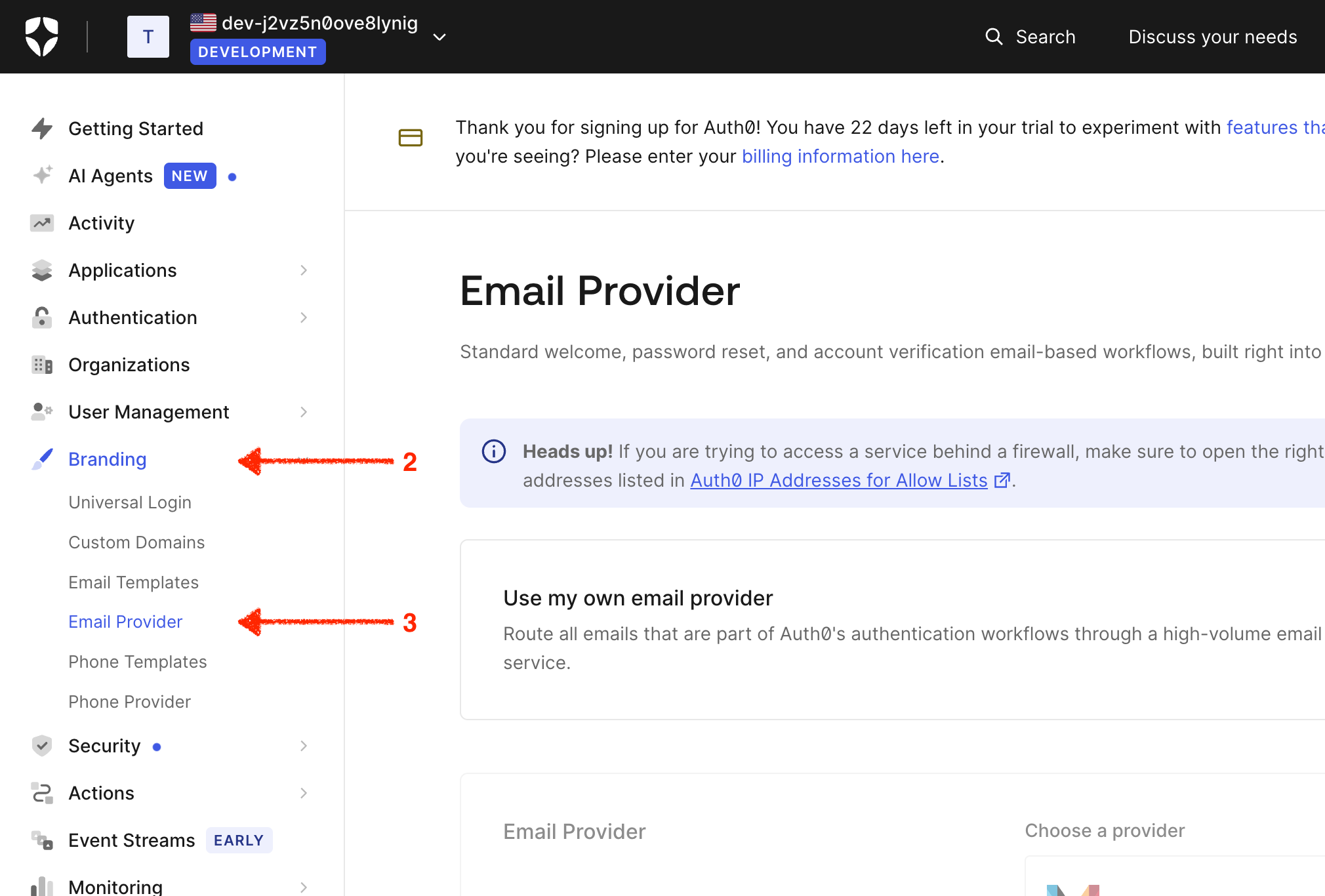
1. Log in to your [Auth0 Dashboard](https://manage.auth0.com/)
2. Go to **Branding** in the sidebar
3. Click on **Email Provider**
If SMTP isn't working for your Auth0 tenant, or you'd rather call the AutoSend API directly, you can configure Auth0's [Custom Email Provider Action](https://auth0.com/docs/customize/email/smtp-email-providers/custom/configure-action) to send authentication emails through the AutoSend Send Mail API.
## Prerequisites
Make sure you have a verified domain added in AutoSend to send emails from.
Create a new API key for the Custom Action or use an existing one.
## Configuration
1. Log in to your [Auth0 Dashboard](https://manage.auth0.com/)
2. Go to **Branding** in the sidebar
3. Click on **Email Provider**
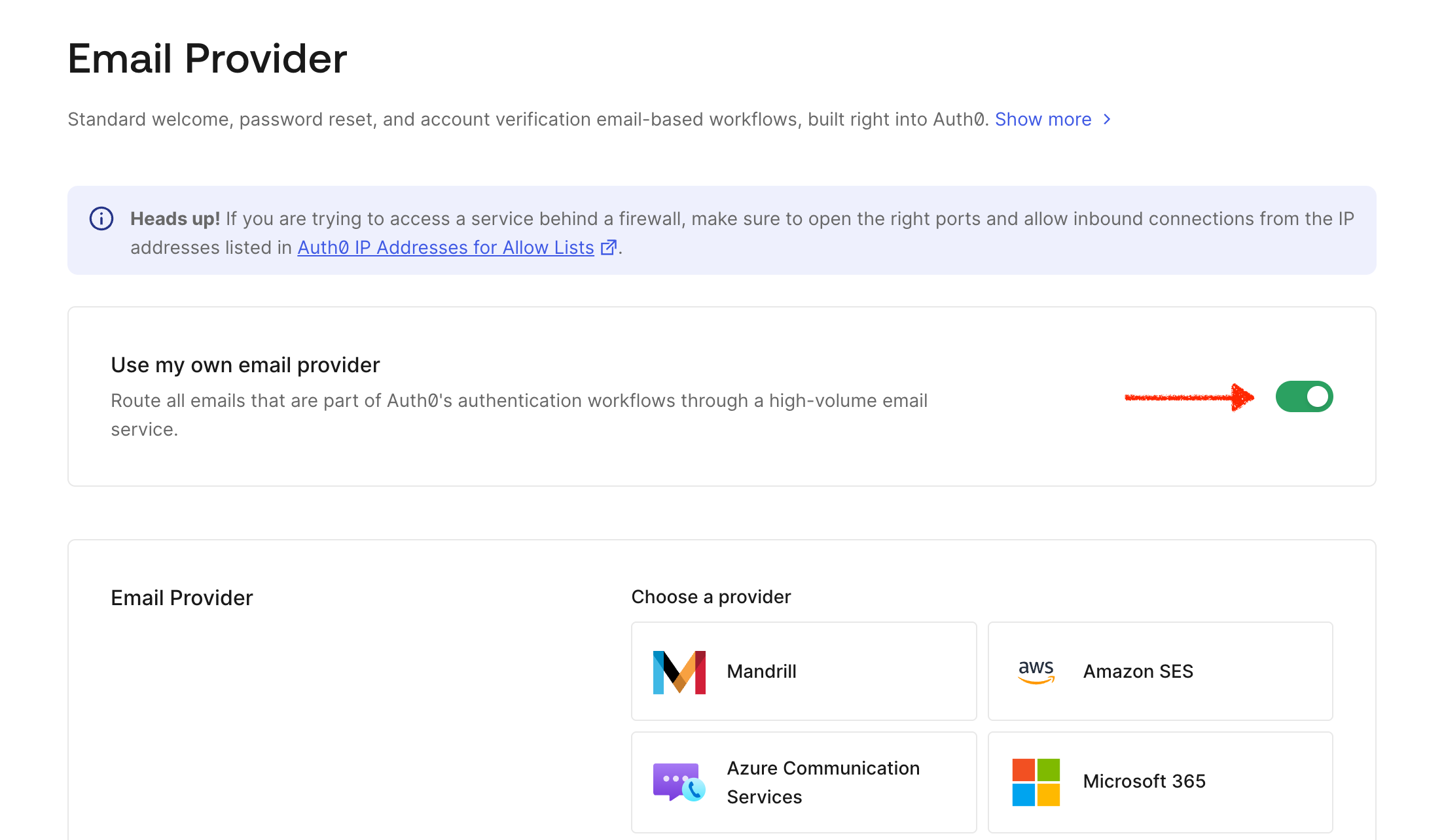
 Toggle **Use my own email provider** to enable the custom provider configuration.
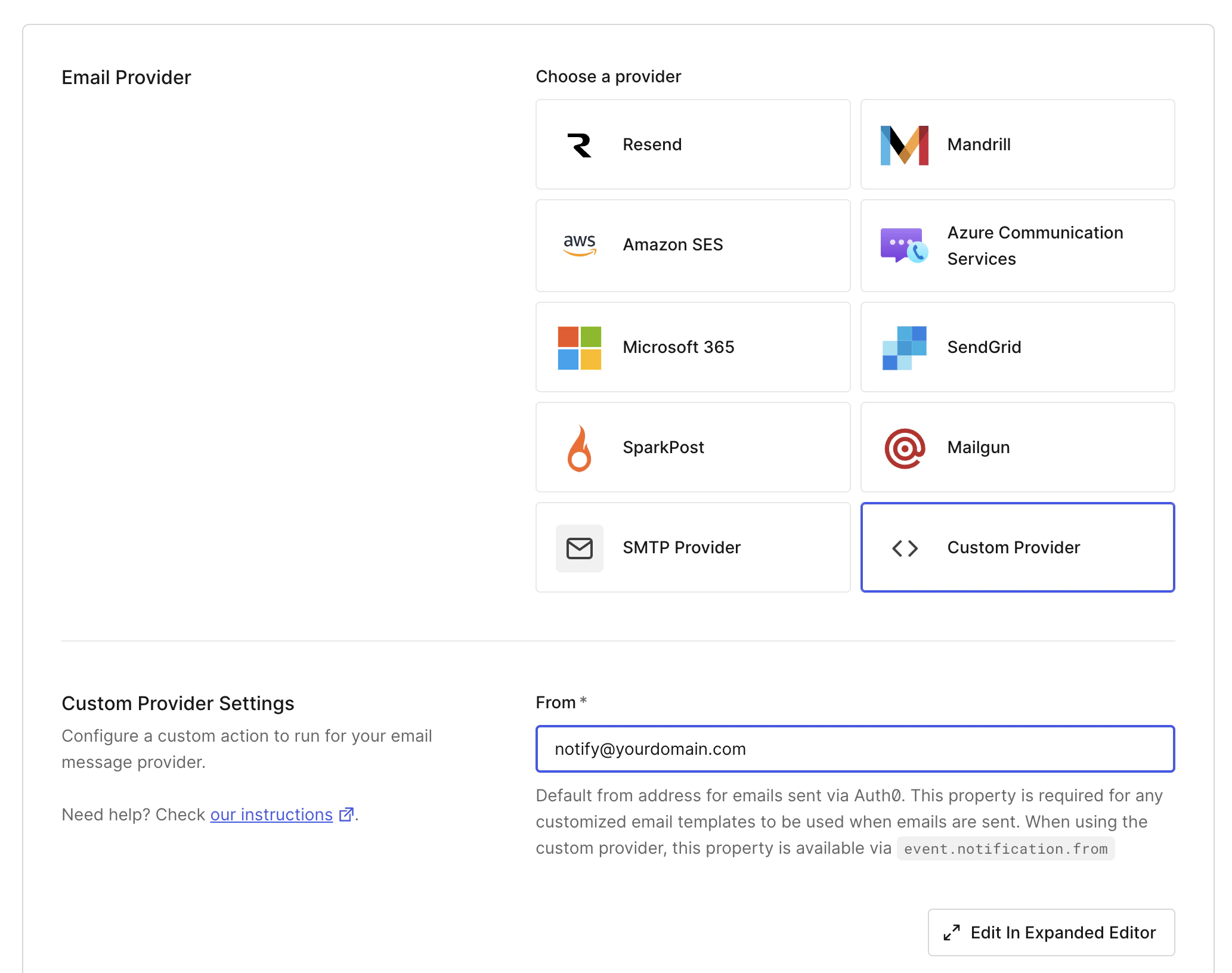
 Select **Custom Provider** as your email provider type. Auth0 will create a Custom Email Provider Action that runs every time an authentication email needs to be sent.
 Replace the default action code with the snippet below. It forwards every Auth0 notification to the AutoSend Send Mail API.
```javascript Auth0 Custom Email Provider Action theme={null}
exports.onExecuteCustomEmailProvider = async (event, api) => {
const { notification } = event;
try {
const response = await fetch('https://api.autosend.com/v1/mails/send', {
method: 'POST',
headers: {
'Authorization': `Bearer ${event.secrets.AUTOSEND_API_KEY}`,
'Content-Type': 'application/json'
},
body: JSON.stringify({
from: {
name: 'AutoSend',
email: notification.from || 'no-reply@yourdomain.com',
},
to: { email: notification.to || event.user.email || 'receiver@yourdomain.com' },
subject: notification.subject,
html: notification.html,
text: notification.text
})
});
if (!response.ok) {
const error = await response.text();
api.notification.drop(`Send failed: ${error}`);
return;
}
} catch (error) {
console.error(`Error sending email: ${error.message}`);
api.notification.drop(`An unexpected error occurred. Error: ${error.message}`);
}
};
```
Update the `from.email` to an address on your verified domain as a falls back to `notification.from` value which is sent by Auth0.
You'll need an AutoSend API key for the next step. Create one from the API Keys page in your dashboard, or follow the API reference for details on authentication.
In the Action editor, you can click the key icon to add secrets on the left panel and add a new secret named `AUTOSEND_API_KEY` with your AutoSend API key (`AS_xxx`) as the value. The action reads it via `event.secrets.AUTOSEND_API_KEY`.
Replace the default action code with the snippet below. It forwards every Auth0 notification to the AutoSend Send Mail API.
```javascript Auth0 Custom Email Provider Action theme={null}
exports.onExecuteCustomEmailProvider = async (event, api) => {
const { notification } = event;
try {
const response = await fetch('https://api.autosend.com/v1/mails/send', {
method: 'POST',
headers: {
'Authorization': `Bearer ${event.secrets.AUTOSEND_API_KEY}`,
'Content-Type': 'application/json'
},
body: JSON.stringify({
from: {
name: 'AutoSend',
email: notification.from || 'no-reply@yourdomain.com',
},
to: { email: notification.to || event.user.email || 'receiver@yourdomain.com' },
subject: notification.subject,
html: notification.html,
text: notification.text
})
});
if (!response.ok) {
const error = await response.text();
api.notification.drop(`Send failed: ${error}`);
return;
}
} catch (error) {
console.error(`Error sending email: ${error.message}`);
api.notification.drop(`An unexpected error occurred. Error: ${error.message}`);
}
};
```
Update the `from.email` to an address on your verified domain as a falls back to `notification.from` value which is sent by Auth0.
You'll need an AutoSend API key for the next step. Create one from the API Keys page in your dashboard, or follow the API reference for details on authentication.
In the Action editor, you can click the key icon to add secrets on the left panel and add a new secret named `AUTOSEND_API_KEY` with your AutoSend API key (`AS_xxx`) as the value. The action reads it via `event.secrets.AUTOSEND_API_KEY`.
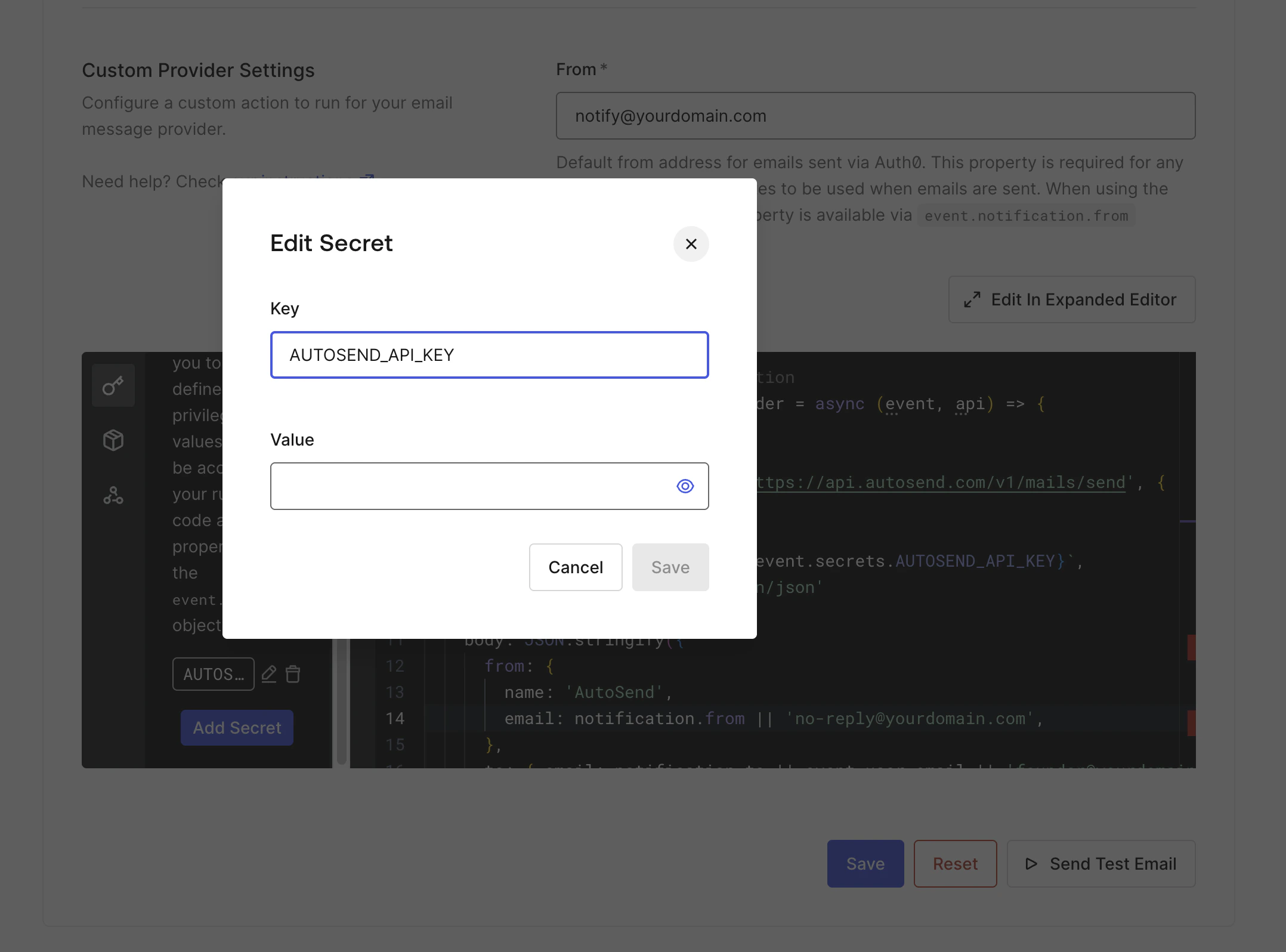 Never paste the API key directly into the action code. Secrets keep the key out of the action source and out of execution logs.
Click **Deploy**/**Save** in the top right of the Action editor to publish your changes. Auth0 will start routing authentication emails through the action immediately.
After saving, click the **Send Test Email** button next to the Save button to send a test email and verify your configuration is working.
The test email is delivered to the address in the **last field** of the `to` json object `'receiver@yourdomain.com'`. The other fields (`notification.from`, `notification.subject`, etc.) are populated by Auth0 with sample values; only the recipient address controls where the message lands.
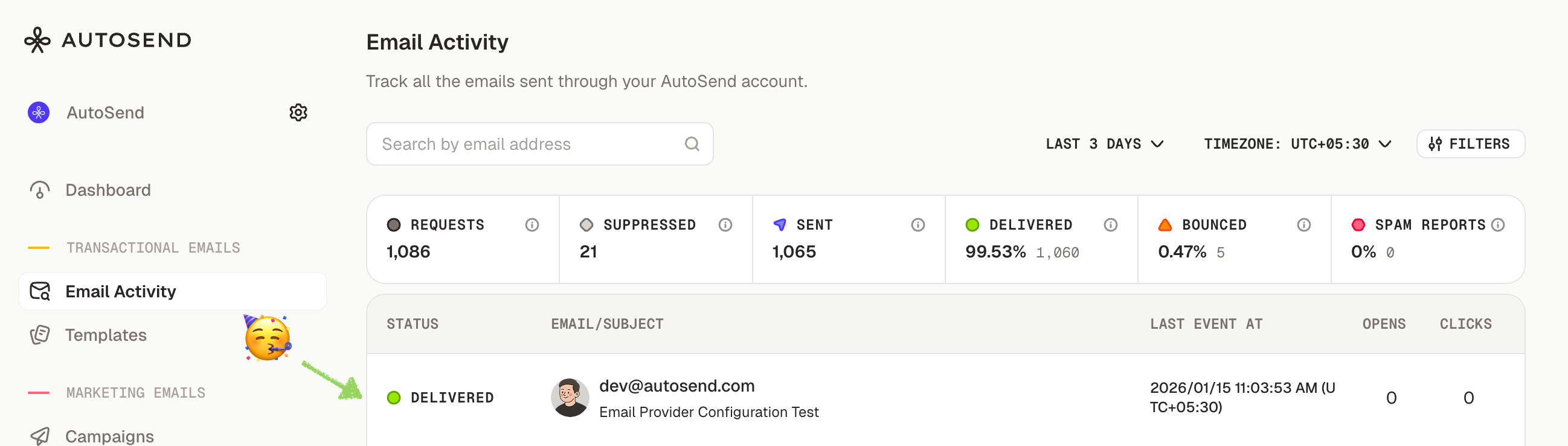
You can also check the Email Activity dashboard to verify the email was sent through AutoSend.
Never paste the API key directly into the action code. Secrets keep the key out of the action source and out of execution logs.
Click **Deploy**/**Save** in the top right of the Action editor to publish your changes. Auth0 will start routing authentication emails through the action immediately.
After saving, click the **Send Test Email** button next to the Save button to send a test email and verify your configuration is working.
The test email is delivered to the address in the **last field** of the `to` json object `'receiver@yourdomain.com'`. The other fields (`notification.from`, `notification.subject`, etc.) are populated by Auth0 with sample values; only the recipient address controls where the message lands.
You can also check the Email Activity dashboard to verify the email was sent through AutoSend.
 ## Viewing Logs
Auth0 captures every Custom Action execution, which is the fastest way to debug send failures.
Go to [Dashboard > Monitoring > Logs](https://manage.auth0.com/#/logs) to view log events for your tenant. See Auth0's [View Log Events](https://auth0.com/docs/deploy-monitor/logs/view-log-events#view-logs) guide for filtering options.
For the Custom Email Provider Action specifically, you can also inspect per-invocation output (including `console.error` and any `api.notification.drop` reasons) from the action editor under **Actions** → **Library** → your action → **Logs** tab.
## Email Templates
Auth0 still owns the email content when you use a Custom Action - the action only delivers what Auth0 hands you in `notification.subject`, `notification.html`, and `notification.text`. To customize the content, edit the templates under **Branding** → **Email Templates**:
* **Verification Email** - Sent when users need to verify their email address
* **Welcome Email** - Sent after successful signup
* **Change Password** - Sent for password reset requests
* **Blocked Account** - Sent when an account is blocked
* **Passwordless Email** - Sent for passwordless authentication (magic links/codes)
Auth0 email templates use Liquid syntax for dynamic content. Variables like `{{ user.email }}` and `{{ url }}` are replaced with actual values before the rendered HTML reaches your action.
## Troubleshooting
AutoSend rejects sends from unverified domains. Update the `from.email` in the action to an address on a domain you've verified in Domain Settings.
The `AUTOSEND_API_KEY` secret is missing, misspelled, or revoked. Re-check the secret name in the action and confirm the key is active in your API Keys dashboard.
1. Check the action **Logs** tab for `Send failed` entries.
2. Look up the recipient in the Email Activity dashboard.
3. Confirm the address isn't in Suppressions.
Only the last field of Auth0's test form controls the recipient. The other fields are sample values used to populate `notification.*` and don't change where the message is sent.
## Next Steps
Set up SPF, DKIM, and DMARC for better deliverability
Monitor your email delivery and engagement
Set up webhooks to track email events in real-time
Reference for the AutoSend Send Mail endpoint used by the action
## Viewing Logs
Auth0 captures every Custom Action execution, which is the fastest way to debug send failures.
Go to [Dashboard > Monitoring > Logs](https://manage.auth0.com/#/logs) to view log events for your tenant. See Auth0's [View Log Events](https://auth0.com/docs/deploy-monitor/logs/view-log-events#view-logs) guide for filtering options.
For the Custom Email Provider Action specifically, you can also inspect per-invocation output (including `console.error` and any `api.notification.drop` reasons) from the action editor under **Actions** → **Library** → your action → **Logs** tab.
## Email Templates
Auth0 still owns the email content when you use a Custom Action - the action only delivers what Auth0 hands you in `notification.subject`, `notification.html`, and `notification.text`. To customize the content, edit the templates under **Branding** → **Email Templates**:
* **Verification Email** - Sent when users need to verify their email address
* **Welcome Email** - Sent after successful signup
* **Change Password** - Sent for password reset requests
* **Blocked Account** - Sent when an account is blocked
* **Passwordless Email** - Sent for passwordless authentication (magic links/codes)
Auth0 email templates use Liquid syntax for dynamic content. Variables like `{{ user.email }}` and `{{ url }}` are replaced with actual values before the rendered HTML reaches your action.
## Troubleshooting
AutoSend rejects sends from unverified domains. Update the `from.email` in the action to an address on a domain you've verified in Domain Settings.
The `AUTOSEND_API_KEY` secret is missing, misspelled, or revoked. Re-check the secret name in the action and confirm the key is active in your API Keys dashboard.
1. Check the action **Logs** tab for `Send failed` entries.
2. Look up the recipient in the Email Activity dashboard.
3. Confirm the address isn't in Suppressions.
Only the last field of Auth0's test form controls the recipient. The other fields are sample values used to populate `notification.*` and don't change where the message is sent.
## Next Steps
Set up SPF, DKIM, and DMARC for better deliverability
Monitor your email delivery and engagement
Set up webhooks to track email events in real-time
Reference for the AutoSend Send Mail endpoint used by the action