> ## Documentation Index
> Fetch the complete documentation index at: https://docs.autosend.com/llms.txt
> Use this file to discover all available pages before exploring further.
# How to send emails from Auth0 with SMTP
> Configure Auth0 to send authentication emails through AutoSend SMTP.
export const APP_PATHS = {
home: '/',
quickstart: '/quickstart',
domainConfiguration: '/domain',
apiReference: '/api-reference',
sendEmail: '/api-reference/mails/send',
bulkSendEmail: '/api-reference/mails/bulk',
upsertContactApiRef: '/api-reference/contacts/upsert-contact',
transactional: '/transactional-emails',
emailActivity: '/transactional-emails/email-activity',
emailTemplates: '/transactional-emails/email-templates',
sendingEmail: '/quickstart/email-using-api',
transactionalTroubleshooting: '/transactional-emails/troubleshooting',
marketing: '/marketing-emails',
campaigns: '/marketing-emails/campaigns',
contacts: '/marketing-emails/contacts',
contactsIntroduction: '/marketing-emails/contacts/introduction',
contactsImportCsv: '/marketing-emails/contacts/import-csv',
contactsLists: '/marketing-emails/contacts/lists',
contactsSegments: '/marketing-emails/contacts/segments',
contactsCustomFields: '/marketing-emails/contacts/contact-properties',
contactsContactProperties: '/marketing-emails/contacts/contact-properties',
createContactPropertyApiRef: '/api-reference/contact-properties/create',
listContactPropertiesApiRef: '/api-reference/contact-properties/list',
getContactPropertyApiRef: '/api-reference/contact-properties/get-by-name',
deleteContactPropertyApiRef: '/api-reference/contact-properties/delete',
sender: '/marketing-emails/sender',
unsubscribeGroups: '/others/unsubscribe-groups',
webhookIntroduction: '/others/webhooks/introduction',
webhookEventType: '/others/webhooks/event-type',
webhookRetries: '/others/webhooks/retries',
webhookVerifyRequests: '/others/webhooks/verify-requests',
dynamicTemplates: '/dynamic-templates',
guides: '/guides',
sitemap: '/sitemap.xml',
team: '/others/team',
automations: '/automations',
events: '/automations/events',
sendEventApi: '/api-reference/events/send-event',
smtpIntroduction: '/quickstart/smtp',
betterAuth: '/guides/better-auth',
convexGuide: '/guides/convex',
templateVariables: '/transactional-emails/variables',
suppressions: '/others/suppressions',
rateLimit: '/api-reference/rate-limit',
nodejsSdk: '/sdk/nodejs',
smtpIntegrationGuides: '/guides/smtp',
apiKeys: '/api-keys',
encryptedPayloads: '/others/encrypted-payloads',
apiReferenceIntroduction: '/api-reference/introduction',
lovableGuide: '/ai/integrations/lovable',
aiIntroduction: '/ai/introduction',
aiSkills: '/ai/skills',
aiMcpServer: '/ai/mcp-server',
aiLovable: '/ai/integrations/lovable',
aiBolt: '/ai/integrations/bolt',
aiV0: '/ai/integrations/v0',
aiReplit: '/ai/integrations/replit',
mcpClaude: '/ai/mcp-clients/claude',
mcpCursor: '/ai/mcp-clients/cursor',
mcpCopilot: '/ai/mcp-clients/copilot',
mcpWindsurf: '/ai/mcp-clients/windsurf',
mcpCodex: '/ai/mcp-clients/codex',
mcpAntigravity: '/ai/mcp-clients/antigravity',
mcpChatgpt: '/ai/mcp-clients/chatgpt',
mcpRaycast: '/ai/mcp-clients/raycast',
domainWarmup: '/marketing-emails/domain-warmup',
projects: '/projects',
createAutomationApi: '/api-reference/automations/create-automation',
migrationSendgrid: '/migration/sendgrid',
migrationResend: '/migration/resend',
auth0CustomAction: '/guides/auth0-custom-action',
accountBilling: '/others/account/billing',
accountUsage: '/others/account/usage',
inboundIntroduction: '/inbound/introduction',
listInboundMessagesApi: '/api-reference/inbound-emails/list-messages',
getInboundMessageApi: '/api-reference/inbound-emails/get-message',
downloadInboundAttachmentApi: '/api-reference/inbound-emails/download-attachment',
replyToInboundMessageApi: '/api-reference/inbound-emails/reply-to-message',
wikiDailySendingLimit: '/wiki/daily-sending-limit'
};
export const AUTOSEND_PATHS = {
dashboard: 'https://autosend.com/dashboard',
apiKey: 'https://autosend.com/account/api-key',
faqs: 'https://autosend.com/faq',
marketingEmails: 'https://autosend.com/marketing-emails',
webhooks: 'https://autosend.com/webhooks',
composeByAutoSend: 'https://autosend.com/compose',
emailActivity: 'https://autosend.com/email-activities',
team: 'https://autosend.com/settings/team',
pricing: 'https://autosend.com/pricing',
verifyEmail: 'https://autosend.com/compose/email-builder?template=verify-email',
welcomeEmail: 'https://autosend.com/compose/email-builder?template=welcome-email',
productUpdate: 'https://autosend.com/compose/email-builder?template=product-update',
newsletter: 'https://autosend.com/compose/email-builder?template=newsletter',
automations: 'https://autosend.com/automations',
globalSuppressions: 'https://autosend.com/suppressions/global',
signup: 'https://autosend.com/signup',
domains: 'https://autosend.com/settings/domains',
smtpKey: 'https://autosend.com/settings/smtp',
logoKit: 'https://asend.email/logo',
contactsPage: 'https://autosend.com/contacts/list-and-segments',
accountBilling: 'https://autosend.com/account/billing',
accountUsage: 'https://autosend.com/account/usage',
terms: 'https://autosend.com/legal/terms',
inbound: 'https://autosend.com/email-activities/inbound'
};
 Auth0 uses email for authentication flows like password resets, email verification, and passwordless login. By default, Auth0 uses its built-in email provider, but you can configure it to use AutoSend SMTP for better deliverability and email tracking.
If SMTP doesn't work for your Auth0 tenant, you can call the AutoSend API directly from a Custom Email Provider Action instead. See Send emails from Auth0 with a Custom Email Provider Action.
## Prerequisites
Make sure you have a verified domain added in AutoSend to send emails from.
Create a project-specific SMTP key from the SMTP tab in Project Settings.
## Configuration
1. Log in to your [Auth0 Dashboard](https://manage.auth0.com/)
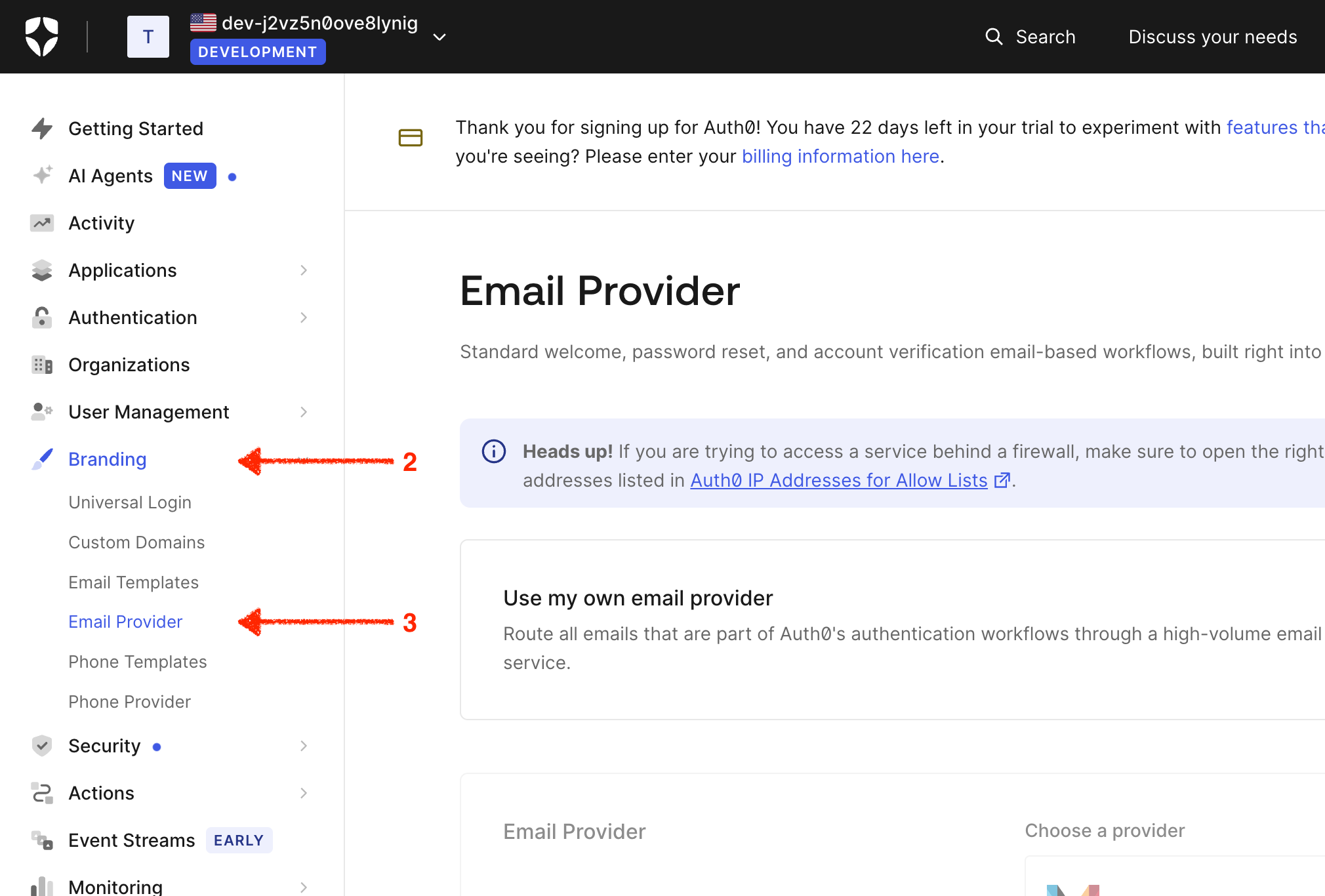
2. Go to **Branding** in the sidebar
3. Click on **Email Provider**
Auth0 uses email for authentication flows like password resets, email verification, and passwordless login. By default, Auth0 uses its built-in email provider, but you can configure it to use AutoSend SMTP for better deliverability and email tracking.
If SMTP doesn't work for your Auth0 tenant, you can call the AutoSend API directly from a Custom Email Provider Action instead. See Send emails from Auth0 with a Custom Email Provider Action.
## Prerequisites
Make sure you have a verified domain added in AutoSend to send emails from.
Create a project-specific SMTP key from the SMTP tab in Project Settings.
## Configuration
1. Log in to your [Auth0 Dashboard](https://manage.auth0.com/)
2. Go to **Branding** in the sidebar
3. Click on **Email Provider**
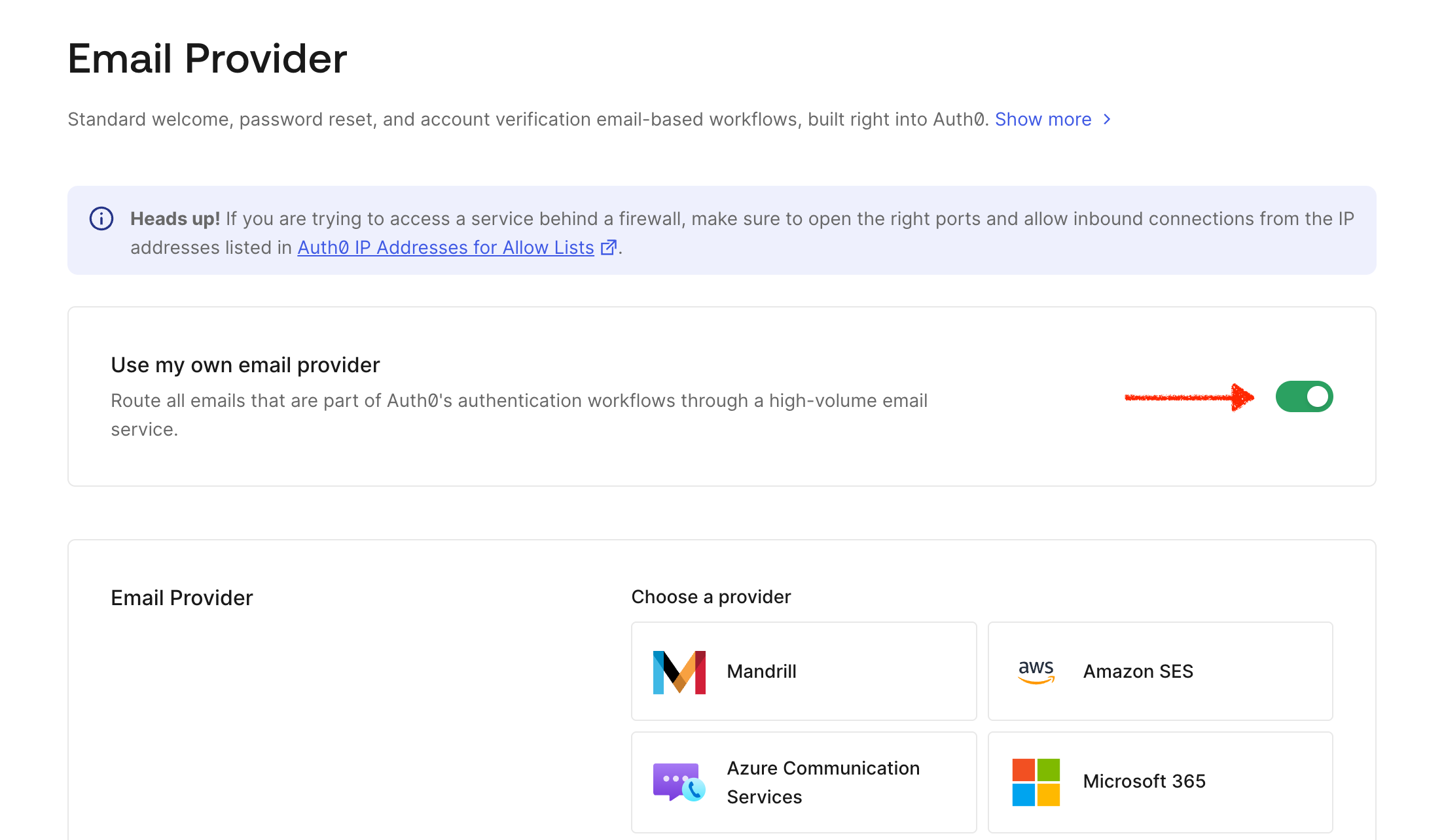
 Toggle **Use my own email provider** to enable custom SMTP configuration.
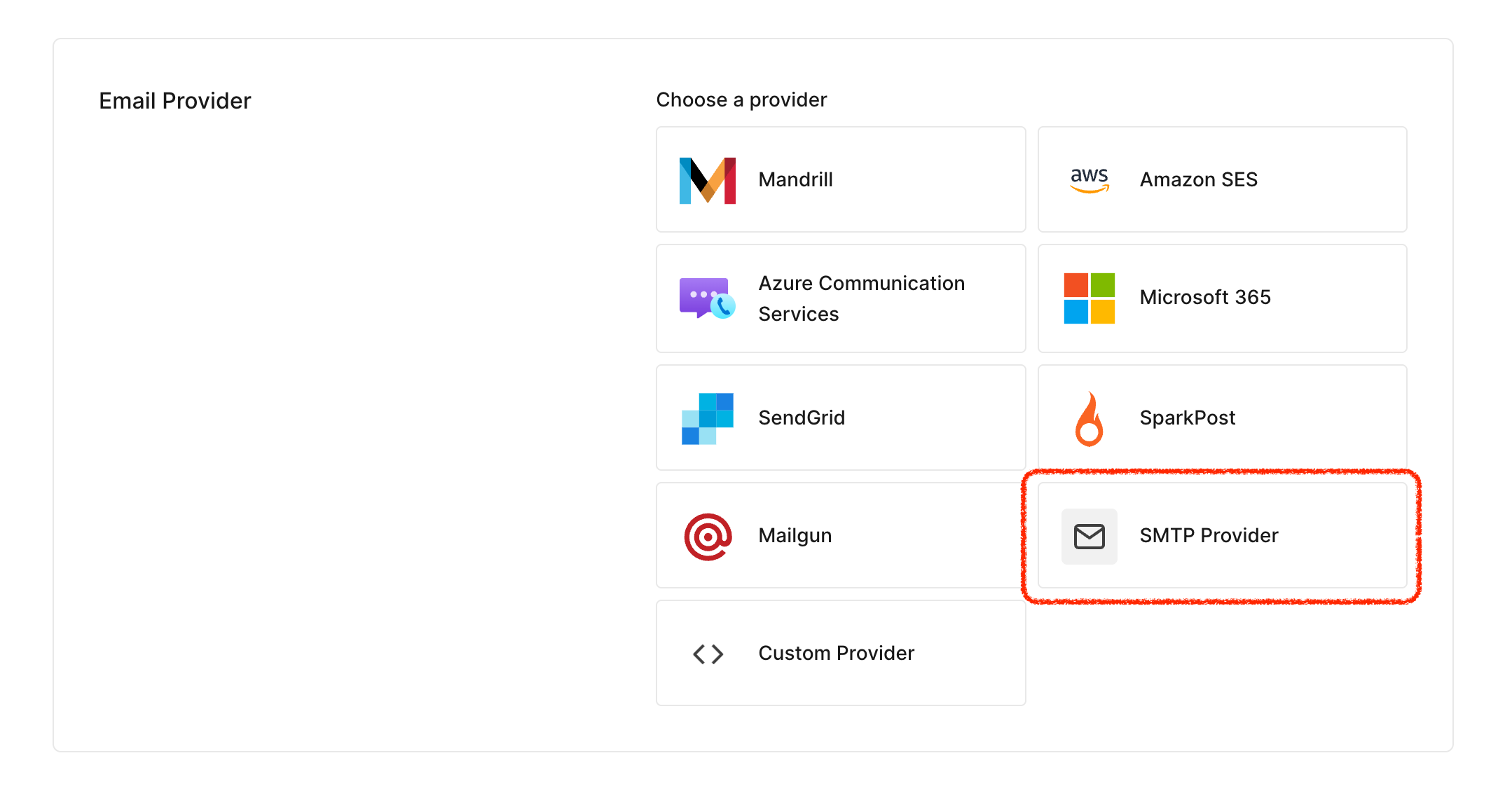
 Select **SMTP Provider** as your email provider type.
 Fill in the following settings:
| Field | Value |
| ----------------- | ---------------------------------------------------------- |
| **From** | `noreply@yourdomain.com` (must match your verified domain) |
| **SMTP Host** | `smtp.autosend.com` |
| **SMTP Port** | `587` |
| **SMTP Username** | `autosend` |
| **SMTP Password** | Your AutoSend SMTP key (AS\_xxx) |
The SMTP password is no longer your API key. Create a project-specific SMTP key from the SMTP tab in Project Settings.
Fill in the following settings:
| Field | Value |
| ----------------- | ---------------------------------------------------------- |
| **From** | `noreply@yourdomain.com` (must match your verified domain) |
| **SMTP Host** | `smtp.autosend.com` |
| **SMTP Port** | `587` |
| **SMTP Username** | `autosend` |
| **SMTP Password** | Your AutoSend SMTP key (AS\_xxx) |
The SMTP password is no longer your API key. Create a project-specific SMTP key from the SMTP tab in Project Settings.
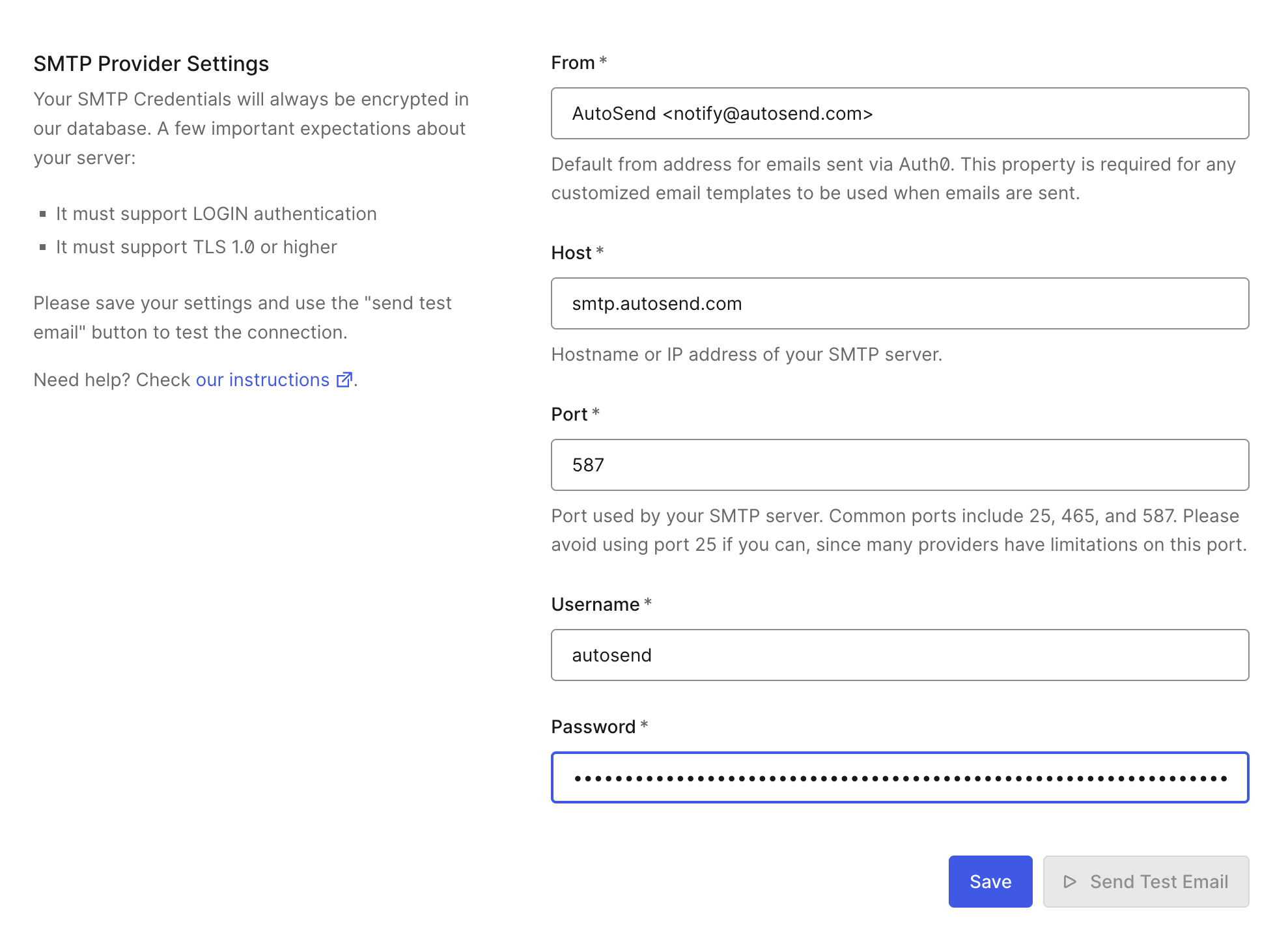 Click **Save** to apply your SMTP settings.
After saving, click the **Send Test** button next to the Save button to send a test email and verify your configuration is working.
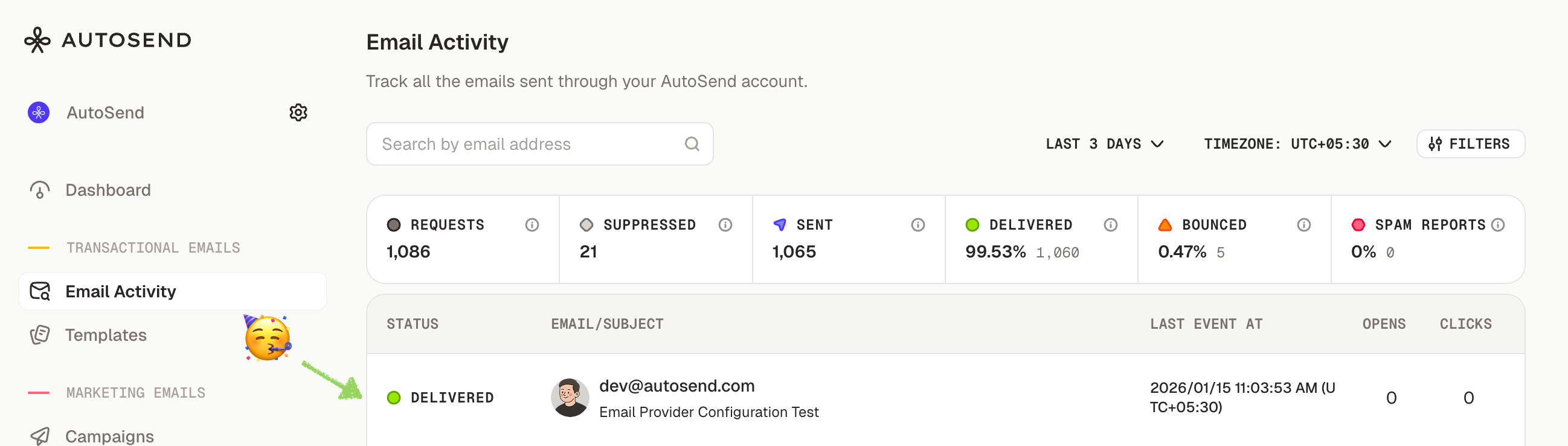
You can also check the Email Activity dashboard to verify the email was sent through AutoSend.
Click **Save** to apply your SMTP settings.
After saving, click the **Send Test** button next to the Save button to send a test email and verify your configuration is working.
You can also check the Email Activity dashboard to verify the email was sent through AutoSend.
 ## Email Templates
Auth0 allows you to customize email templates for different authentication scenarios. Navigate to **Branding** → **Email Templates** to modify:
* **Verification Email** - Sent when users need to verify their email address
* **Welcome Email** - Sent after successful signup
* **Change Password** - Sent for password reset requests
* **Blocked Account** - Sent when an account is blocked
* **Passwordless Email** - Sent for passwordless authentication (magic links/codes)
Auth0 email templates use Liquid syntax for dynamic content. Variables like `{{ user.email }}` and `{{ url }}` are replaced with actual values when the email is sent.
## Troubleshooting
* Verify your SMTP credentials are correct - Check that your sender email domain is verified in
AutoSend - Ensure the From address matches a verified domain - Check Auth0 logs for SMTP
connection errors (**Monitoring** → **Logs**)
* Double-check your SMTP key is correct - Ensure you're using `autosend` as the username - Verify
your SMTP key is active in the SMTP Settings
* Verify the hostname is `smtp.autosend.com` - Try using port `465` with implicit TLS if port
`587` fails - Check if your network blocks outbound SMTP connections
* Ensure your domain has proper DNS records (SPF, DKIM, DMARC) - Use a professional sender name,
not just "noreply" - Check your domain reputation in AutoSend
If SMTP fails after exhausting the steps above, switch to the API-based approach using Auth0's Custom Email Provider Action. See Send emails from Auth0 with a Custom Email Provider Action.
## Next Steps
Set up SPF, DKIM, and DMARC for better deliverability
Monitor your email delivery and engagement
Set up webhooks to track email events in real-time
Learn more about AutoSend SMTP configuration
## Email Templates
Auth0 allows you to customize email templates for different authentication scenarios. Navigate to **Branding** → **Email Templates** to modify:
* **Verification Email** - Sent when users need to verify their email address
* **Welcome Email** - Sent after successful signup
* **Change Password** - Sent for password reset requests
* **Blocked Account** - Sent when an account is blocked
* **Passwordless Email** - Sent for passwordless authentication (magic links/codes)
Auth0 email templates use Liquid syntax for dynamic content. Variables like `{{ user.email }}` and `{{ url }}` are replaced with actual values when the email is sent.
## Troubleshooting
* Verify your SMTP credentials are correct - Check that your sender email domain is verified in
AutoSend - Ensure the From address matches a verified domain - Check Auth0 logs for SMTP
connection errors (**Monitoring** → **Logs**)
* Double-check your SMTP key is correct - Ensure you're using `autosend` as the username - Verify
your SMTP key is active in the SMTP Settings
* Verify the hostname is `smtp.autosend.com` - Try using port `465` with implicit TLS if port
`587` fails - Check if your network blocks outbound SMTP connections
* Ensure your domain has proper DNS records (SPF, DKIM, DMARC) - Use a professional sender name,
not just "noreply" - Check your domain reputation in AutoSend
If SMTP fails after exhausting the steps above, switch to the API-based approach using Auth0's Custom Email Provider Action. See Send emails from Auth0 with a Custom Email Provider Action.
## Next Steps
Set up SPF, DKIM, and DMARC for better deliverability
Monitor your email delivery and engagement
Set up webhooks to track email events in real-time
Learn more about AutoSend SMTP configuration