> ## Documentation Index
> Fetch the complete documentation index at: https://docs.autosend.com/llms.txt
> Use this file to discover all available pages before exploring further.
# How to send emails from WordPress with SMTP
> Configure WordPress to send emails through AutoSend SMTP.
export const APP_PATHS = {
home: '/',
quickstart: '/quickstart',
domainConfiguration: '/domain',
apiReference: '/api-reference',
sendEmail: '/api-reference/mails/send',
bulkSendEmail: '/api-reference/mails/bulk',
upsertContactApiRef: '/api-reference/contacts/upsert-contact',
transactional: '/transactional-emails',
emailActivity: '/transactional-emails/email-activity',
emailTemplates: '/transactional-emails/email-templates',
sendingEmail: '/quickstart/email-using-api',
transactionalTroubleshooting: '/transactional-emails/troubleshooting',
marketing: '/marketing-emails',
campaigns: '/marketing-emails/campaigns',
contacts: '/marketing-emails/contacts',
contactsIntroduction: '/marketing-emails/contacts/introduction',
contactsImportCsv: '/marketing-emails/contacts/import-csv',
contactsLists: '/marketing-emails/contacts/lists',
contactsSegments: '/marketing-emails/contacts/segments',
contactsCustomFields: '/marketing-emails/contacts/contact-properties',
contactsContactProperties: '/marketing-emails/contacts/contact-properties',
createContactPropertyApiRef: '/api-reference/contact-properties/create',
listContactPropertiesApiRef: '/api-reference/contact-properties/list',
getContactPropertyApiRef: '/api-reference/contact-properties/get-by-name',
deleteContactPropertyApiRef: '/api-reference/contact-properties/delete',
sender: '/marketing-emails/sender',
unsubscribeGroups: '/others/unsubscribe-groups',
webhookIntroduction: '/others/webhooks/introduction',
webhookEventType: '/others/webhooks/event-type',
webhookRetries: '/others/webhooks/retries',
webhookVerifyRequests: '/others/webhooks/verify-requests',
dynamicTemplates: '/dynamic-templates',
guides: '/guides',
sitemap: '/sitemap.xml',
team: '/others/team',
automations: '/automations',
events: '/automations/events',
sendEventApi: '/api-reference/events/send-event',
smtpIntroduction: '/quickstart/smtp',
betterAuth: '/guides/better-auth',
convexGuide: '/guides/convex',
templateVariables: '/transactional-emails/variables',
suppressions: '/others/suppressions',
rateLimit: '/api-reference/rate-limit',
nodejsSdk: '/sdk/nodejs',
smtpIntegrationGuides: '/guides/smtp',
apiKeys: '/api-keys',
encryptedPayloads: '/others/encrypted-payloads',
apiReferenceIntroduction: '/api-reference/introduction',
lovableGuide: '/ai/integrations/lovable',
aiIntroduction: '/ai/introduction',
aiSkills: '/ai/skills',
aiMcpServer: '/ai/mcp-server',
aiLovable: '/ai/integrations/lovable',
aiBolt: '/ai/integrations/bolt',
aiV0: '/ai/integrations/v0',
aiReplit: '/ai/integrations/replit',
mcpClaude: '/ai/mcp-clients/claude',
mcpCursor: '/ai/mcp-clients/cursor',
mcpCopilot: '/ai/mcp-clients/copilot',
mcpWindsurf: '/ai/mcp-clients/windsurf',
mcpCodex: '/ai/mcp-clients/codex',
mcpAntigravity: '/ai/mcp-clients/antigravity',
mcpChatgpt: '/ai/mcp-clients/chatgpt',
mcpRaycast: '/ai/mcp-clients/raycast',
domainWarmup: '/marketing-emails/domain-warmup',
projects: '/projects',
createAutomationApi: '/api-reference/automations/create-automation',
migrationSendgrid: '/migration/sendgrid',
migrationResend: '/migration/resend',
auth0CustomAction: '/guides/auth0-custom-action',
accountBilling: '/others/account/billing',
accountUsage: '/others/account/usage',
inboundIntroduction: '/inbound/introduction',
listInboundMessagesApi: '/api-reference/inbound-emails/list-messages',
getInboundMessageApi: '/api-reference/inbound-emails/get-message',
downloadInboundAttachmentApi: '/api-reference/inbound-emails/download-attachment',
replyToInboundMessageApi: '/api-reference/inbound-emails/reply-to-message',
wikiDailySendingLimit: '/wiki/daily-sending-limit'
};
export const AUTOSEND_PATHS = {
dashboard: 'https://autosend.com/dashboard',
apiKey: 'https://autosend.com/account/api-key',
faqs: 'https://autosend.com/faq',
marketingEmails: 'https://autosend.com/marketing-emails',
webhooks: 'https://autosend.com/webhooks',
composeByAutoSend: 'https://autosend.com/compose',
emailActivity: 'https://autosend.com/email-activities',
team: 'https://autosend.com/settings/team',
pricing: 'https://autosend.com/pricing',
verifyEmail: 'https://autosend.com/compose/email-builder?template=verify-email',
welcomeEmail: 'https://autosend.com/compose/email-builder?template=welcome-email',
productUpdate: 'https://autosend.com/compose/email-builder?template=product-update',
newsletter: 'https://autosend.com/compose/email-builder?template=newsletter',
automations: 'https://autosend.com/automations',
globalSuppressions: 'https://autosend.com/suppressions/global',
signup: 'https://autosend.com/signup',
domains: 'https://autosend.com/settings/domains',
smtpKey: 'https://autosend.com/settings/smtp',
logoKit: 'https://asend.email/logo',
contactsPage: 'https://autosend.com/contacts/list-and-segments',
accountBilling: 'https://autosend.com/account/billing',
accountUsage: 'https://autosend.com/account/usage',
terms: 'https://autosend.com/legal/terms',
inbound: 'https://autosend.com/email-activities/inbound'
};
 WordPress relies on the PHP `mail()` function to send emails by default, which often results in poor deliverability or emails not being sent at all. By configuring WordPress to use AutoSend SMTP, you ensure reliable delivery for password resets, user notifications, contact form submissions, and WooCommerce order emails.
## Prerequisites
Make sure you have a verified domain added in AutoSend to send emails from.
Create a project-specific SMTP key from the SMTP tab in Project Settings.
## Configuration
Install and activate the [WP Mail SMTP](https://wordpress.org/plugins/wp-mail-smtp/) plugin from your WordPress dashboard.
Navigate to **WP Mail SMTP** > **Settings** in the WordPress admin sidebar.
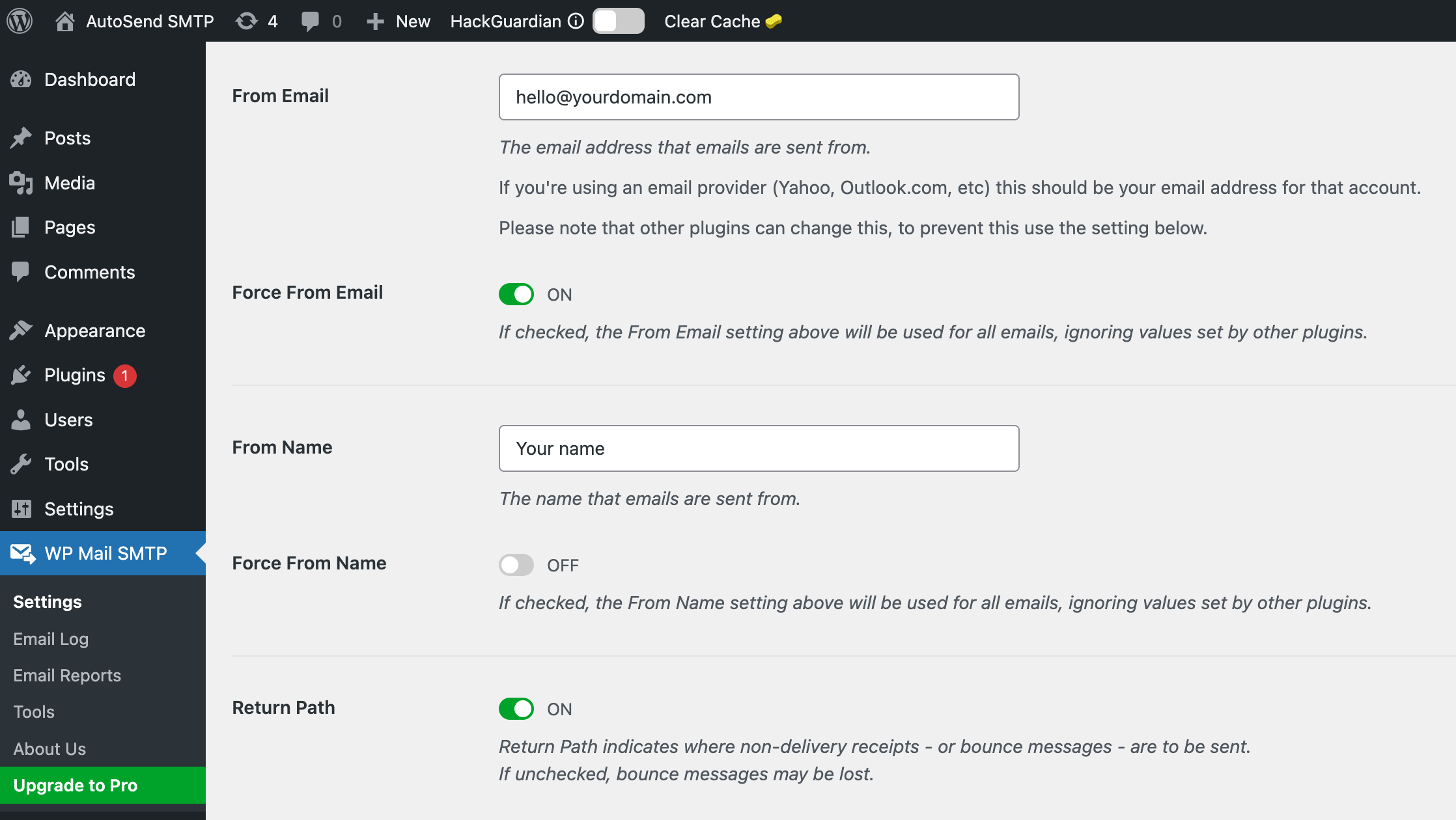
In the **Mail** section, configure your sender details:
| Field | Value |
| -------------- | ---------------------------------------------------------- |
| **From Email** | Your verified email address (e.g., `hello@yourdomain.com`) |
| **From Name** | Your sender name (e.g., `Your Company`) |
Enable **Force From Email** to ensure WordPress always uses this address.
The From Email must use a domain that is verified in AutoSend. For example, if you verified `yourdomain.com`, use an address like `hello@yourdomain.com`.
WordPress relies on the PHP `mail()` function to send emails by default, which often results in poor deliverability or emails not being sent at all. By configuring WordPress to use AutoSend SMTP, you ensure reliable delivery for password resets, user notifications, contact form submissions, and WooCommerce order emails.
## Prerequisites
Make sure you have a verified domain added in AutoSend to send emails from.
Create a project-specific SMTP key from the SMTP tab in Project Settings.
## Configuration
Install and activate the [WP Mail SMTP](https://wordpress.org/plugins/wp-mail-smtp/) plugin from your WordPress dashboard.
Navigate to **WP Mail SMTP** > **Settings** in the WordPress admin sidebar.
In the **Mail** section, configure your sender details:
| Field | Value |
| -------------- | ---------------------------------------------------------- |
| **From Email** | Your verified email address (e.g., `hello@yourdomain.com`) |
| **From Name** | Your sender name (e.g., `Your Company`) |
Enable **Force From Email** to ensure WordPress always uses this address.
The From Email must use a domain that is verified in AutoSend. For example, if you verified `yourdomain.com`, use an address like `hello@yourdomain.com`.
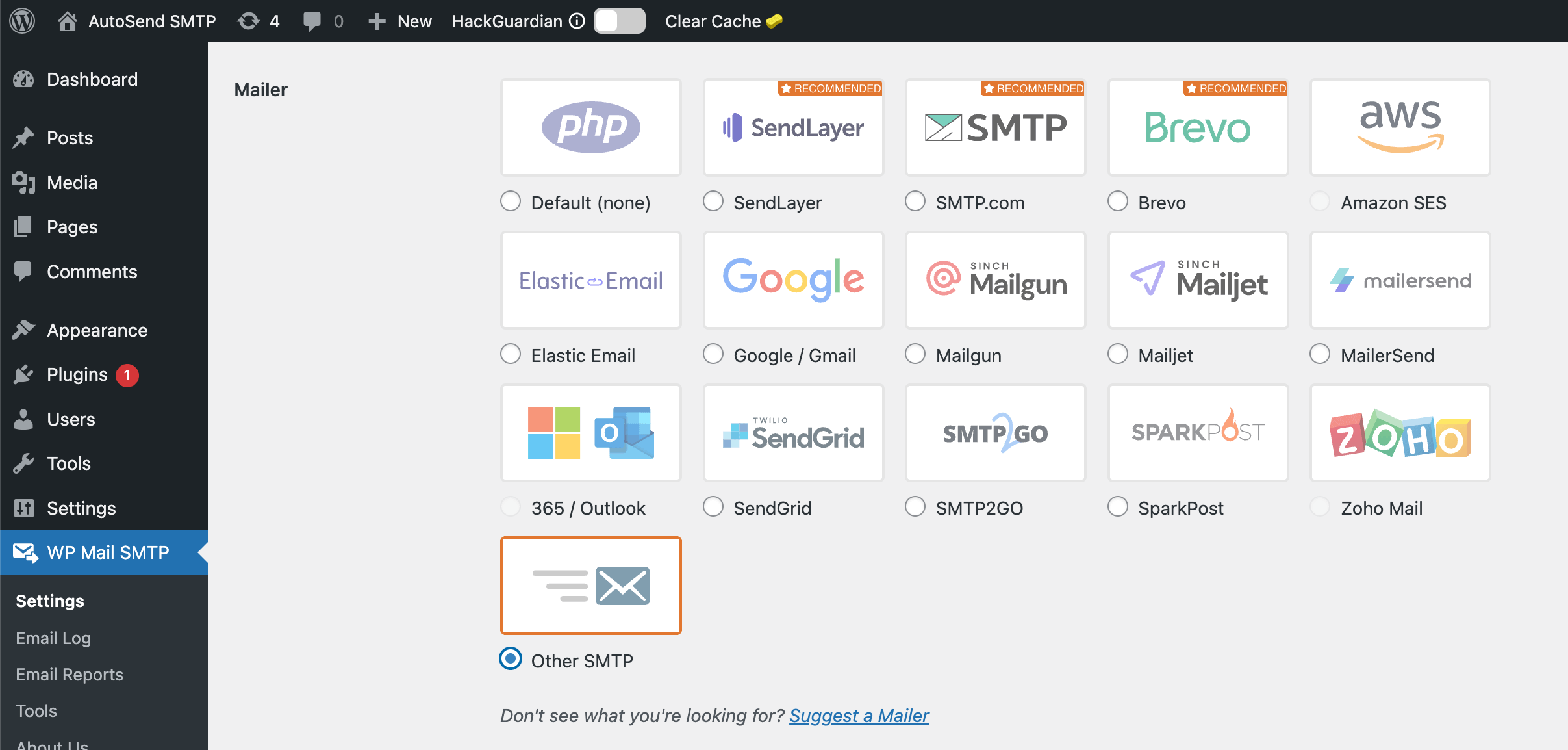
 Scroll down to the **Mailer** section and select **Other SMTP**.
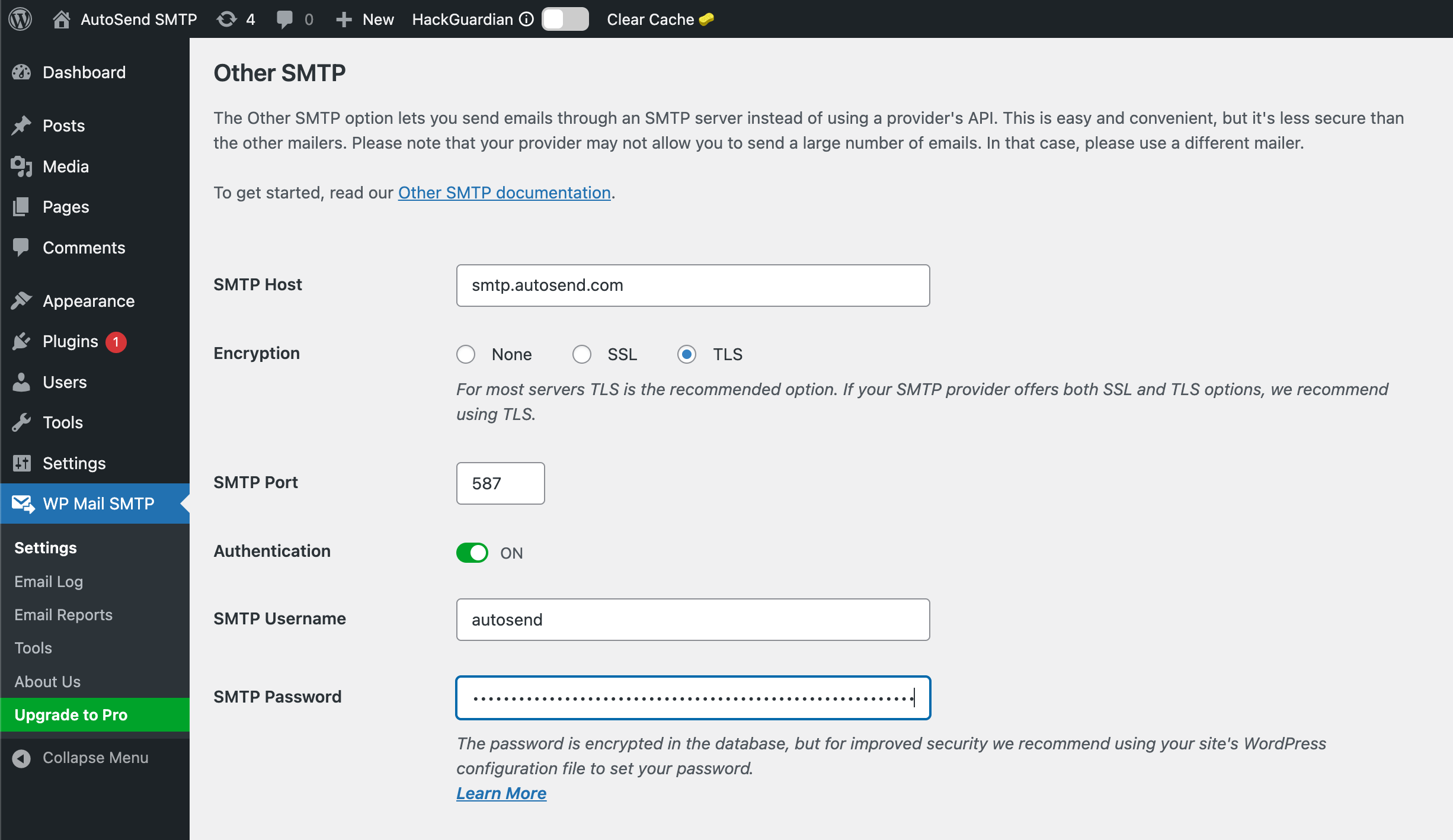
 Fill in the following SMTP settings:
| Field | Value |
| ------------------ | -------------------------------- |
| **SMTP Host** | `smtp.autosend.com` |
| **Encryption** | TLS |
| **SMTP Port** | `587` (or `465` for SSL) |
| **Authentication** | On |
| **SMTP Username** | `autosend` |
| **SMTP Password** | Your AutoSend SMTP key (AS\_xxx) |
The SMTP password is no longer your API key. Create a project-specific SMTP key from the SMTP tab in Project Settings.
Fill in the following SMTP settings:
| Field | Value |
| ------------------ | -------------------------------- |
| **SMTP Host** | `smtp.autosend.com` |
| **Encryption** | TLS |
| **SMTP Port** | `587` (or `465` for SSL) |
| **Authentication** | On |
| **SMTP Username** | `autosend` |
| **SMTP Password** | Your AutoSend SMTP key (AS\_xxx) |
The SMTP password is no longer your API key. Create a project-specific SMTP key from the SMTP tab in Project Settings.
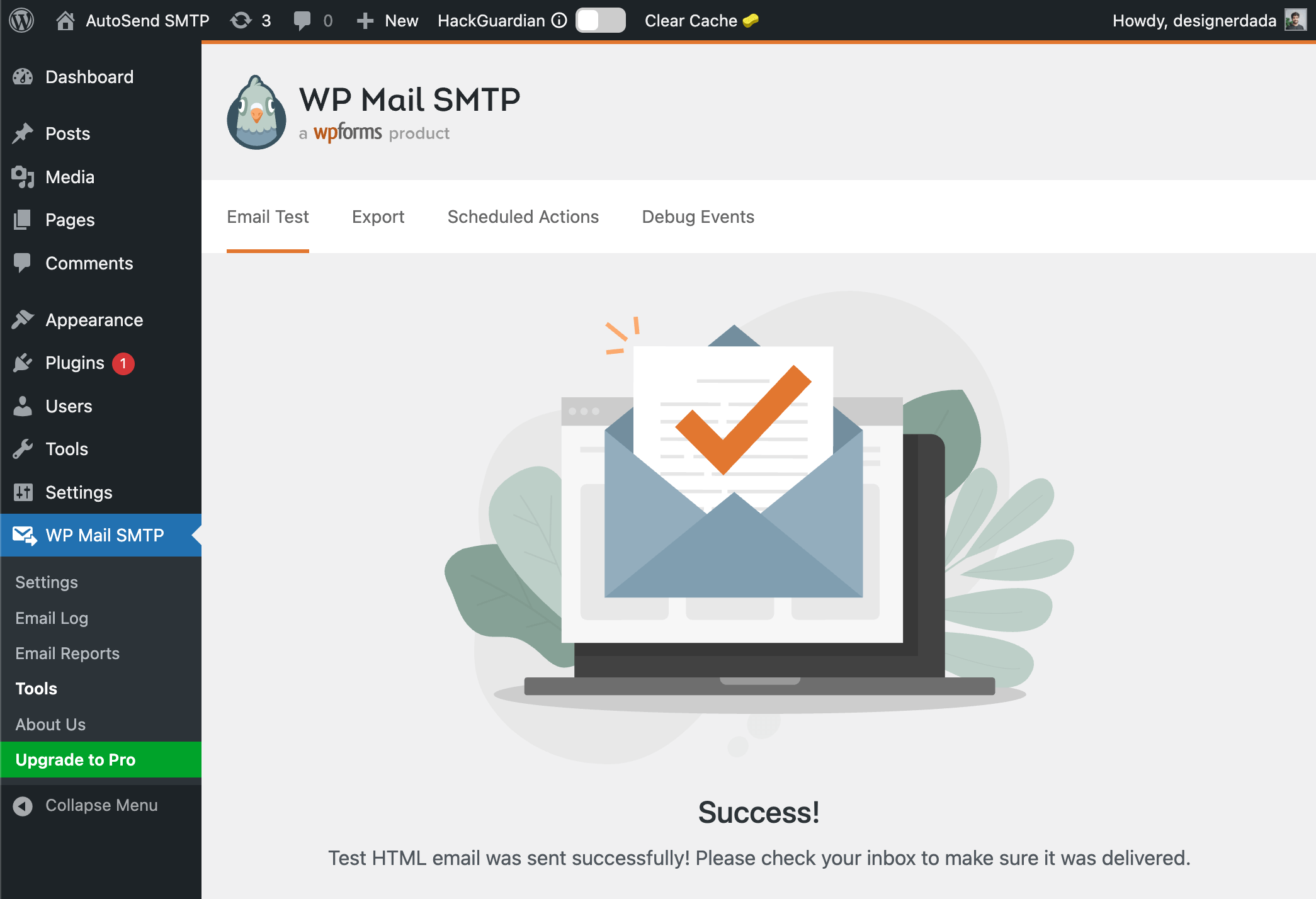
 Click **Save Settings** to save your configuration.
1. Go to **WP Mail SMTP** > **Tools** > **Email Test**
2. Enter a recipient email address
3. Click **Send Email**
Click **Save Settings** to save your configuration.
1. Go to **WP Mail SMTP** > **Tools** > **Email Test**
2. Enter a recipient email address
3. Click **Send Email**
 You can also check the Email Activity dashboard to verify the email was sent through AutoSend.
## Troubleshooting
* Verify your SMTP credentials are correct - Check that your sender email domain is verified in
AutoSend - Ensure **Force From Email** is enabled in WP Mail SMTP settings - Check if your
hosting provider blocks outgoing SMTP connections
* Double-check your SMTP key is correct - Ensure you're using `autosend` as the username - Verify
your SMTP key is active in the SMTP Settings - Make sure there are no extra spaces in the
credentials
* Verify the server address is `smtp.autosend.com` - Try using port `465` with SSL if port `587`
fails - Contact your hosting provider to ensure SMTP ports are not blocked - Some shared hosts
block outgoing SMTP; consider upgrading to a VPS
* Deactivate other SMTP or email plugins that may interfere - Check for caching plugins that
might cache email settings - Test with a default WordPress theme to rule out theme conflicts
* Ensure your domain has proper DNS records (SPF, DKIM, DMARC) - Use a professional sender name
and address - Check your domain reputation in AutoSend - Avoid spam trigger words in your email
content
## Next Steps
Set up SPF, DKIM, and DMARC for better deliverability
Monitor your email delivery and engagement
Set up webhooks to track email events in real-time
Learn more about AutoSend SMTP configuration
You can also check the Email Activity dashboard to verify the email was sent through AutoSend.
## Troubleshooting
* Verify your SMTP credentials are correct - Check that your sender email domain is verified in
AutoSend - Ensure **Force From Email** is enabled in WP Mail SMTP settings - Check if your
hosting provider blocks outgoing SMTP connections
* Double-check your SMTP key is correct - Ensure you're using `autosend` as the username - Verify
your SMTP key is active in the SMTP Settings - Make sure there are no extra spaces in the
credentials
* Verify the server address is `smtp.autosend.com` - Try using port `465` with SSL if port `587`
fails - Contact your hosting provider to ensure SMTP ports are not blocked - Some shared hosts
block outgoing SMTP; consider upgrading to a VPS
* Deactivate other SMTP or email plugins that may interfere - Check for caching plugins that
might cache email settings - Test with a default WordPress theme to rule out theme conflicts
* Ensure your domain has proper DNS records (SPF, DKIM, DMARC) - Use a professional sender name
and address - Check your domain reputation in AutoSend - Avoid spam trigger words in your email
content
## Next Steps
Set up SPF, DKIM, and DMARC for better deliverability
Monitor your email delivery and engagement
Set up webhooks to track email events in real-time
Learn more about AutoSend SMTP configuration