> ## Documentation Index
> Fetch the complete documentation index at: https://docs.autosend.com/llms.txt
> Use this file to discover all available pages before exploring further.
# Domain Warmup with AutoSend
> Learn how to warm up your domain to build sender reputation and improve email deliverability using Gradual Send in AutoSend.
export const APP_PATHS = {
home: '/',
quickstart: '/quickstart',
domainConfiguration: '/domain',
apiReference: '/api-reference',
sendEmail: '/api-reference/mails/send',
bulkSendEmail: '/api-reference/mails/bulk',
upsertContactApiRef: '/api-reference/contacts/upsert-contact',
transactional: '/transactional-emails',
emailActivity: '/transactional-emails/email-activity',
emailTemplates: '/transactional-emails/email-templates',
sendingEmail: '/quickstart/email-using-api',
transactionalTroubleshooting: '/transactional-emails/troubleshooting',
marketing: '/marketing-emails',
campaigns: '/marketing-emails/campaigns',
contacts: '/marketing-emails/contacts',
contactsIntroduction: '/marketing-emails/contacts/introduction',
contactsImportCsv: '/marketing-emails/contacts/import-csv',
contactsLists: '/marketing-emails/contacts/lists',
contactsSegments: '/marketing-emails/contacts/segments',
contactsCustomFields: '/marketing-emails/contacts/contact-properties',
contactsContactProperties: '/marketing-emails/contacts/contact-properties',
createContactPropertyApiRef: '/api-reference/contact-properties/create',
listContactPropertiesApiRef: '/api-reference/contact-properties/list',
getContactPropertyApiRef: '/api-reference/contact-properties/get-by-name',
deleteContactPropertyApiRef: '/api-reference/contact-properties/delete',
sender: '/marketing-emails/sender',
unsubscribeGroups: '/others/unsubscribe-groups',
webhookIntroduction: '/others/webhooks/introduction',
webhookEventType: '/others/webhooks/event-type',
webhookRetries: '/others/webhooks/retries',
webhookVerifyRequests: '/others/webhooks/verify-requests',
dynamicTemplates: '/dynamic-templates',
guides: '/guides',
sitemap: '/sitemap.xml',
team: '/others/team',
automations: '/automations',
events: '/automations/events',
sendEventApi: '/api-reference/events/send-event',
smtpIntroduction: '/quickstart/smtp',
betterAuth: '/guides/better-auth',
convexGuide: '/guides/convex',
templateVariables: '/transactional-emails/variables',
suppressions: '/others/suppressions',
rateLimit: '/api-reference/rate-limit',
nodejsSdk: '/sdk/nodejs',
smtpIntegrationGuides: '/guides/smtp',
apiKeys: '/api-keys',
encryptedPayloads: '/others/encrypted-payloads',
apiReferenceIntroduction: '/api-reference/introduction',
lovableGuide: '/ai/integrations/lovable',
aiIntroduction: '/ai/introduction',
aiSkills: '/ai/skills',
aiMcpServer: '/ai/mcp-server',
aiLovable: '/ai/integrations/lovable',
aiBolt: '/ai/integrations/bolt',
aiV0: '/ai/integrations/v0',
aiReplit: '/ai/integrations/replit',
mcpClaude: '/ai/mcp-clients/claude',
mcpCursor: '/ai/mcp-clients/cursor',
mcpCopilot: '/ai/mcp-clients/copilot',
mcpWindsurf: '/ai/mcp-clients/windsurf',
mcpCodex: '/ai/mcp-clients/codex',
mcpAntigravity: '/ai/mcp-clients/antigravity',
mcpChatgpt: '/ai/mcp-clients/chatgpt',
mcpRaycast: '/ai/mcp-clients/raycast',
domainWarmup: '/marketing-emails/domain-warmup',
projects: '/projects',
createAutomationApi: '/api-reference/automations/create-automation',
migrationSendgrid: '/migration/sendgrid',
migrationResend: '/migration/resend',
auth0CustomAction: '/guides/auth0-custom-action',
accountBilling: '/others/account/billing',
accountUsage: '/others/account/usage',
inboundIntroduction: '/inbound/introduction',
listInboundMessagesApi: '/api-reference/inbound-emails/list-messages',
getInboundMessageApi: '/api-reference/inbound-emails/get-message',
downloadInboundAttachmentApi: '/api-reference/inbound-emails/download-attachment',
replyToInboundMessageApi: '/api-reference/inbound-emails/reply-to-message',
wikiDailySendingLimit: '/wiki/daily-sending-limit'
};
 ## What is Domain Warmup?
Domain warmup is the process of gradually increasing your email sending volume over time so mailbox providers (Gmail, Outlook, Yahoo, etc.) can learn to trust your domain before you send to your full list. Skipping this step is one of the most common reasons new senders end up in the spam folder.
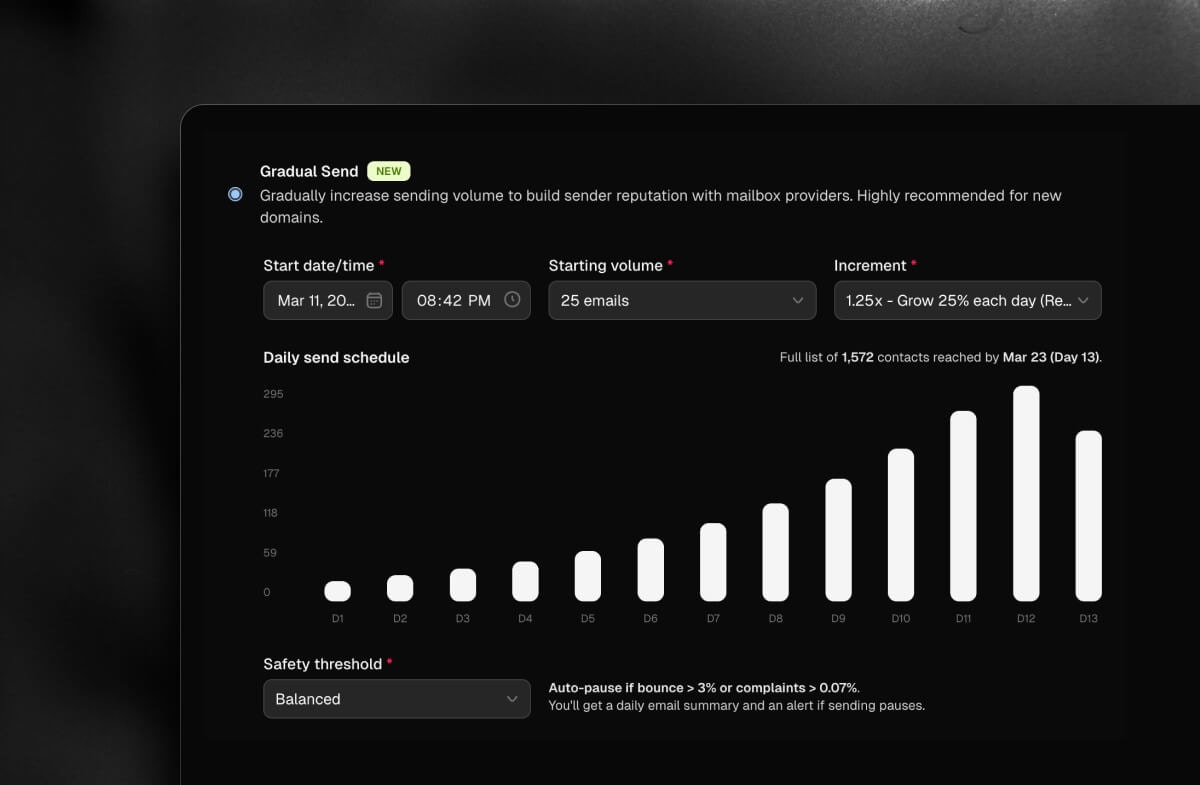
Gradual Send is AutoSend's built-in solution for this. It handles the entire warmup process automatically, so you don't have to manage multiple campaigns or track daily limits manually.
## Why domain warmup matters
When you send from a new domain, mailbox providers have no history to judge you by. No reputation. No trust signals. Sending thousands of emails on day one looks suspicious and triggers spam filters, no matter how good your content is.
Warming up your domain builds that trust gradually. A small volume on day one, slightly more on day two, and so on. By the time you're sending at full volume, providers have seen consistent, healthy engagement from your domain and are far more likely to deliver your emails to the inbox.
You should warm up your domain if you are:
* Sending from a brand new domain for the first time.
* Recently migrated to AutoSend and want to rebuild your reputation.
* Resuming sending after a long period of inactivity.
* Sending to a large cold list for the first time.
## Setting up Gradual Send
Set up your campaign as you normally would. Write your email, add subject, preview text (optional), and once everything looks good, click on Save & Next in the top-right of the page to go to the Campaign Details page.
On the campaign details screen, in **When to send?** section you'll see the sending options: Now, Schedule, and Gradual Send. Select **Gradual Send**.
## What is Domain Warmup?
Domain warmup is the process of gradually increasing your email sending volume over time so mailbox providers (Gmail, Outlook, Yahoo, etc.) can learn to trust your domain before you send to your full list. Skipping this step is one of the most common reasons new senders end up in the spam folder.
Gradual Send is AutoSend's built-in solution for this. It handles the entire warmup process automatically, so you don't have to manage multiple campaigns or track daily limits manually.
## Why domain warmup matters
When you send from a new domain, mailbox providers have no history to judge you by. No reputation. No trust signals. Sending thousands of emails on day one looks suspicious and triggers spam filters, no matter how good your content is.
Warming up your domain builds that trust gradually. A small volume on day one, slightly more on day two, and so on. By the time you're sending at full volume, providers have seen consistent, healthy engagement from your domain and are far more likely to deliver your emails to the inbox.
You should warm up your domain if you are:
* Sending from a brand new domain for the first time.
* Recently migrated to AutoSend and want to rebuild your reputation.
* Resuming sending after a long period of inactivity.
* Sending to a large cold list for the first time.
## Setting up Gradual Send
Set up your campaign as you normally would. Write your email, add subject, preview text (optional), and once everything looks good, click on Save & Next in the top-right of the page to go to the Campaign Details page.
On the campaign details screen, in **When to send?** section you'll see the sending options: Now, Schedule, and Gradual Send. Select **Gradual Send**.
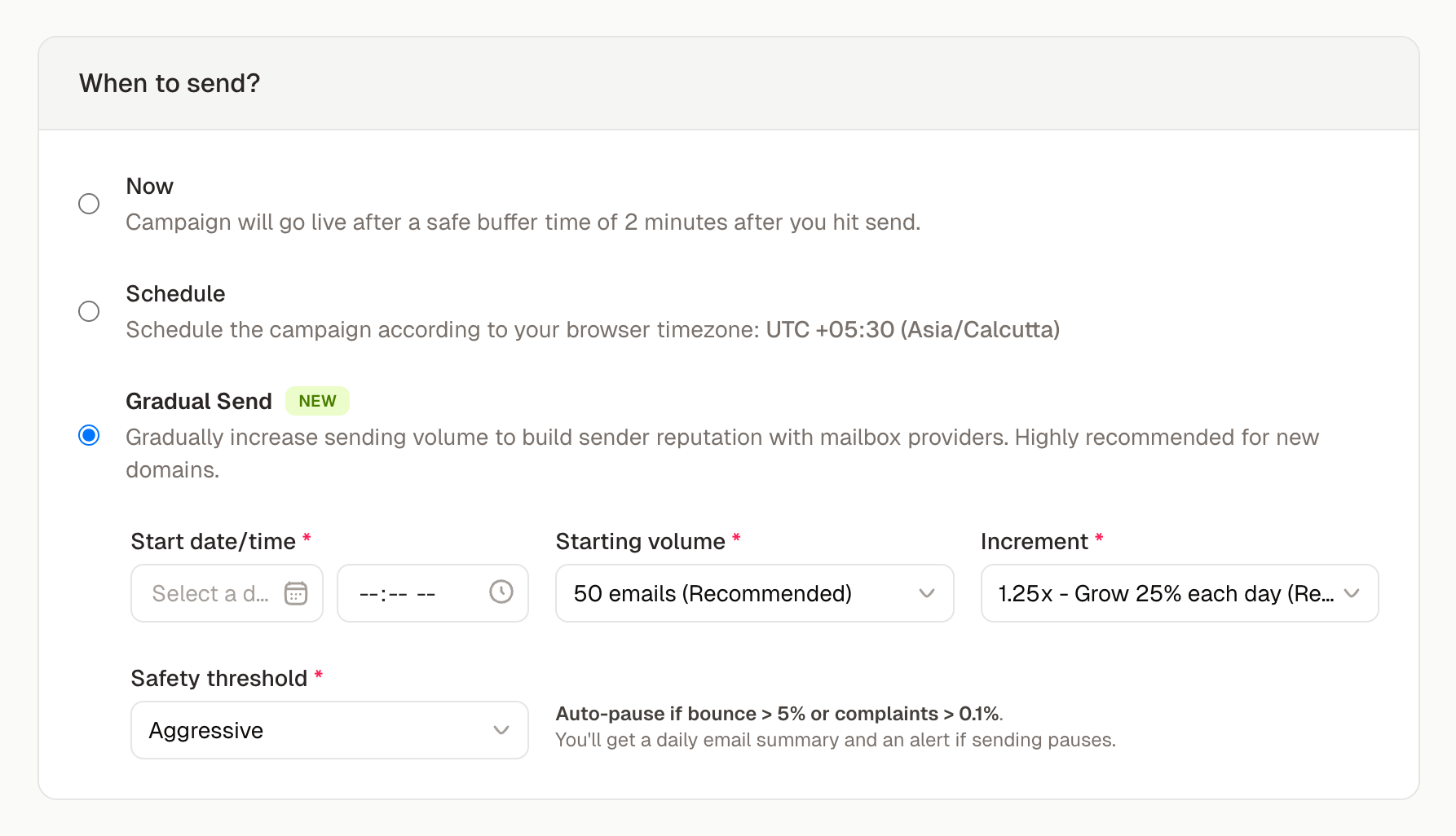 To see the sending schedule graph, you must first select a contact list in the **To
(list/segment)** input in the **Email Details** section above.
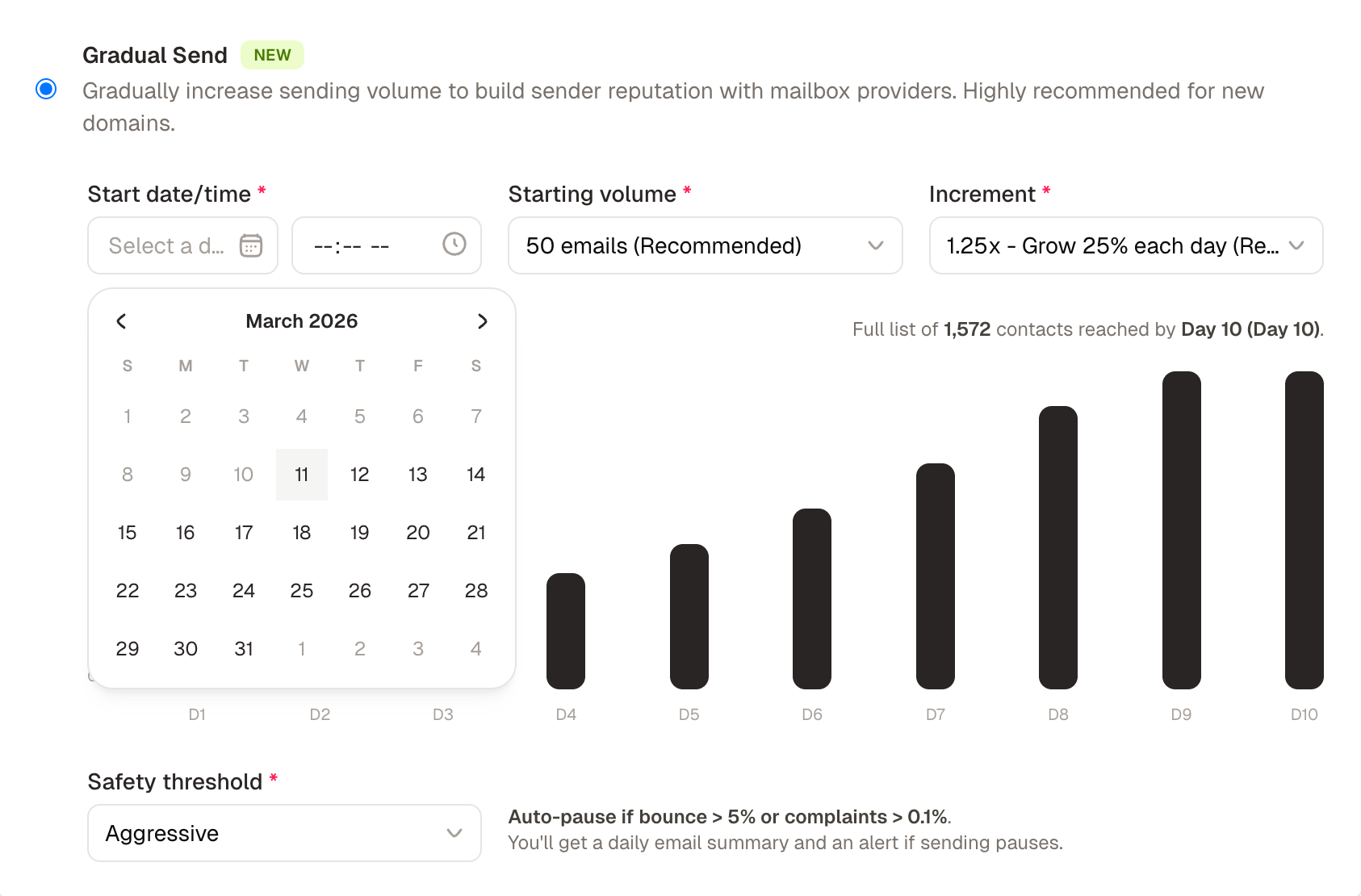
Pick any date and time in the future you want the warmup to begin. You can schedule up to 30 days in advance. AutoSend will use your browser timezone for scheduling.
To see the sending schedule graph, you must first select a contact list in the **To
(list/segment)** input in the **Email Details** section above.
Pick any date and time in the future you want the warmup to begin. You can schedule up to 30 days in advance. AutoSend will use your browser timezone for scheduling.
 This is how many emails will go out on Day 1. If you're on a brand new domain, start conservatively.
| Starting Volume | When to use |
| --------------- | -------------------------------------- |
| 25 emails | Very new domain, extra caution |
| 50 emails | New domain, small list |
| 100 emails | Domain with some prior sending history |
| 250 emails | Established domain, moderate list size |
| 500 emails | Established domain, larger list |
When in doubt, start lower. A slower warmup is always safer than a faster one.
This controls how fast your sending volume grows each day.
| Increment | What it means | Best for |
| --------- | --------------------- | -------------------------------------------- |
| Fixed | Same volume every day | Very cautious senders, small lists |
| 1.25x | Grows by 25% each day | Recommended for most new domains |
| 1.5x | Grows by 50% each day | Conservative ramp |
| 1.75x | Grows by 75% each day | Moderate ramp |
| 2x | Doubles each day | Larger lists with some prior sending history |
For most new domains, **1.25x** is the safest starting point. If you have a larger list and some prior sending history, **2x** will get you to full volume faster without compromising deliverability.
Once you've set your inputs, AutoSend generates a bar chart showing exactly how many emails will go out each day. Review this before confirming.
Below the chart, a summary line tells you the exact date your full list will be reached. For example: *"Full list of 5,000 contacts reached by March 18 (Day 8)."*
This is how many emails will go out on Day 1. If you're on a brand new domain, start conservatively.
| Starting Volume | When to use |
| --------------- | -------------------------------------- |
| 25 emails | Very new domain, extra caution |
| 50 emails | New domain, small list |
| 100 emails | Domain with some prior sending history |
| 250 emails | Established domain, moderate list size |
| 500 emails | Established domain, larger list |
When in doubt, start lower. A slower warmup is always safer than a faster one.
This controls how fast your sending volume grows each day.
| Increment | What it means | Best for |
| --------- | --------------------- | -------------------------------------------- |
| Fixed | Same volume every day | Very cautious senders, small lists |
| 1.25x | Grows by 25% each day | Recommended for most new domains |
| 1.5x | Grows by 50% each day | Conservative ramp |
| 1.75x | Grows by 75% each day | Moderate ramp |
| 2x | Doubles each day | Larger lists with some prior sending history |
For most new domains, **1.25x** is the safest starting point. If you have a larger list and some prior sending history, **2x** will get you to full volume faster without compromising deliverability.
Once you've set your inputs, AutoSend generates a bar chart showing exactly how many emails will go out each day. Review this before confirming.
Below the chart, a summary line tells you the exact date your full list will be reached. For example: *"Full list of 5,000 contacts reached by March 18 (Day 8)."*
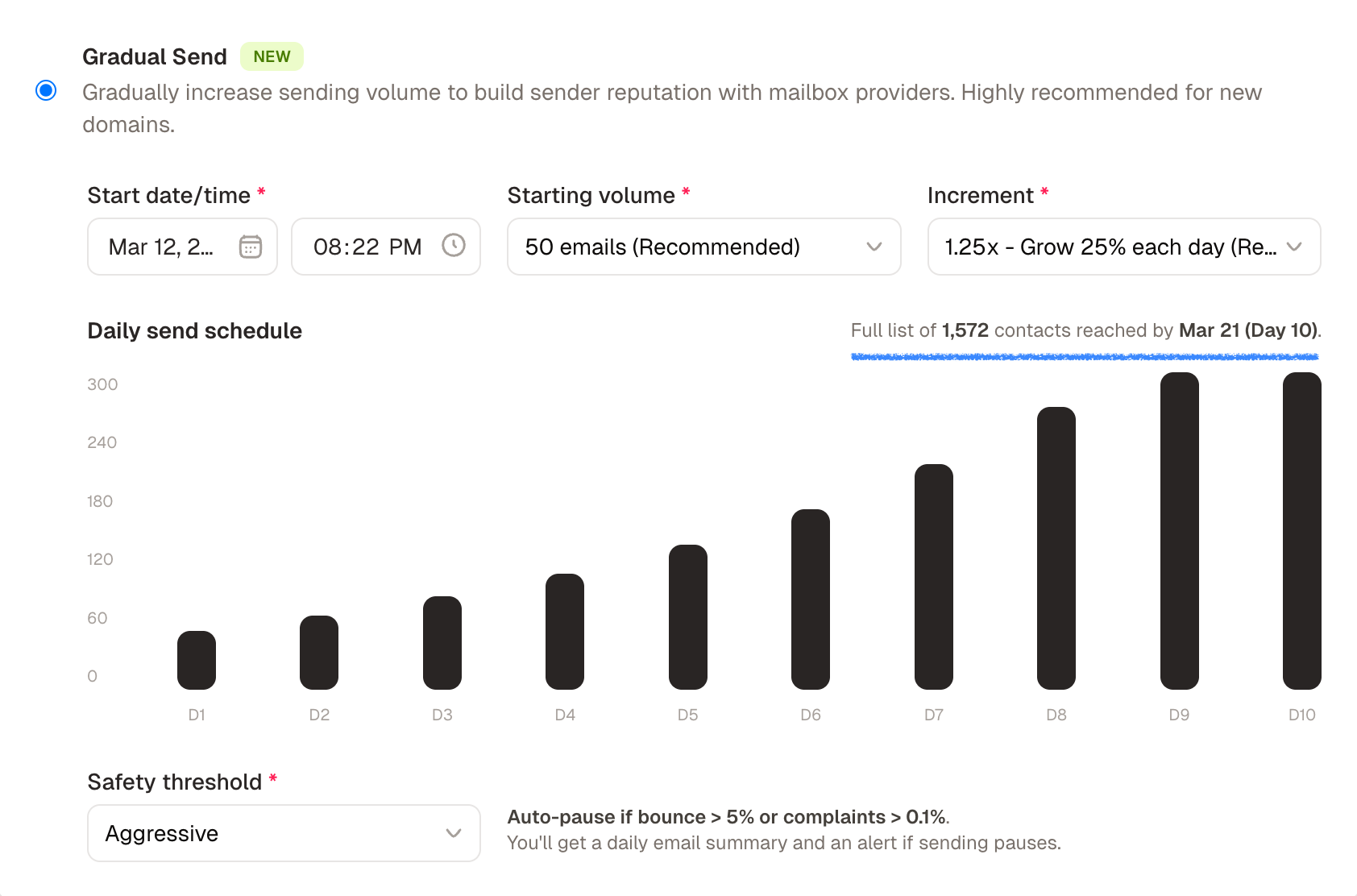 If anything looks off, adjust your starting volume or increment and the chart will update in real time.
Choose how aggressively AutoSend should monitor your sending health and pause if something goes wrong.
| Preset | Auto-pause if bounce rate exceeds | Auto-pause if complaint rate exceeds |
| ------------ | --------------------------------- | ------------------------------------ |
| Conservative | 2% | 0.05% |
| Balanced | 3% | 0.07% |
| Aggressive | 5% | 0.1% |
**Balanced** is the default and works well for most senders. Choose **Conservative** if you're on a brand new domain or are unsure about your list quality.
Once you're happy with your schedule, click **Schedule** in top-right of the screen. AutoSend will begin sending on your chosen start date and continue the ramp automatically each day.
## What happens during the warmup
You don't need to do anything once Gradual Send is running. AutoSend manages the daily volume increases and monitors your sending health in the background.
You'll receive a daily email summary each morning with:
* How many emails went out yesterday
* Your cumulative send count so far
* Current bounce and complaint rates
## What happens if sending pauses
If your bounce or complaint rate crosses the threshold you set, AutoSend pauses the warmup
immediately. You'll receive an alert email and a link to review the campaign.
When you open the campaign, you'll see a status card explaining what happened. You have two options:
* **Resume Gradual Send**: if you've identified the issue (for example, removed bad addresses from your list) and are confident it's safe to continue.
* **Adjust Settings**: if you want to lower your increment, change your safety threshold, or make other changes before resuming.
AutoSend will never resume automatically. You always stay in control.
## Tips for a successful warmup
Sending to invalid or inactive addresses is the fastest way to spike your bounce rate. Run your
list through an email verification tool before starting a warmup.
The emails you send during warmup are setting the tone for your domain's reputation. High
engagement (opens, clicks) during warmup sends strong positive signals to mailbox providers.
We do not recommend tracking open rates during warmup, as it is measured by adding a tracking
pixel to each email, some inbox providers may flag this as suspicious behavior. You can disable
open tracking in the Email Details section of your campaign settings.
A slower warmup adds a few extra days but significantly reduces your risk of landing in spam. If
your bounce or complaint rates start climbing, lower your increment before resuming.
Getting delivered is only half the battle. If recipients aren't opening your emails during
warmup, that's a signal worth paying attention to.
## Frequently asked questions
It depends on your list size, starting volume, and increment. With 1.25x growth starting at 50
emails, a list of 5,000 contacts typically takes around 30 days. With 2x growth starting at 100
emails, the same list can be reached in under 10 days.
Each Gradual Send is tied to a specific campaign and contact list. For multiple domains, set up
separate campaigns to separate contact lists and run Gradual Send on each one.
AutoSend automatically caps the daily send at your total list size. The chart will stop at the
day the full list is reached.
Yes. If you need to adjust your increment or safety threshold mid-warmup, pause the campaign,
make your changes, and resume.
Gradual Send is designed for marketing campaigns sent to a contact list. Transactional emails
(password resets, receipts, etc.) should not be throttled and do not need warmup.
If anything looks off, adjust your starting volume or increment and the chart will update in real time.
Choose how aggressively AutoSend should monitor your sending health and pause if something goes wrong.
| Preset | Auto-pause if bounce rate exceeds | Auto-pause if complaint rate exceeds |
| ------------ | --------------------------------- | ------------------------------------ |
| Conservative | 2% | 0.05% |
| Balanced | 3% | 0.07% |
| Aggressive | 5% | 0.1% |
**Balanced** is the default and works well for most senders. Choose **Conservative** if you're on a brand new domain or are unsure about your list quality.
Once you're happy with your schedule, click **Schedule** in top-right of the screen. AutoSend will begin sending on your chosen start date and continue the ramp automatically each day.
## What happens during the warmup
You don't need to do anything once Gradual Send is running. AutoSend manages the daily volume increases and monitors your sending health in the background.
You'll receive a daily email summary each morning with:
* How many emails went out yesterday
* Your cumulative send count so far
* Current bounce and complaint rates
## What happens if sending pauses
If your bounce or complaint rate crosses the threshold you set, AutoSend pauses the warmup
immediately. You'll receive an alert email and a link to review the campaign.
When you open the campaign, you'll see a status card explaining what happened. You have two options:
* **Resume Gradual Send**: if you've identified the issue (for example, removed bad addresses from your list) and are confident it's safe to continue.
* **Adjust Settings**: if you want to lower your increment, change your safety threshold, or make other changes before resuming.
AutoSend will never resume automatically. You always stay in control.
## Tips for a successful warmup
Sending to invalid or inactive addresses is the fastest way to spike your bounce rate. Run your
list through an email verification tool before starting a warmup.
The emails you send during warmup are setting the tone for your domain's reputation. High
engagement (opens, clicks) during warmup sends strong positive signals to mailbox providers.
We do not recommend tracking open rates during warmup, as it is measured by adding a tracking
pixel to each email, some inbox providers may flag this as suspicious behavior. You can disable
open tracking in the Email Details section of your campaign settings.
A slower warmup adds a few extra days but significantly reduces your risk of landing in spam. If
your bounce or complaint rates start climbing, lower your increment before resuming.
Getting delivered is only half the battle. If recipients aren't opening your emails during
warmup, that's a signal worth paying attention to.
## Frequently asked questions
It depends on your list size, starting volume, and increment. With 1.25x growth starting at 50
emails, a list of 5,000 contacts typically takes around 30 days. With 2x growth starting at 100
emails, the same list can be reached in under 10 days.
Each Gradual Send is tied to a specific campaign and contact list. For multiple domains, set up
separate campaigns to separate contact lists and run Gradual Send on each one.
AutoSend automatically caps the daily send at your total list size. The chart will stop at the
day the full list is reached.
Yes. If you need to adjust your increment or safety threshold mid-warmup, pause the campaign,
make your changes, and resume.
Gradual Send is designed for marketing campaigns sent to a contact list. Transactional emails
(password resets, receipts, etc.) should not be throttled and do not need warmup.