> ## Documentation Index
> Fetch the complete documentation index at: https://docs.autosend.com/llms.txt
> Use this file to discover all available pages before exploring further.
# Team
> Collaborate with your team by inviting members to your AutoSend workspace. This guide covers how to invite, manage, and remove team members.
## Overview
AutoSend's team feature lets you invite colleagues to collaborate within your workspace. With the new roles system, you have granular control over what each person can access. There are two roles available: **Admin** and **Member**.
* **Admins** have full access to the entire workspace — all projects, domains, members, billing, and usage.
* **Members** have scoped access. They can only access specific projects that an Admin has granted them, and can add or remove other members within those projects.
## Roles & Permissions
| Capability | Admin | Member |
| --------------------------------------- | ----- | ---------------------- |
| Access all projects | Yes | Assigned projects only |
| Manage projects | Yes | No |
| Manage billing & usage | Yes | No |
| Invite & remove workspace members | Yes | No |
| Add/remove members in assigned projects | Yes | Yes |
## How to Invite Someone (as an Admin)
Admins can invite new people from either [**Account Settings > Team** ](https://autosend.com/account/team)or from within a specific [**Project Settings > Team**](https://autosend.com/settings/team).
Go to **Settings > Team** from the sidebar
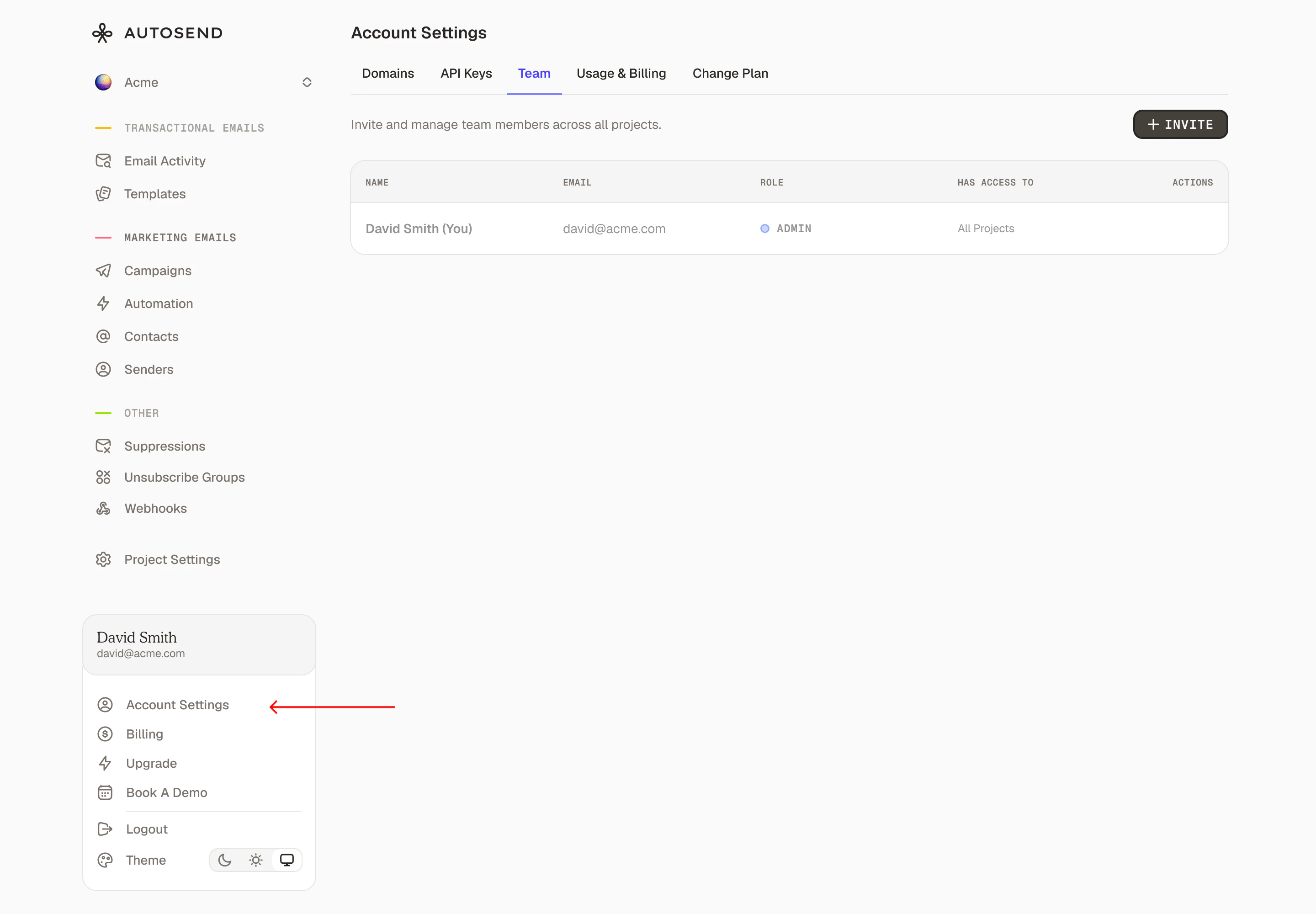 Enter the following information about the team member you want to invite:
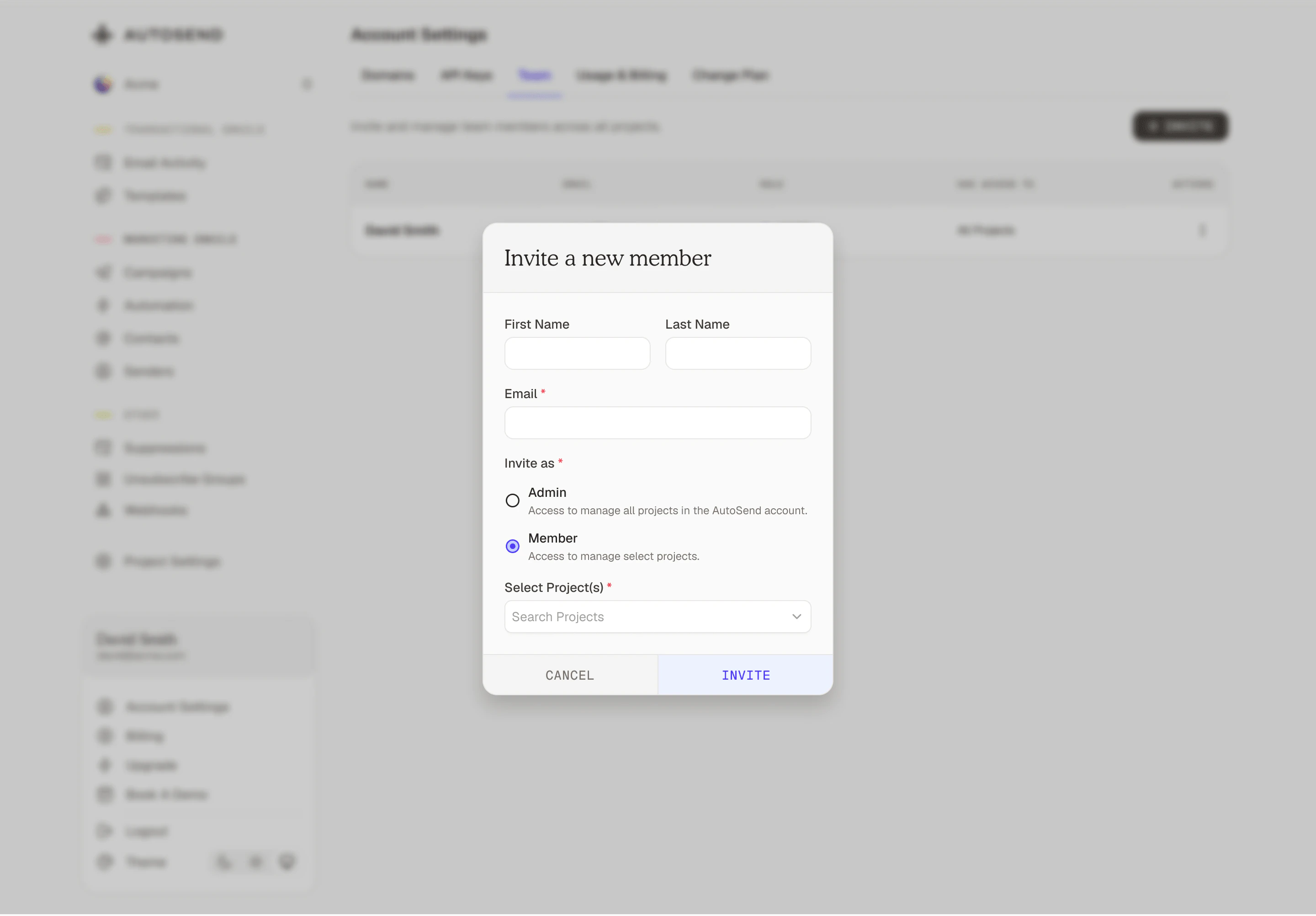 **Required Fields:**
* **First Name** - The team member's first name
* **Last Name** - The team member's last name
* **Email** - A valid email address where the invitation will be sent
The email address should not be associated with any other account or workspace on AutoSend. Disposable email addresses may be blocked.
Select **Admin** for full workspace access, or **Member** for project-scoped access.
If you selected **Member**, select which projects this person should have access to.
**Required Fields:**
* **First Name** - The team member's first name
* **Last Name** - The team member's last name
* **Email** - A valid email address where the invitation will be sent
The email address should not be associated with any other account or workspace on AutoSend. Disposable email addresses may be blocked.
Select **Admin** for full workspace access, or **Member** for project-scoped access.
If you selected **Member**, select which projects this person should have access to.
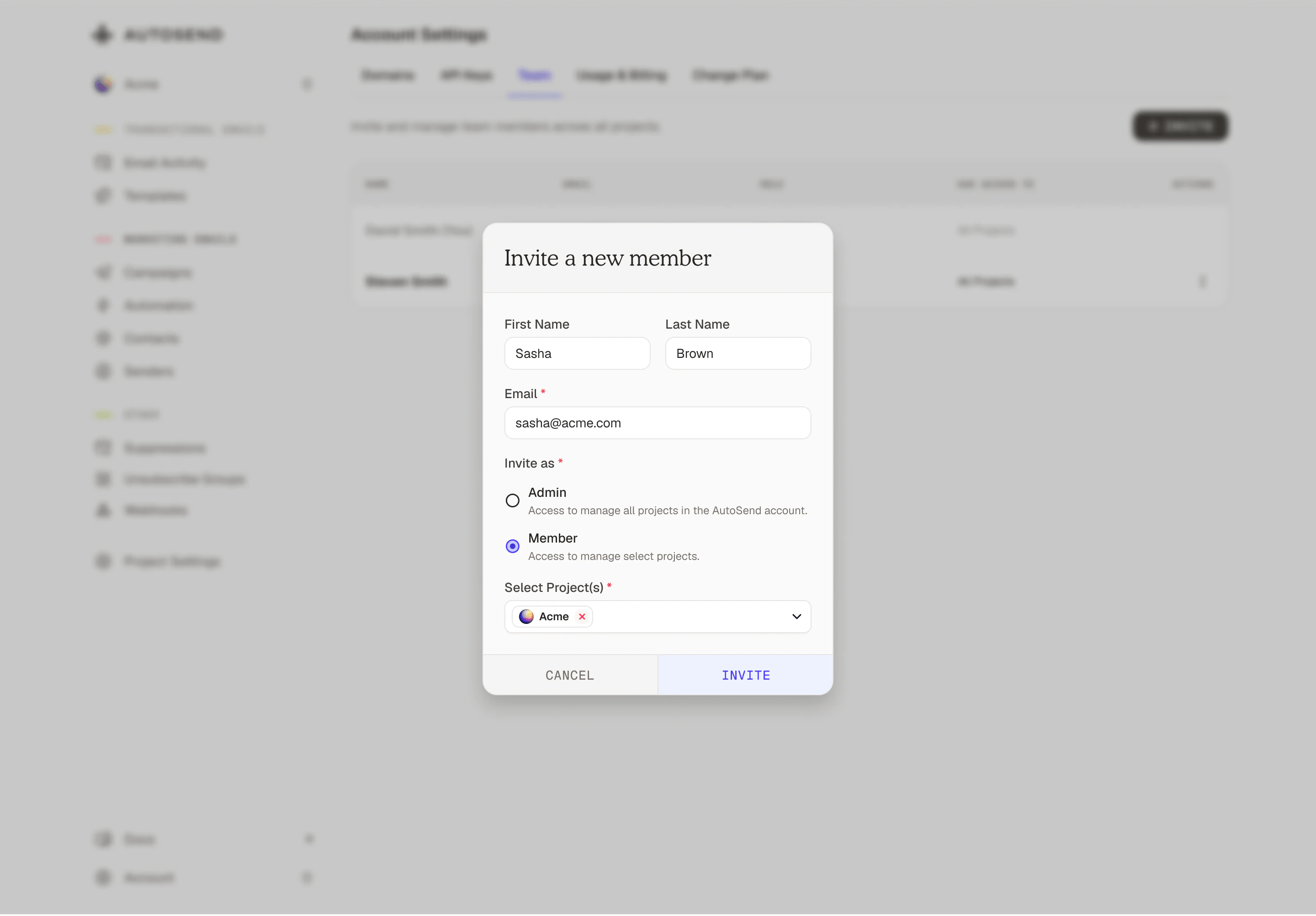 After successfully sending the invitation:
* The invitee will receive an email with an invitation link.
* The invitation will appear in your team list with a **"Pending"** status.
* You can resend or cancel the invitation.
After successfully sending the invitation:
* The invitee will receive an email with an invitation link.
* The invitation will appear in your team list with a **"Pending"** status.
* You can resend or cancel the invitation.
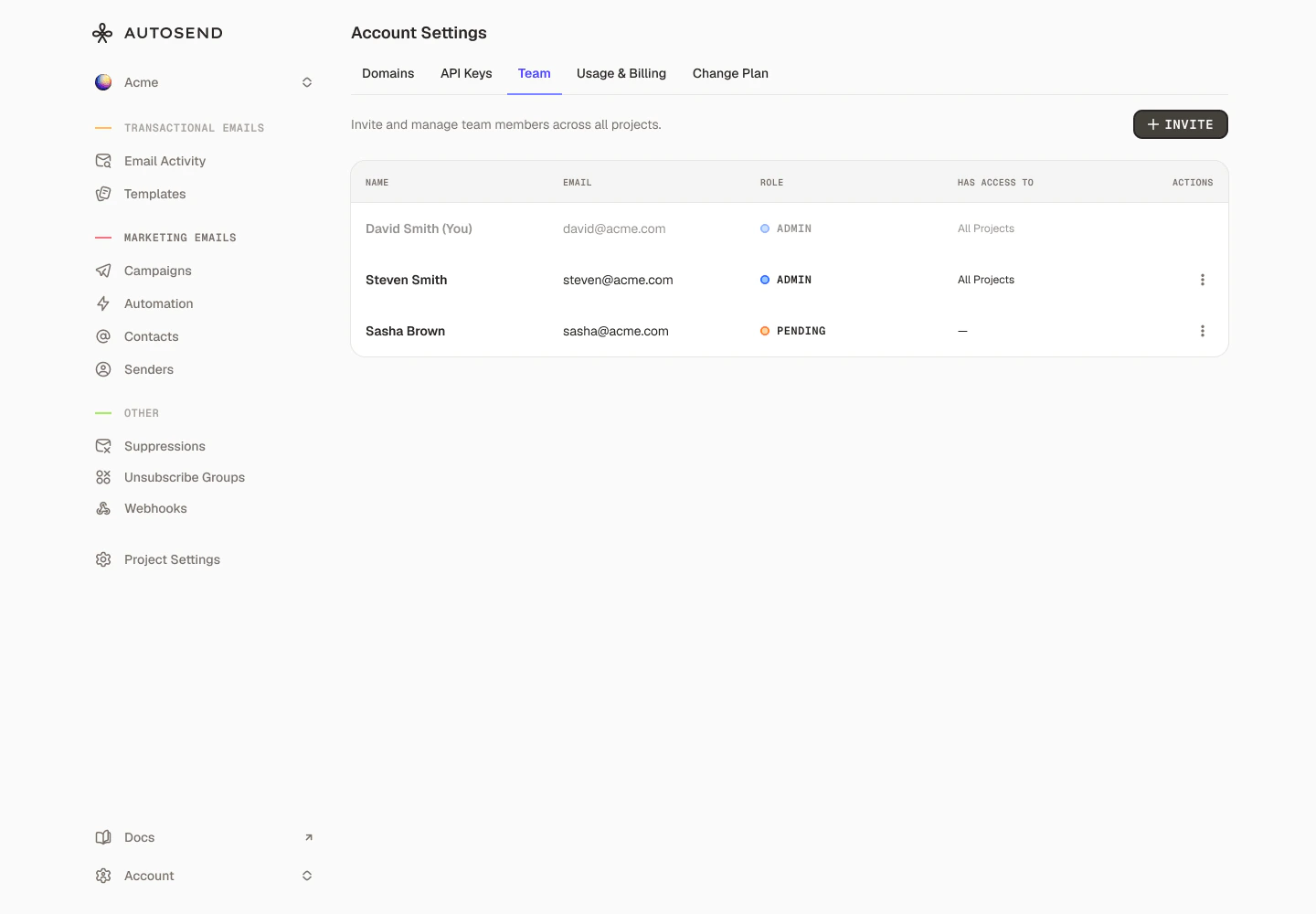 **Admins** can update a member's project access at any time from **Account Settings > Team**.
## How to Invite Someone (as a Member)
Members can add other people directly to their project from [**Project Settings > Team**](https://autosend.com/settings/team).
Select the appropriate project from the dropdown
**Admins** can update a member's project access at any time from **Account Settings > Team**.
## How to Invite Someone (as a Member)
Members can add other people directly to their project from [**Project Settings > Team**](https://autosend.com/settings/team).
Select the appropriate project from the dropdown
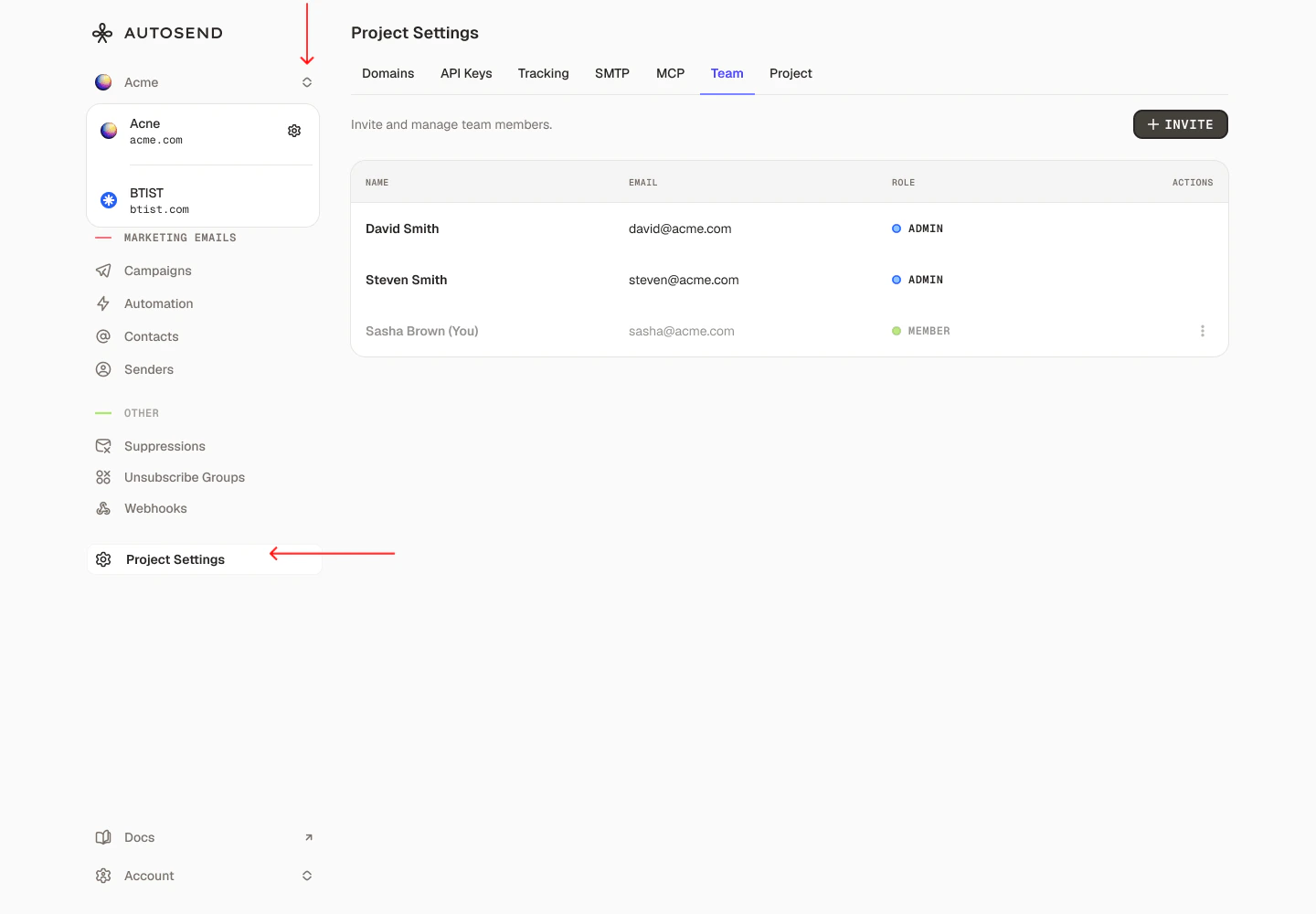 Enter the following information about the team member you want to invite:
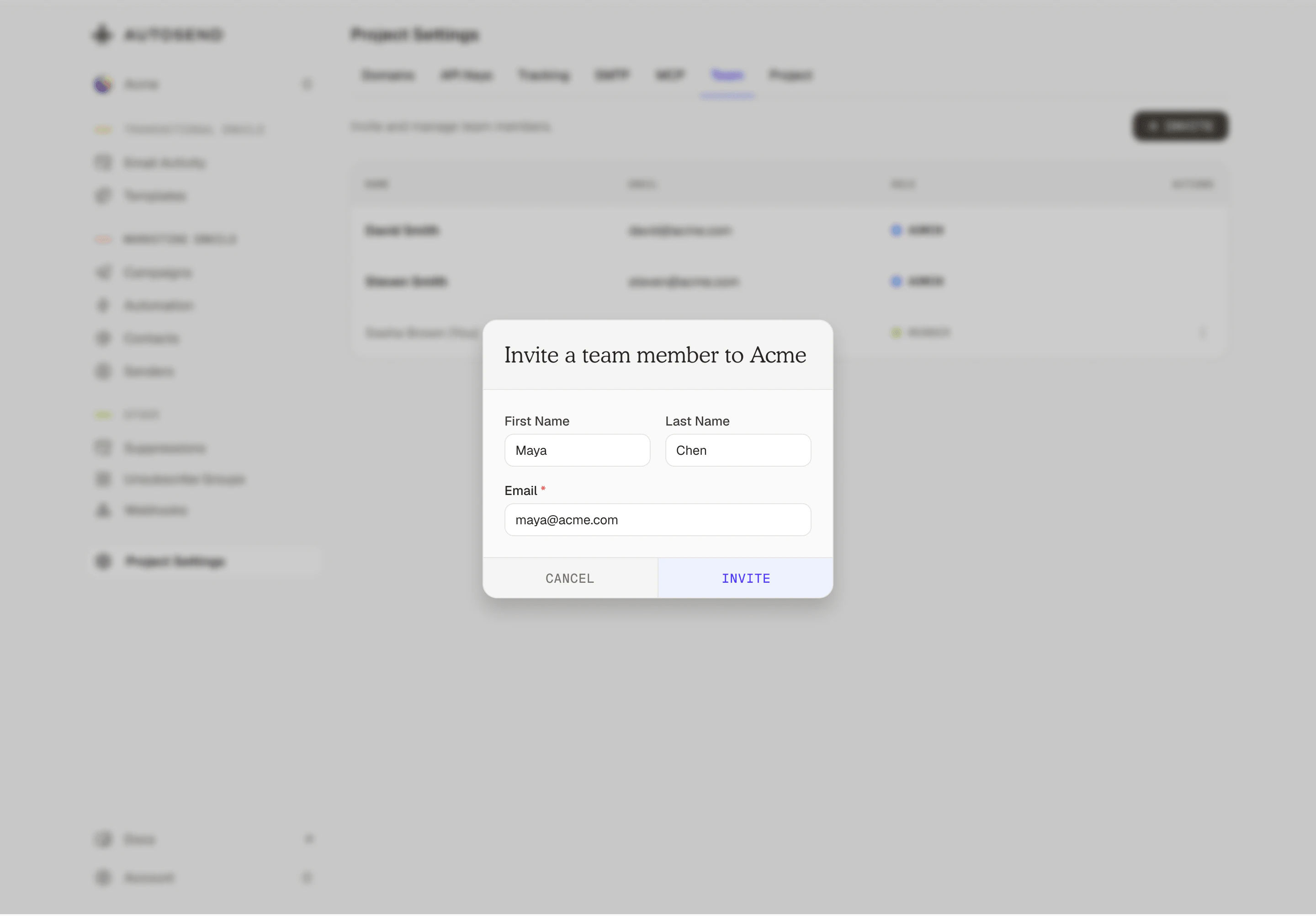 After successfully sending the invitation:
* The invitee will receive an email with an invitation link.
* The invitation will appear in your team list with a **"Pending"** status.
* You can resend or cancel the invitation.
After successfully sending the invitation:
* The invitee will receive an email with an invitation link.
* The invitation will appear in your team list with a **"Pending"** status.
* You can resend or cancel the invitation.
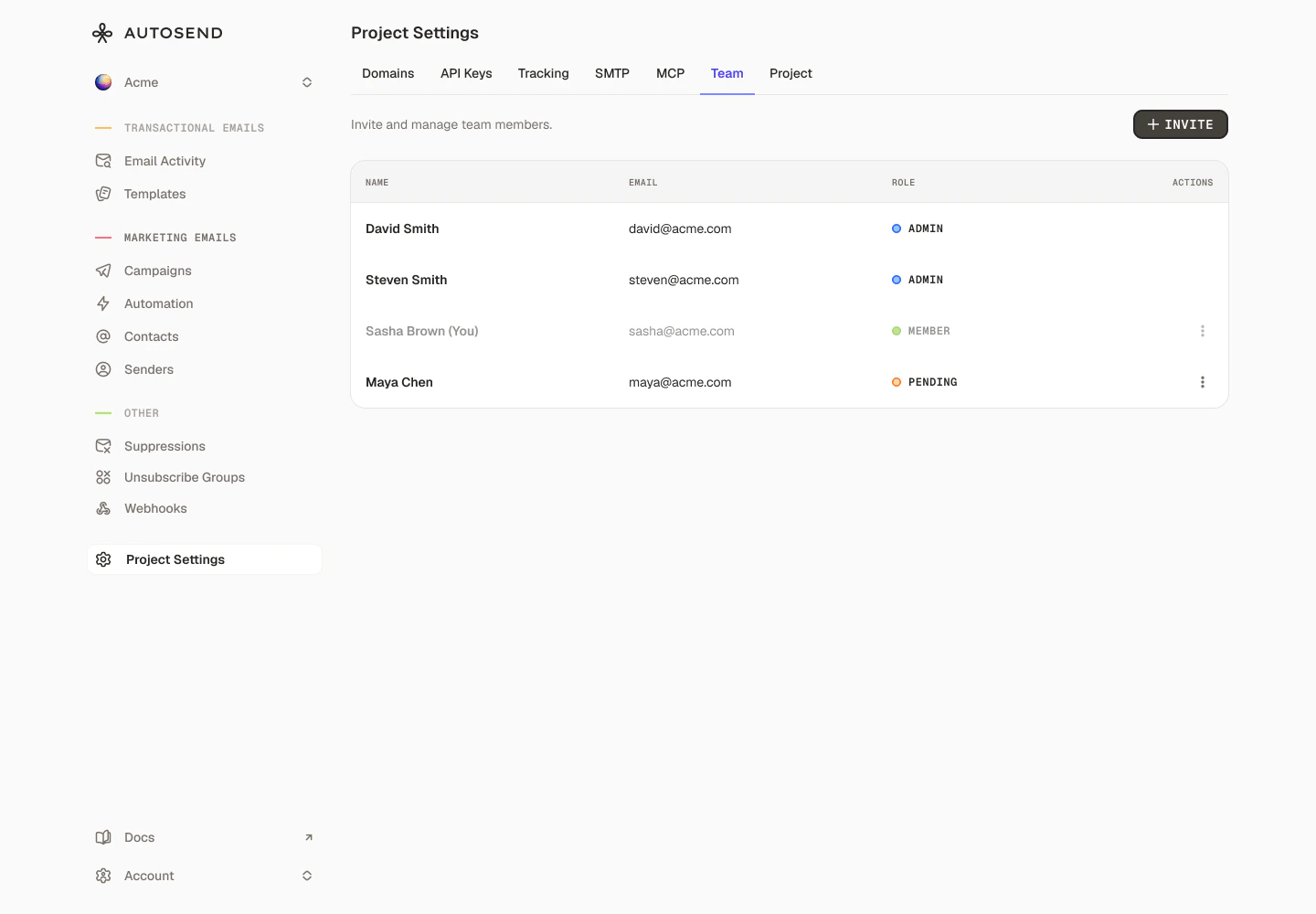 **Required Fields:**
* **First Name** - The team member's first name
* **Last Name** - The team member's last name
* **Email** - A valid email address where the invitation will be sent
When a Member sends an invite, the new person is automatically added as a Member scoped to that project. There is no option to choose a role or assign additional projects. That can only be done by an Admin.
## FAQs
Yes, Admins can update a team member's role from [**Account Settings > Team**](https://autosend.com/account/team) at any time.
Yes, Admins can edit a Member's project access from [**Account Settings > Team**](https://autosend.com/account/team).
No. When a Member invites someone, they are automatically added as a Member scoped to that
project. Only Admins can assign the Admin role.
There is no limit on the number of team members you can invite.
Yes, invitations expire after 7 days. If an invitation expires, simply send a new one to the same
email address.
Admins can remove any team member from [**Account Settings > Team**](https://autosend.com/account/team). Members can remove other members from [**Project Settings > Team**](https://autosend.com/settings/team) for their assigned projects.
No, a user can accept invitation only from single workspace. They have to use a different email if
they want to join another workspace.
The invitation link becomes invalid immediately, and the invitee will not be able to join your
workspace using that link. You can send a new invitation if needed.
No, you cannot edit an invitation after it's sent. If you made a mistake, cancel the invitation and send a new one with the correct information.
**Required Fields:**
* **First Name** - The team member's first name
* **Last Name** - The team member's last name
* **Email** - A valid email address where the invitation will be sent
When a Member sends an invite, the new person is automatically added as a Member scoped to that project. There is no option to choose a role or assign additional projects. That can only be done by an Admin.
## FAQs
Yes, Admins can update a team member's role from [**Account Settings > Team**](https://autosend.com/account/team) at any time.
Yes, Admins can edit a Member's project access from [**Account Settings > Team**](https://autosend.com/account/team).
No. When a Member invites someone, they are automatically added as a Member scoped to that
project. Only Admins can assign the Admin role.
There is no limit on the number of team members you can invite.
Yes, invitations expire after 7 days. If an invitation expires, simply send a new one to the same
email address.
Admins can remove any team member from [**Account Settings > Team**](https://autosend.com/account/team). Members can remove other members from [**Project Settings > Team**](https://autosend.com/settings/team) for their assigned projects.
No, a user can accept invitation only from single workspace. They have to use a different email if
they want to join another workspace.
The invitation link becomes invalid immediately, and the invitee will not be able to join your
workspace using that link. You can send a new invitation if needed.
No, you cannot edit an invitation after it's sent. If you made a mistake, cancel the invitation and send a new one with the correct information.