> ## Documentation Index
> Fetch the complete documentation index at: https://docs.autosend.com/llms.txt
> Use this file to discover all available pages before exploring further.
# Projects
> Organize your work into separate Projects - each with its own API keys, contacts, senders, and settings, all under one account and subscription.
export const AUTOSEND_PATHS = {
dashboard: 'https://autosend.com/dashboard',
apiKey: 'https://autosend.com/account/api-key',
faqs: 'https://autosend.com/faq',
marketingEmails: 'https://autosend.com/marketing-emails',
webhooks: 'https://autosend.com/webhooks',
composeByAutoSend: 'https://autosend.com/compose',
emailActivity: 'https://autosend.com/email-activities',
team: 'https://autosend.com/settings/team',
pricing: 'https://autosend.com/pricing',
verifyEmail: 'https://autosend.com/compose/email-builder?template=verify-email',
welcomeEmail: 'https://autosend.com/compose/email-builder?template=welcome-email',
productUpdate: 'https://autosend.com/compose/email-builder?template=product-update',
newsletter: 'https://autosend.com/compose/email-builder?template=newsletter',
automations: 'https://autosend.com/automations',
globalSuppressions: 'https://autosend.com/suppressions/global',
signup: 'https://autosend.com/signup',
domains: 'https://autosend.com/settings/domains',
smtpKey: 'https://autosend.com/settings/smtp',
logoKit: 'https://asend.email/logo',
contactsPage: 'https://autosend.com/contacts/list-and-segments',
accountBilling: 'https://autosend.com/account/billing',
accountUsage: 'https://autosend.com/account/usage',
terms: 'https://autosend.com/legal/terms',
inbound: 'https://autosend.com/email-activities/inbound'
};
export const APP_PATHS = {
home: '/',
quickstart: '/quickstart',
domainConfiguration: '/domain',
apiReference: '/api-reference',
sendEmail: '/api-reference/mails/send',
bulkSendEmail: '/api-reference/mails/bulk',
upsertContactApiRef: '/api-reference/contacts/upsert-contact',
transactional: '/transactional-emails',
emailActivity: '/transactional-emails/email-activity',
emailTemplates: '/transactional-emails/email-templates',
sendingEmail: '/quickstart/email-using-api',
transactionalTroubleshooting: '/transactional-emails/troubleshooting',
marketing: '/marketing-emails',
campaigns: '/marketing-emails/campaigns',
contacts: '/marketing-emails/contacts',
contactsIntroduction: '/marketing-emails/contacts/introduction',
contactsImportCsv: '/marketing-emails/contacts/import-csv',
contactsLists: '/marketing-emails/contacts/lists',
contactsSegments: '/marketing-emails/contacts/segments',
contactsCustomFields: '/marketing-emails/contacts/contact-properties',
contactsContactProperties: '/marketing-emails/contacts/contact-properties',
createContactPropertyApiRef: '/api-reference/contact-properties/create',
listContactPropertiesApiRef: '/api-reference/contact-properties/list',
getContactPropertyApiRef: '/api-reference/contact-properties/get-by-name',
deleteContactPropertyApiRef: '/api-reference/contact-properties/delete',
sender: '/marketing-emails/sender',
unsubscribeGroups: '/others/unsubscribe-groups',
webhookIntroduction: '/others/webhooks/introduction',
webhookEventType: '/others/webhooks/event-type',
webhookRetries: '/others/webhooks/retries',
webhookVerifyRequests: '/others/webhooks/verify-requests',
dynamicTemplates: '/dynamic-templates',
guides: '/guides',
sitemap: '/sitemap.xml',
team: '/others/team',
automations: '/automations',
events: '/automations/events',
sendEventApi: '/api-reference/events/send-event',
smtpIntroduction: '/quickstart/smtp',
betterAuth: '/guides/better-auth',
convexGuide: '/guides/convex',
templateVariables: '/transactional-emails/variables',
suppressions: '/others/suppressions',
rateLimit: '/api-reference/rate-limit',
nodejsSdk: '/sdk/nodejs',
smtpIntegrationGuides: '/guides/smtp',
apiKeys: '/api-keys',
encryptedPayloads: '/others/encrypted-payloads',
apiReferenceIntroduction: '/api-reference/introduction',
lovableGuide: '/ai/integrations/lovable',
aiIntroduction: '/ai/introduction',
aiSkills: '/ai/skills',
aiMcpServer: '/ai/mcp-server',
aiLovable: '/ai/integrations/lovable',
aiBolt: '/ai/integrations/bolt',
aiV0: '/ai/integrations/v0',
aiReplit: '/ai/integrations/replit',
mcpClaude: '/ai/mcp-clients/claude',
mcpCursor: '/ai/mcp-clients/cursor',
mcpCopilot: '/ai/mcp-clients/copilot',
mcpWindsurf: '/ai/mcp-clients/windsurf',
mcpCodex: '/ai/mcp-clients/codex',
mcpAntigravity: '/ai/mcp-clients/antigravity',
mcpChatgpt: '/ai/mcp-clients/chatgpt',
mcpRaycast: '/ai/mcp-clients/raycast',
domainWarmup: '/marketing-emails/domain-warmup',
projects: '/projects',
createAutomationApi: '/api-reference/automations/create-automation',
migrationSendgrid: '/migration/sendgrid',
migrationResend: '/migration/resend',
auth0CustomAction: '/guides/auth0-custom-action',
accountBilling: '/others/account/billing',
accountUsage: '/others/account/usage',
inboundIntroduction: '/inbound/introduction',
listInboundMessagesApi: '/api-reference/inbound-emails/list-messages',
getInboundMessageApi: '/api-reference/inbound-emails/get-message',
downloadInboundAttachmentApi: '/api-reference/inbound-emails/download-attachment',
replyToInboundMessageApi: '/api-reference/inbound-emails/reply-to-message',
wikiDailySendingLimit: '/wiki/daily-sending-limit'
};
export const SUPPORT_EMAIL = "support@autosend.com";
A **Project** is an isolated workspace within your AutoSend account. Each project has its own sending domains, contacts, senders, templates, campaigns, API keys, and settings. All your projects share the same subscription and billing, while usage and limits are pooled across them.
## Why Use Projects?
* **Separate Environments**: Keep Production, Staging, and Development completely isolated. Use separate API keys and senders per environment without risk of cross-contamination.
* **Multiple Products**: Indie hackers and founders building several products can keep each one separate, with different contact lists and senders, all under a single subscription.
* **Multi-Tenant Platforms**: Build CRMs, marketing tools, or Shopify apps where each of your customers sends from their own custom domain. Each customer gets their own isolated project.
* **Agencies with Multiple Clients**: Manage email for multiple clients under one AutoSend account. Contacts, senders, and campaigns stay separate per client with no risk of data mixing.
## Creating a Project
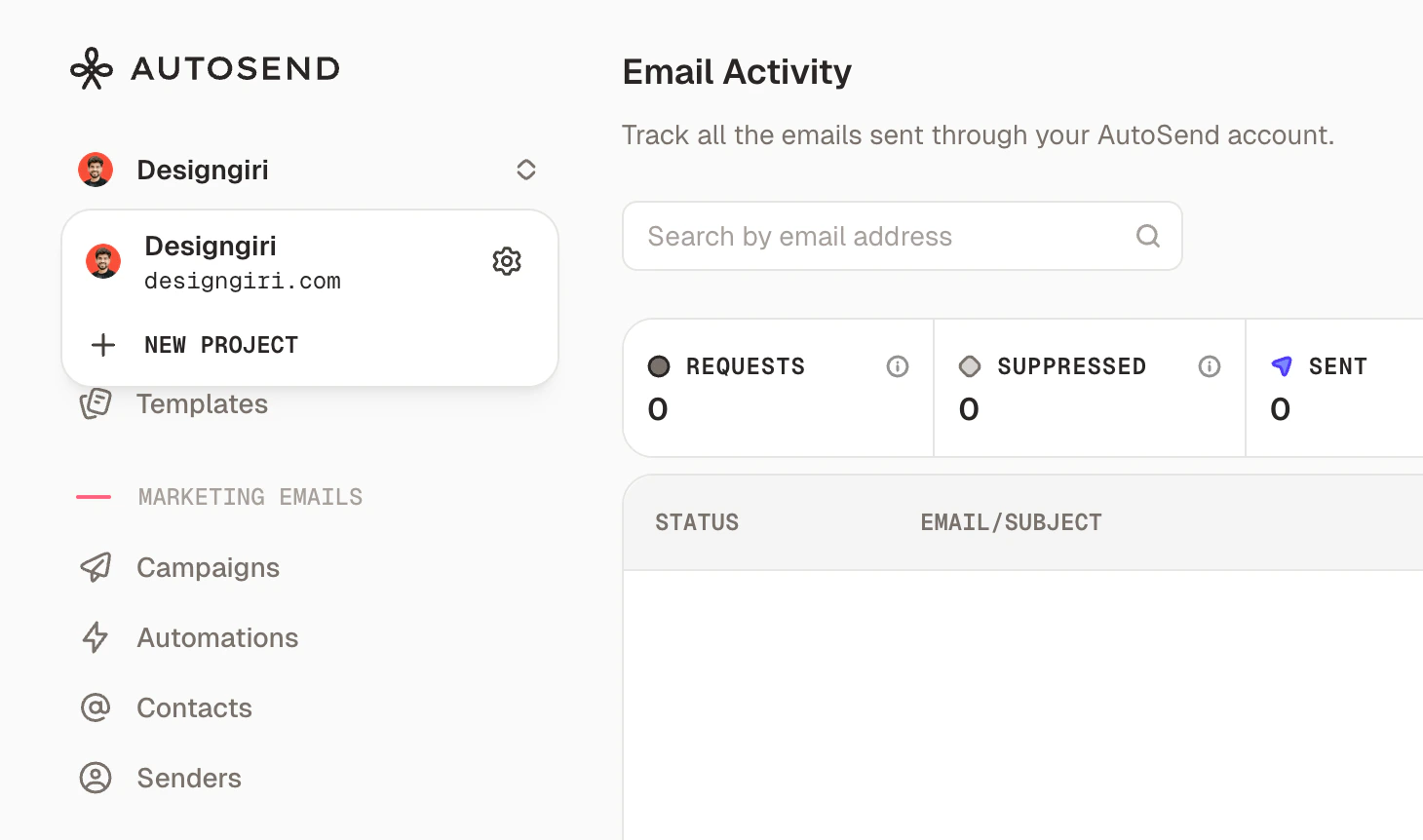
Click the project name in the top-left corner of your AutoSend dashboard to open the project
switcher dropdown, then click **"New Project"**.
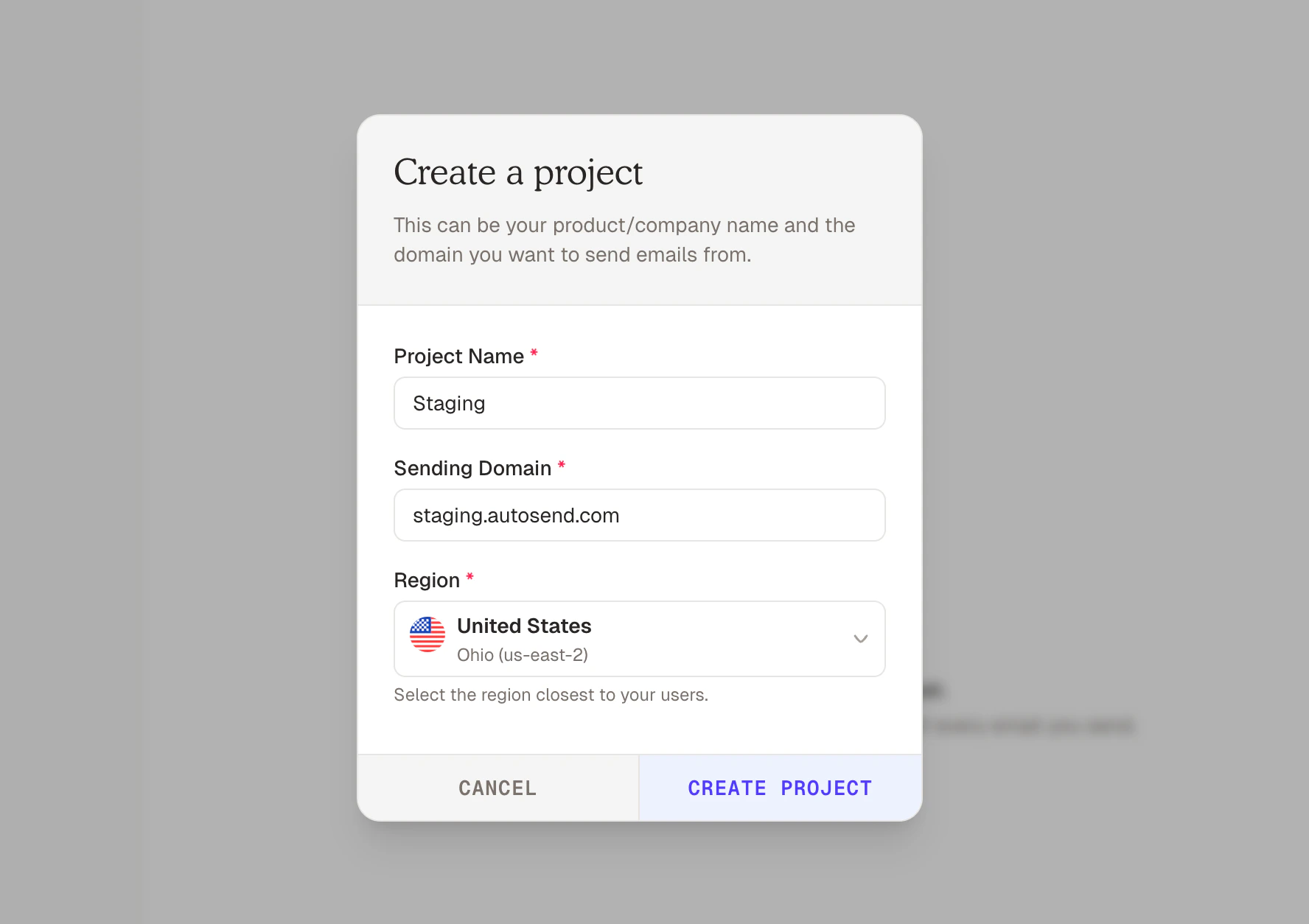
 Enter a descriptive name for the project - for example, `Production`, `Staging`, or your
client's brand name. Add a sending domain, select Region and click **"Create Project"**.
Enter a descriptive name for the project - for example, `Production`, `Staging`, or your
client's brand name. Add a sending domain, select Region and click **"Create Project"**.
 Your new project is ready. Head to Settings > Domains to get the DNS records and verify a sending domain for this project before you can start sending emails.
## Switching Between Projects
Use the project switcher in the top-left of the dashboard to move between projects at any time. All data shown in the dashboard - contacts, campaigns, analytics, API keys - belongs to the currently selected project.
## What's Isolated Per Project
Each project has its own separate:
* **API Keys**: credentials scoped to that project only
* **Contacts and Lists**: subscriber data does not cross project boundaries
* **Senders and Domains**: verified sending addresses and domains
* **Templates**: transactional and marketing email templates
* **Campaigns**: marketing campaigns and their analytics
* **Automations**: email sequences and workflow configurations
* **Webhooks**: event notification endpoints
* **Suppressions**: unsubscribe and bounce lists
## What's Shared Across Projects
The following are shared at the account level across all projects:
* **Subscription and billing**: one plan covers all your projects
* **Monthly email send quota**: the total sends are pooled across projects
* **Team members**: all team members on your account can access all projects
## Plan Limits
Each plan includes a set number of projects:
| Plan | Projects |
| ------- | -------- |
| Hobby | 1 |
| Starter | Up to 2 |
| Growth | Up to 5 |
| Scale | Up to 20 |
Building a multi-tenant system and need more than 20 projects? Reach out to{' '}
{SUPPORT_EMAIL} and we'll set up a custom limit for your
use case.
***
## FAQs
Not directly - contacts are isolated per project by design. To migrate contacts, export them from the source project as a CSV and import them into the destination project.
Yes. Your plan's monthly email quota is pooled across all projects. For example, on the Starter
plan, the total sends are shared between your 2 projects - there's no per-project quota split.
Yes. Each project has its own verified senders and domains. You can verify `mail.client-a.com` in
one project and `mail.client-b.com` in another, completely independently.
Your existing projects remain active and usable - nothing is deleted. However, you won't be able
to create new projects until the number of projects is within your new plan's limit.
Yes. Team members are added at the account level and have access to all projects under the
account.
AutoSend has two types of API keys:
* **Project API key**: Scoped to a single project. Use this for sending emails, managing contacts, campaigns, and all day-to-day operations within that project. An API key from Project A cannot access Project B.
* **Account API key**: Has extended scope across your entire account. Use this when you need to programmatically create, update, or delete projects. Requests made with an Account API key must include the target `projectId` in the payload to specify which project to operate on.
For most integrations, a Project API key is the right choice. Use an Account API key only when managing projects themselves - for example, when building a multi-tenant platform that provisions new projects automatically.
Yes. You can delete a project from the project settings. Deleting a project permanently removes
all associated data - contacts, templates, campaigns, API keys, and email history. This action
cannot be undone.
The Scale plan supports up to 20 projects. If you're building a product where each of your customers needs their own isolated project, contact {SUPPORT_EMAIL} - we support custom project limits for multi-tenant use cases.
Your new project is ready. Head to Settings > Domains to get the DNS records and verify a sending domain for this project before you can start sending emails.
## Switching Between Projects
Use the project switcher in the top-left of the dashboard to move between projects at any time. All data shown in the dashboard - contacts, campaigns, analytics, API keys - belongs to the currently selected project.
## What's Isolated Per Project
Each project has its own separate:
* **API Keys**: credentials scoped to that project only
* **Contacts and Lists**: subscriber data does not cross project boundaries
* **Senders and Domains**: verified sending addresses and domains
* **Templates**: transactional and marketing email templates
* **Campaigns**: marketing campaigns and their analytics
* **Automations**: email sequences and workflow configurations
* **Webhooks**: event notification endpoints
* **Suppressions**: unsubscribe and bounce lists
## What's Shared Across Projects
The following are shared at the account level across all projects:
* **Subscription and billing**: one plan covers all your projects
* **Monthly email send quota**: the total sends are pooled across projects
* **Team members**: all team members on your account can access all projects
## Plan Limits
Each plan includes a set number of projects:
| Plan | Projects |
| ------- | -------- |
| Hobby | 1 |
| Starter | Up to 2 |
| Growth | Up to 5 |
| Scale | Up to 20 |
Building a multi-tenant system and need more than 20 projects? Reach out to{' '}
{SUPPORT_EMAIL} and we'll set up a custom limit for your
use case.
***
## FAQs
Not directly - contacts are isolated per project by design. To migrate contacts, export them from the source project as a CSV and import them into the destination project.
Yes. Your plan's monthly email quota is pooled across all projects. For example, on the Starter
plan, the total sends are shared between your 2 projects - there's no per-project quota split.
Yes. Each project has its own verified senders and domains. You can verify `mail.client-a.com` in
one project and `mail.client-b.com` in another, completely independently.
Your existing projects remain active and usable - nothing is deleted. However, you won't be able
to create new projects until the number of projects is within your new plan's limit.
Yes. Team members are added at the account level and have access to all projects under the
account.
AutoSend has two types of API keys:
* **Project API key**: Scoped to a single project. Use this for sending emails, managing contacts, campaigns, and all day-to-day operations within that project. An API key from Project A cannot access Project B.
* **Account API key**: Has extended scope across your entire account. Use this when you need to programmatically create, update, or delete projects. Requests made with an Account API key must include the target `projectId` in the payload to specify which project to operate on.
For most integrations, a Project API key is the right choice. Use an Account API key only when managing projects themselves - for example, when building a multi-tenant platform that provisions new projects automatically.
Yes. You can delete a project from the project settings. Deleting a project permanently removes
all associated data - contacts, templates, campaigns, API keys, and email history. This action
cannot be undone.
The Scale plan supports up to 20 projects. If you're building a product where each of your customers needs their own isolated project, contact {SUPPORT_EMAIL} - we support custom project limits for multi-tenant use cases.