


Claude Desktop
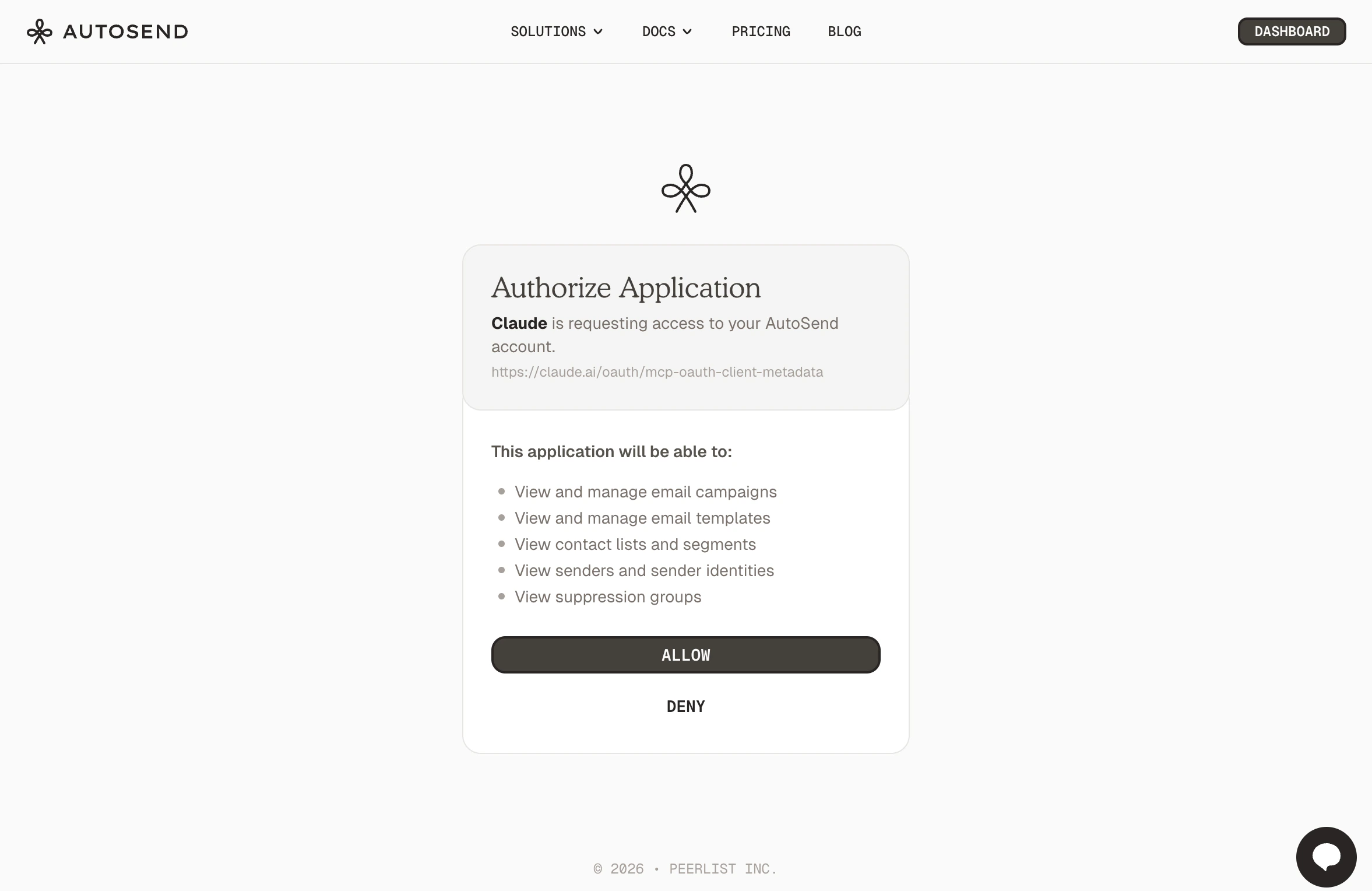
We’ll start by connecting AutoSend MCP to Claude Desktop, which will allow you to use AutoSend tools and workflows directly within the Claude interface.Open Connectors
Open Claude Desktop and click Customize in the top-left corner, then click Connectors.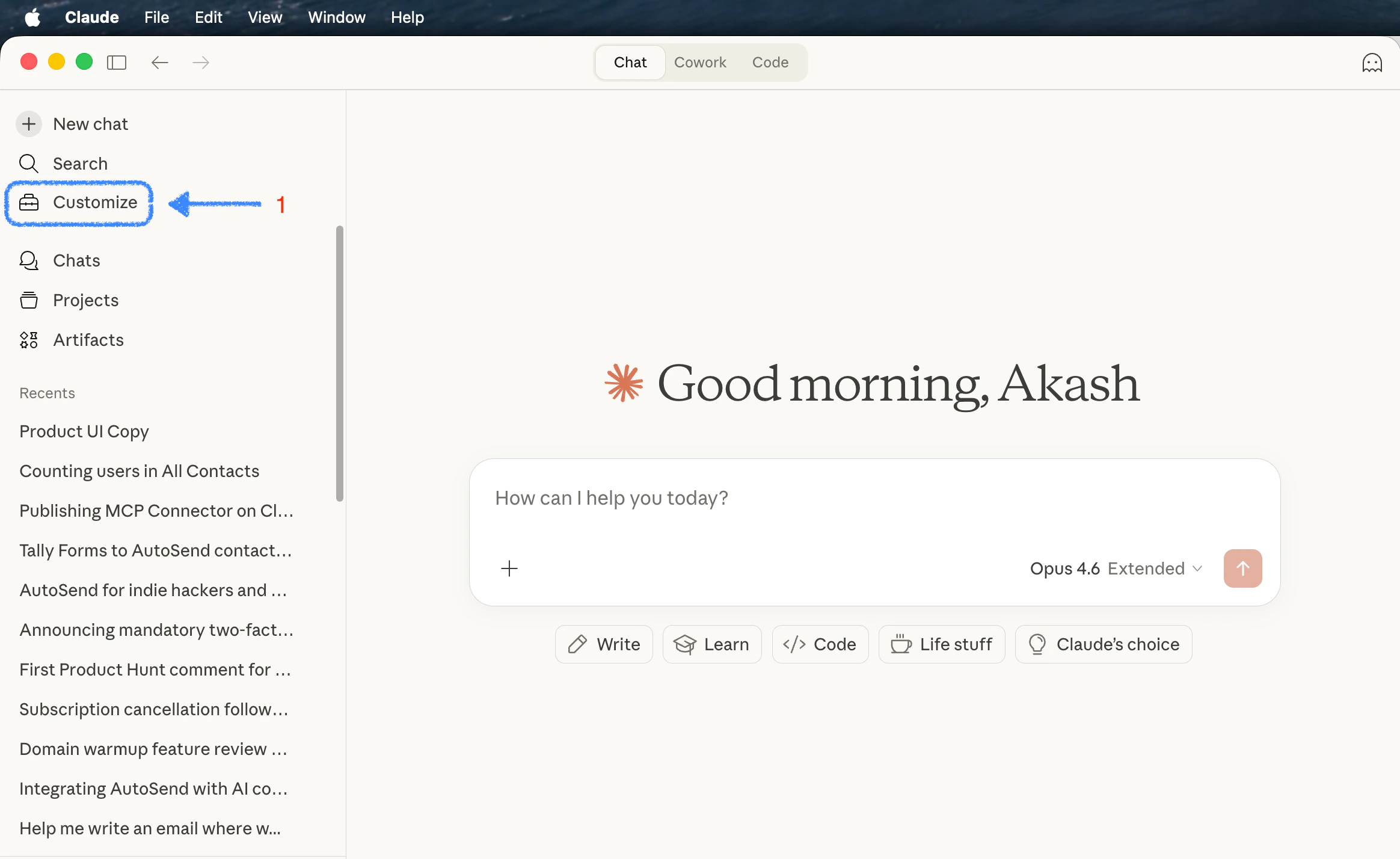
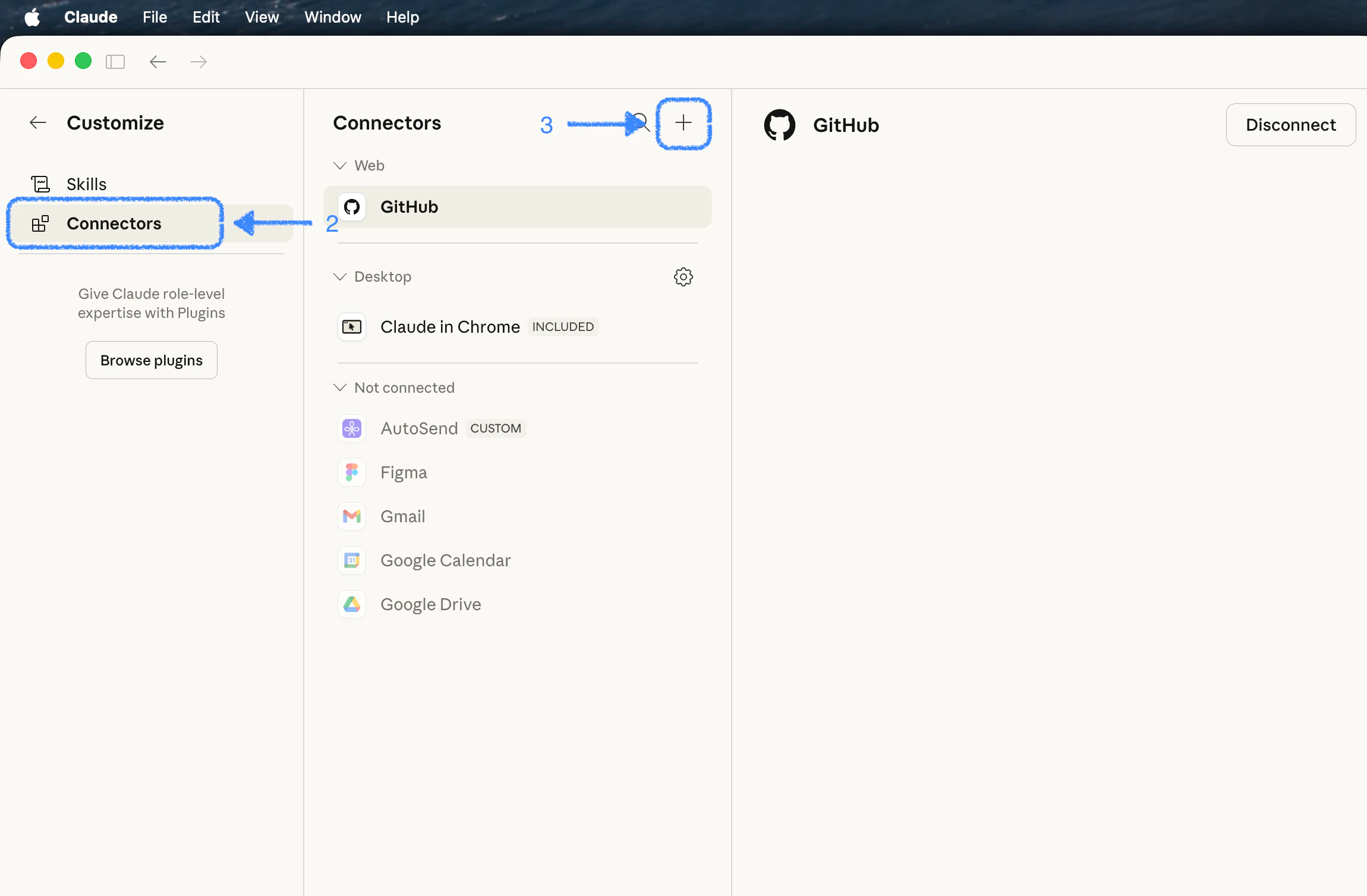
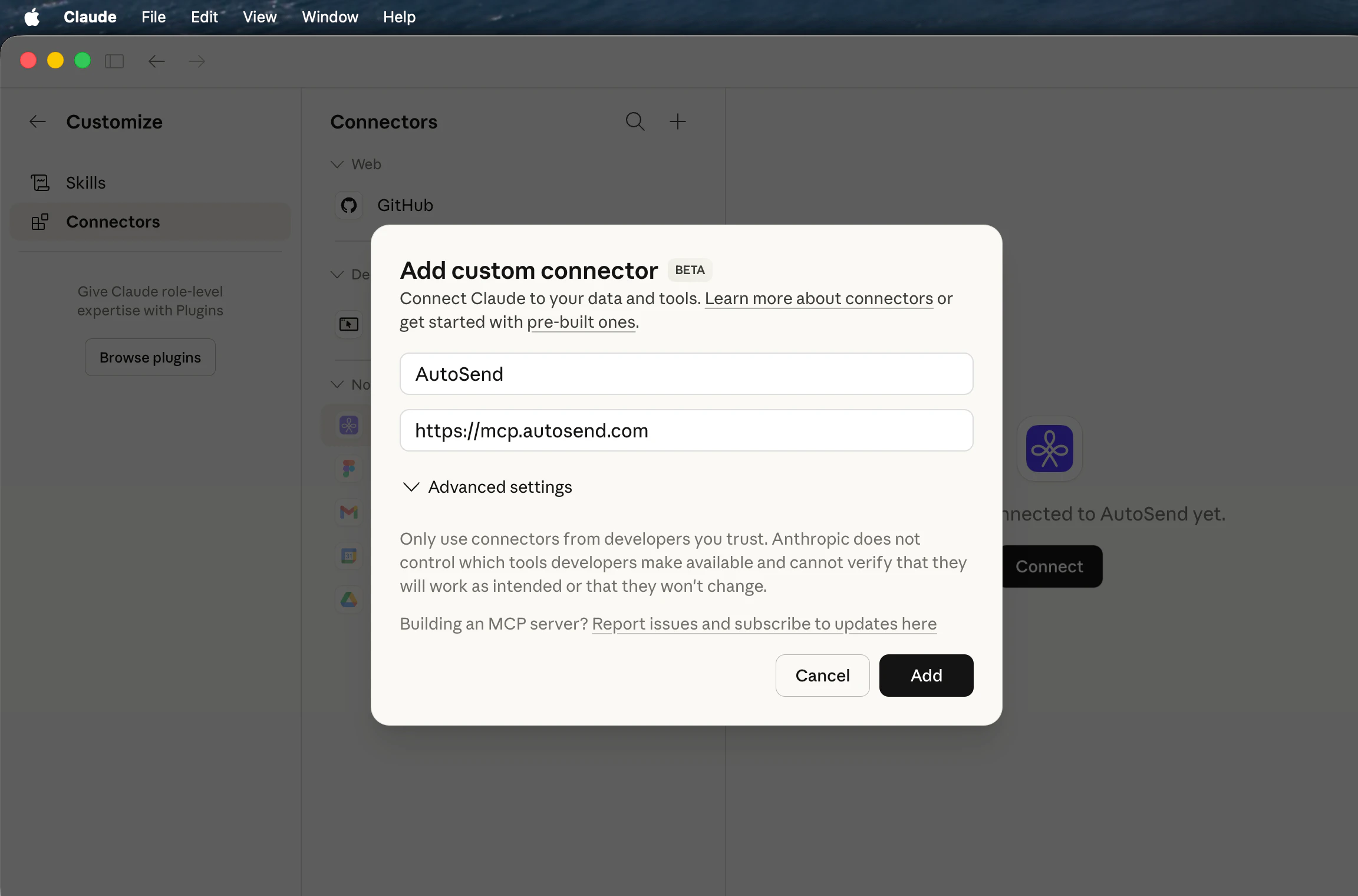
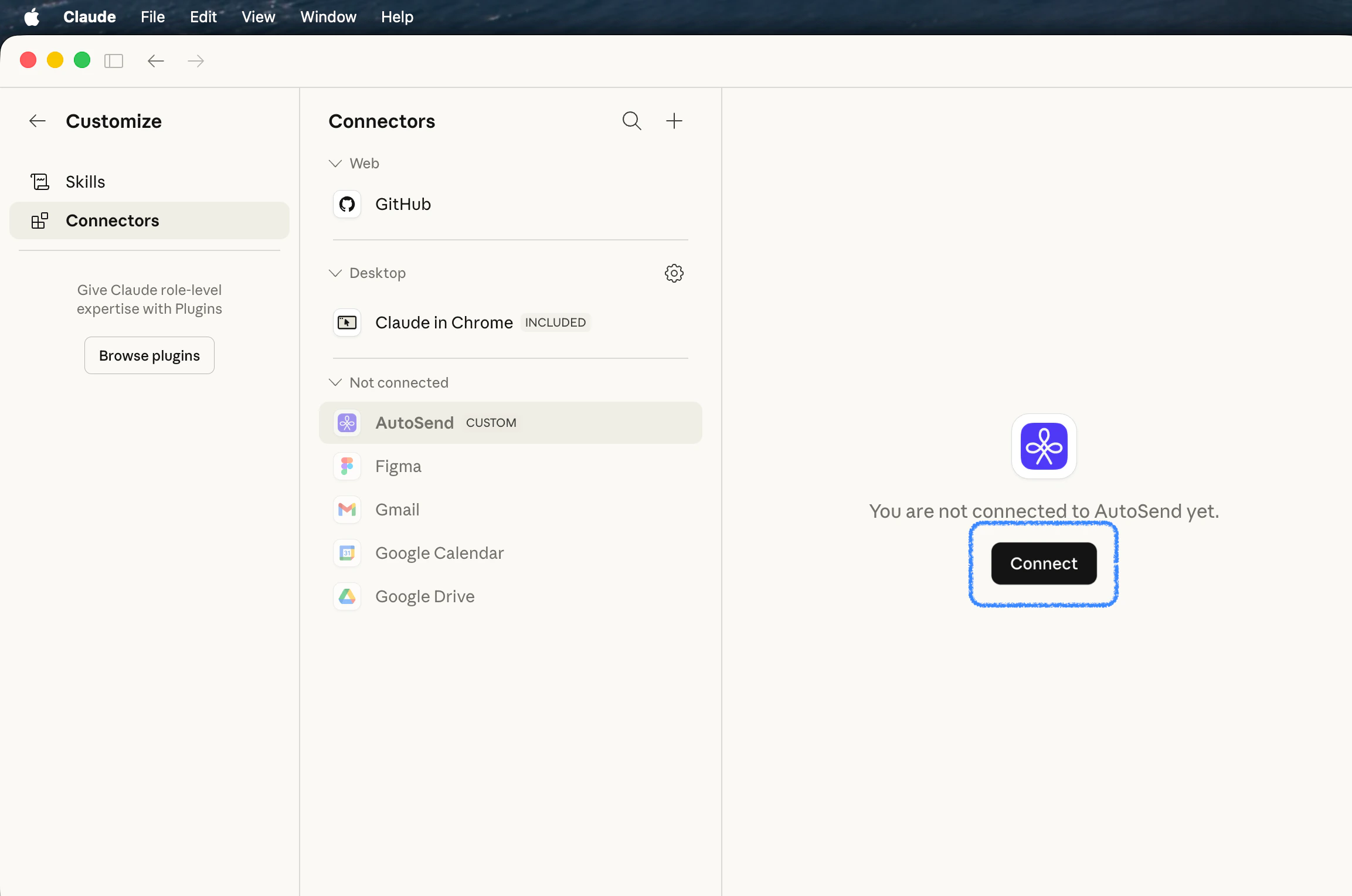
Claude Desktop does not support remote MCP servers via the
claude_desktop_config.json file. You
must add remote servers through Connectors.Claude Code
Run the following command in your terminal:Next Steps

MCP Server Overview
See all available tools, guided workflows, and examples.

AutoSend Skills
Install skill files for additional AI agent context.