


Prerequisites
Verified Domain
Make sure you have a verified domain added in AutoSend to send emails from.
SMTP Key
Create a project-specific SMTP key from the SMTP tab in Project Settings.
Configuration
Open Supabase Auth Settings
- Go to your Supabase dashboard
- Select your project
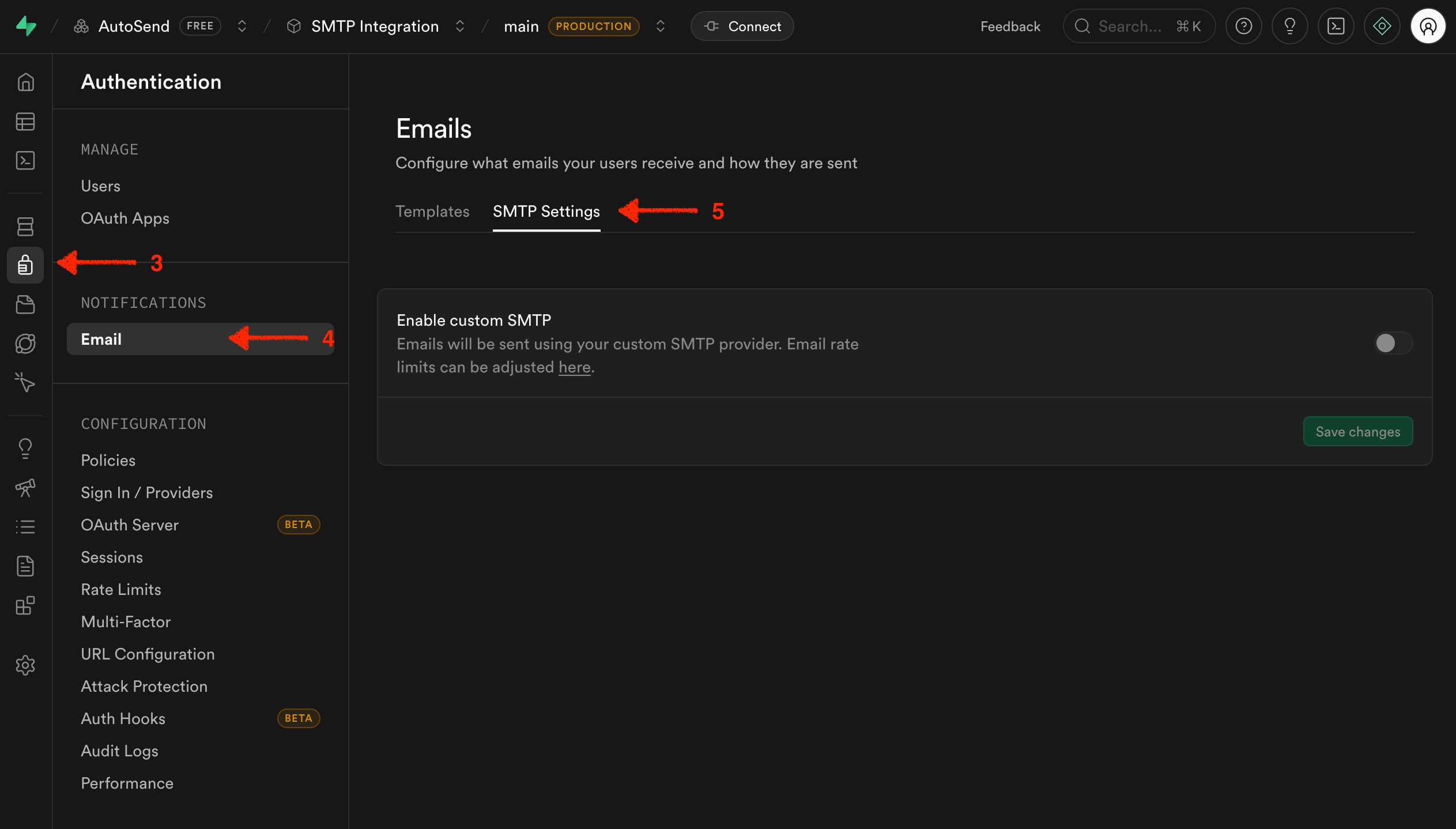
- Navigate to Authentication
- Under Notifications, you will see Email Section.
- Go to SMTP Settings tab.
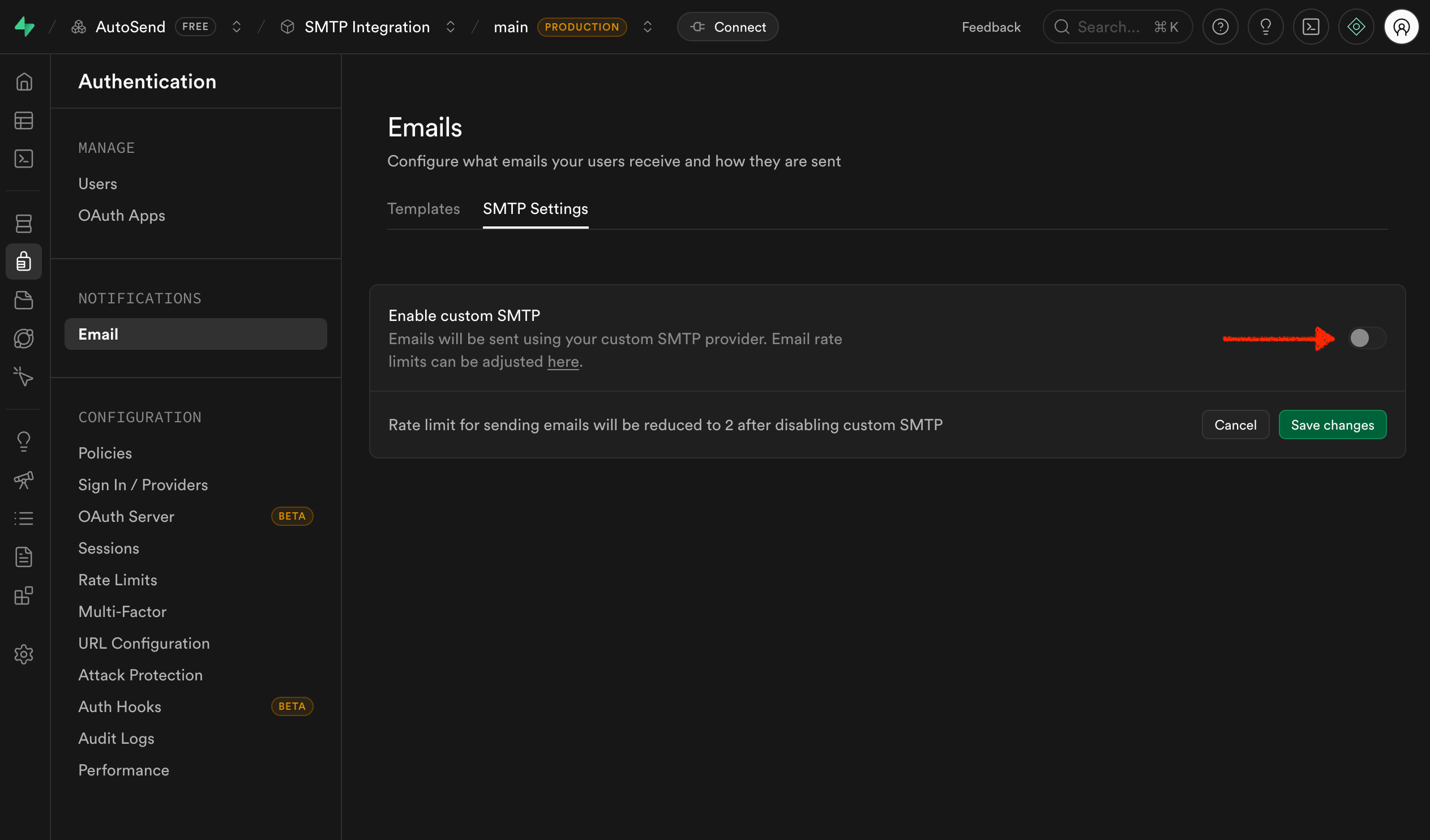
Enter SMTP Credentials
Fill in the following settings: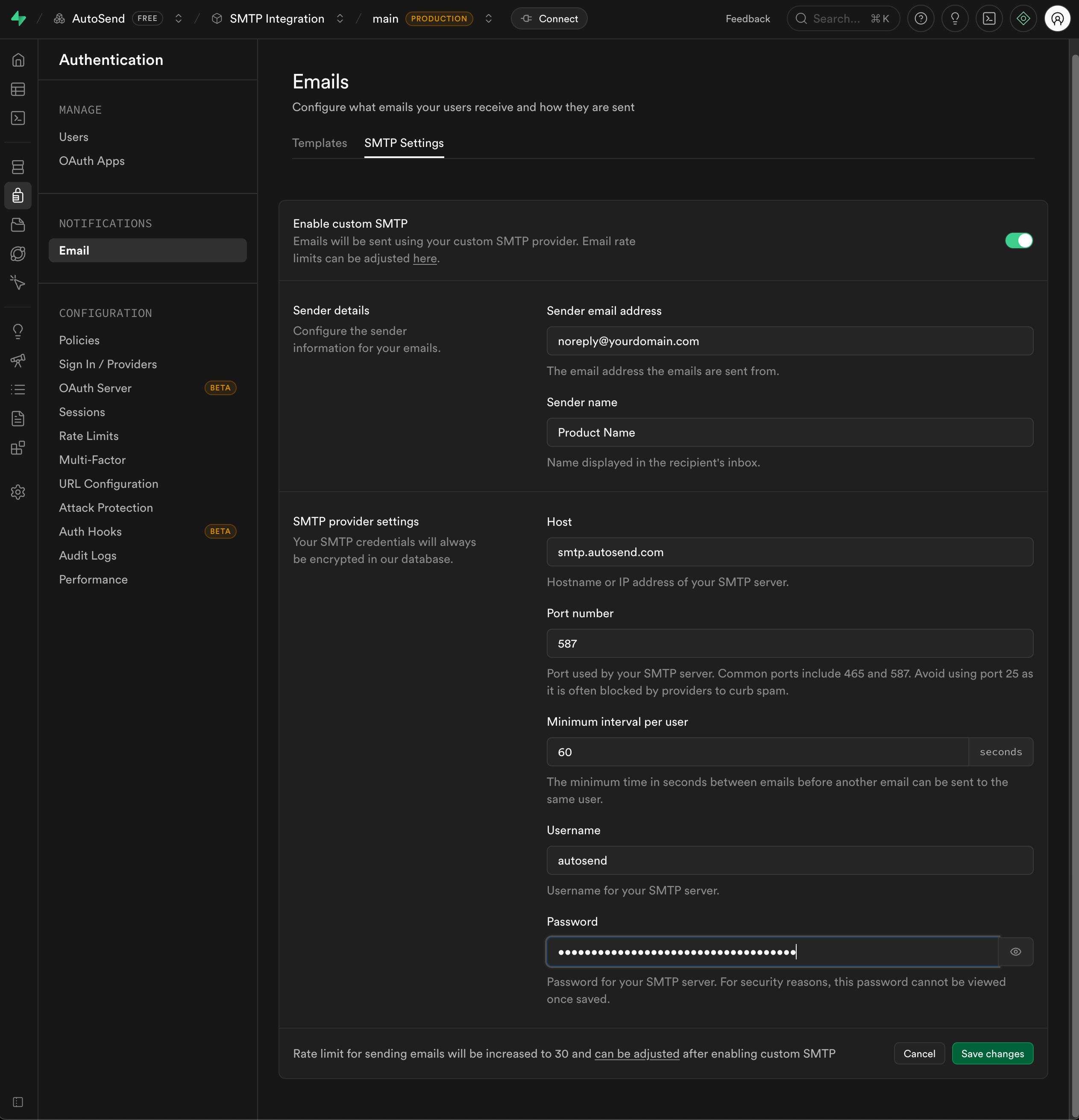
The SMTP password is no longer your API key. Create a project-specific SMTP key from the SMTP tab in Project Settings.
Email Templates
Supabase allows you to customize the email templates used for authentication. You can modify these in Authentication → Email Templates. Available templates:- Confirm signup - Sent when a user signs up
- Invite user - Sent when inviting a user to your project
- Magic link - Sent for passwordless login
- Change email address - Sent when a user requests an email change
- Reset password - Sent for password recovery
Supabase email templates use Go templating syntax. Variables like
{{ .ConfirmationURL }} are replaced with actual values when the email is sent.Example Custom Template
Here’s an example of a customized signup confirmation template:Rate Limits
Supabase applies rate limits to authentication emails to prevent abuse. These limits are:- 30 emails per hour per user
- 4 emails per hour for the same action (e.g., password reset)
Troubleshooting
Emails not being sent
Emails not being sent
- Verify your SMTP credentials are correct - Check that your sender email domain is verified in AutoSend - Ensure the sender email matches a verified domain - Check Supabase logs for SMTP connection errors
Emails going to spam
Emails going to spam
- Ensure your domain has proper DNS records (SPF, DKIM, DMARC) - Use a professional sender name, not “noreply” - Avoid spam trigger words in your email templates - Check your domain reputation in AutoSend
Connection refused
Connection refused
- Supabase may have firewall restrictions on certain IP ranges - Try using port 465 instead of 587 - Contact Supabase support if the issue persists
Authentication failed
Authentication failed
- Double-check your SMTP key is correct - Ensure the username is
autosendand the password is your SMTP key - Verify your SMTP key is active in the SMTP Settings
Alternative: Supabase Edge Functions
For more advanced use cases, you can use Supabase Edge Functions with the AutoSend API instead of SMTP. This gives you access to features like:- Email templates with dynamic variables
- Detailed delivery tracking
- Webhook notifications

Edge Functions Integration
Learn how to send emails from Supabase Edge Functions using the AutoSend API