


mail() function to send emails by default, which often results in poor deliverability or emails not being sent at all. By configuring WordPress to use AutoSend SMTP, you ensure reliable delivery for password resets, user notifications, contact form submissions, and WooCommerce order emails.
Prerequisites
Verified Domain
Make sure you have a verified domain added in AutoSend to send emails from.
SMTP Key
Create a project-specific SMTP key from the SMTP tab in Project Settings.
Configuration
Install WP Mail SMTP Plugin
Install and activate the WP Mail SMTP plugin from your WordPress dashboard.
Configure From Email and Name
In the Mail section, configure your sender details: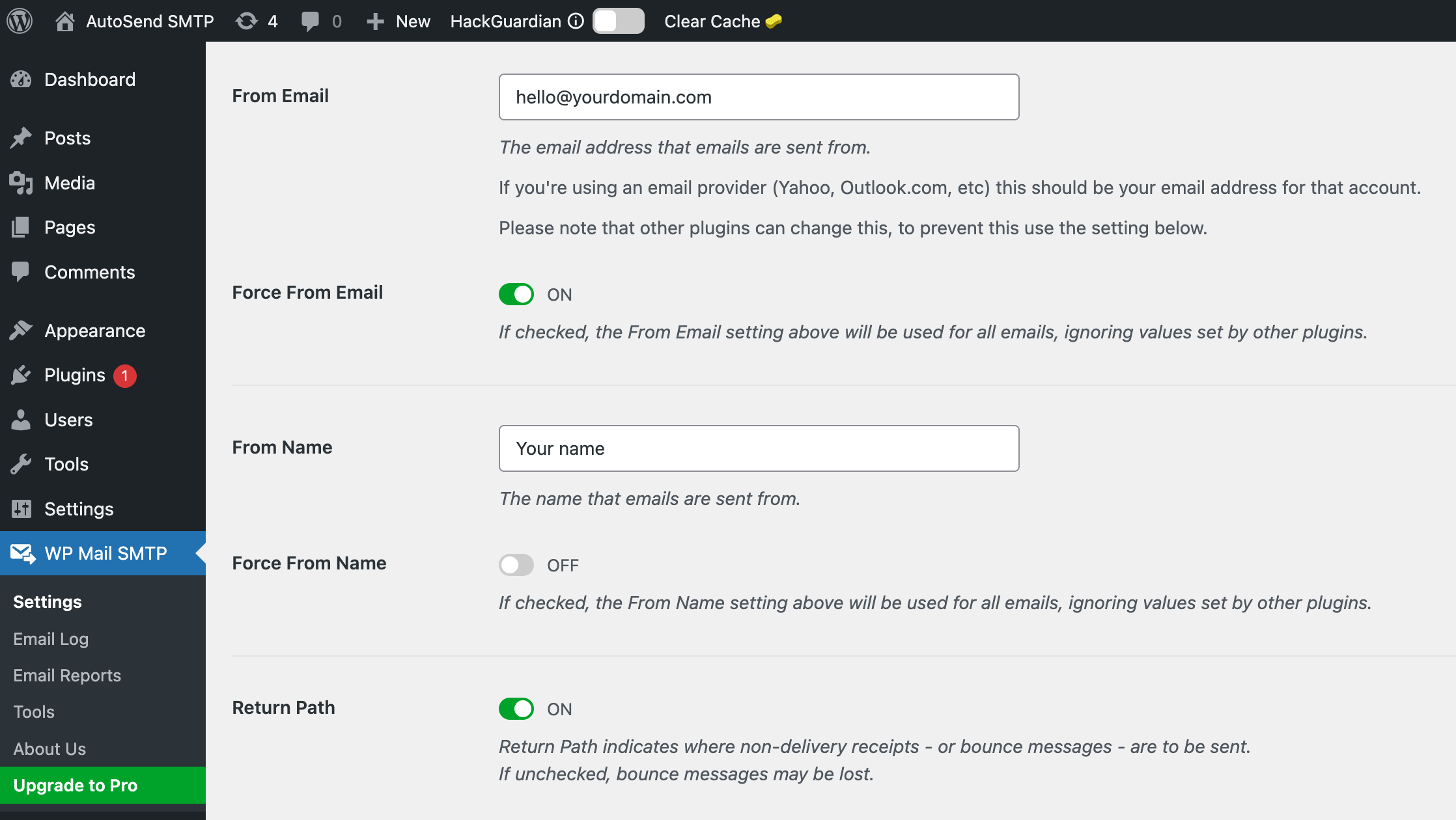
Enable Force From Email to ensure WordPress always uses this address.
The From Email must use a domain that is verified in AutoSend. For example, if you verified
yourdomain.com, use an address like [email protected].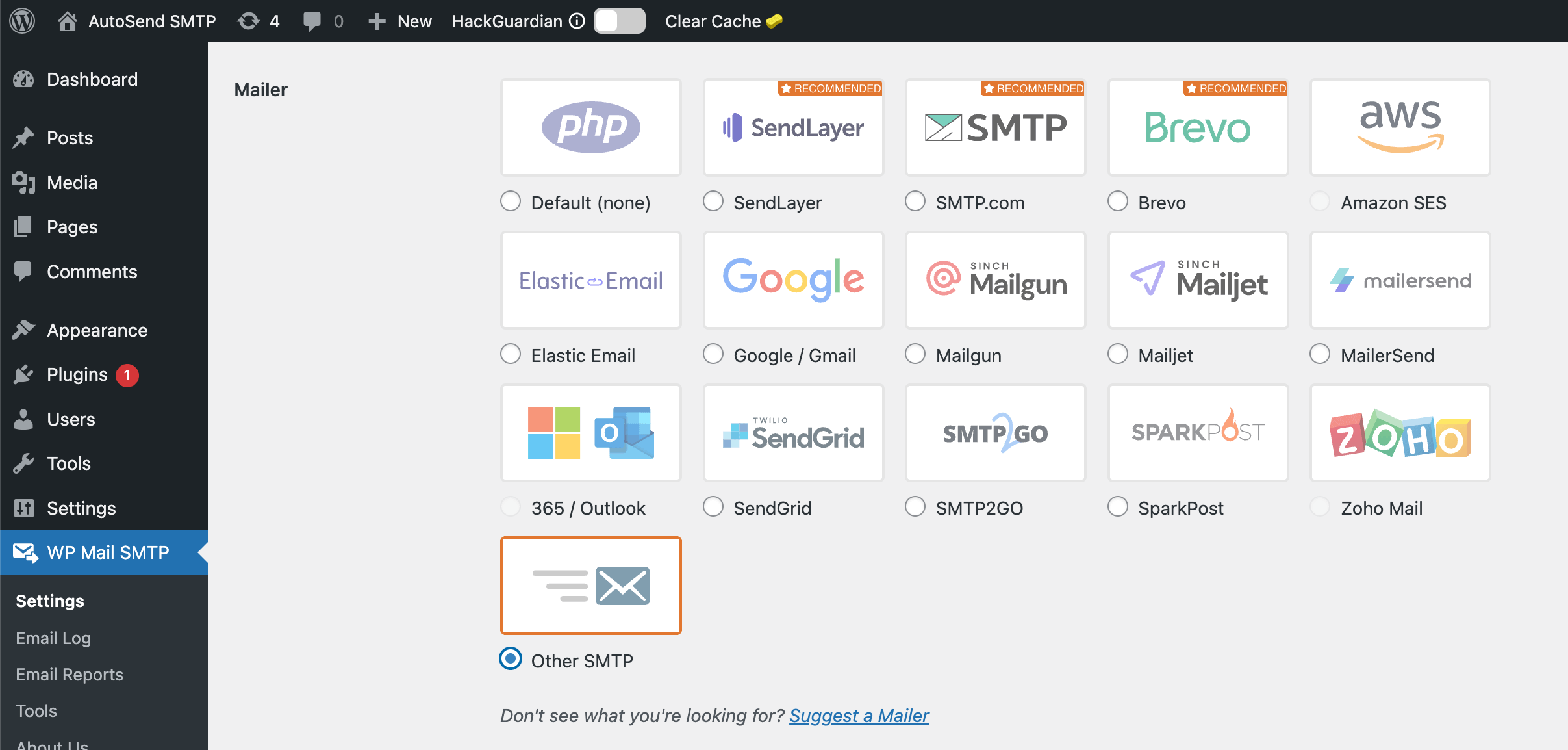
Enter SMTP Credentials
Fill in the following SMTP settings: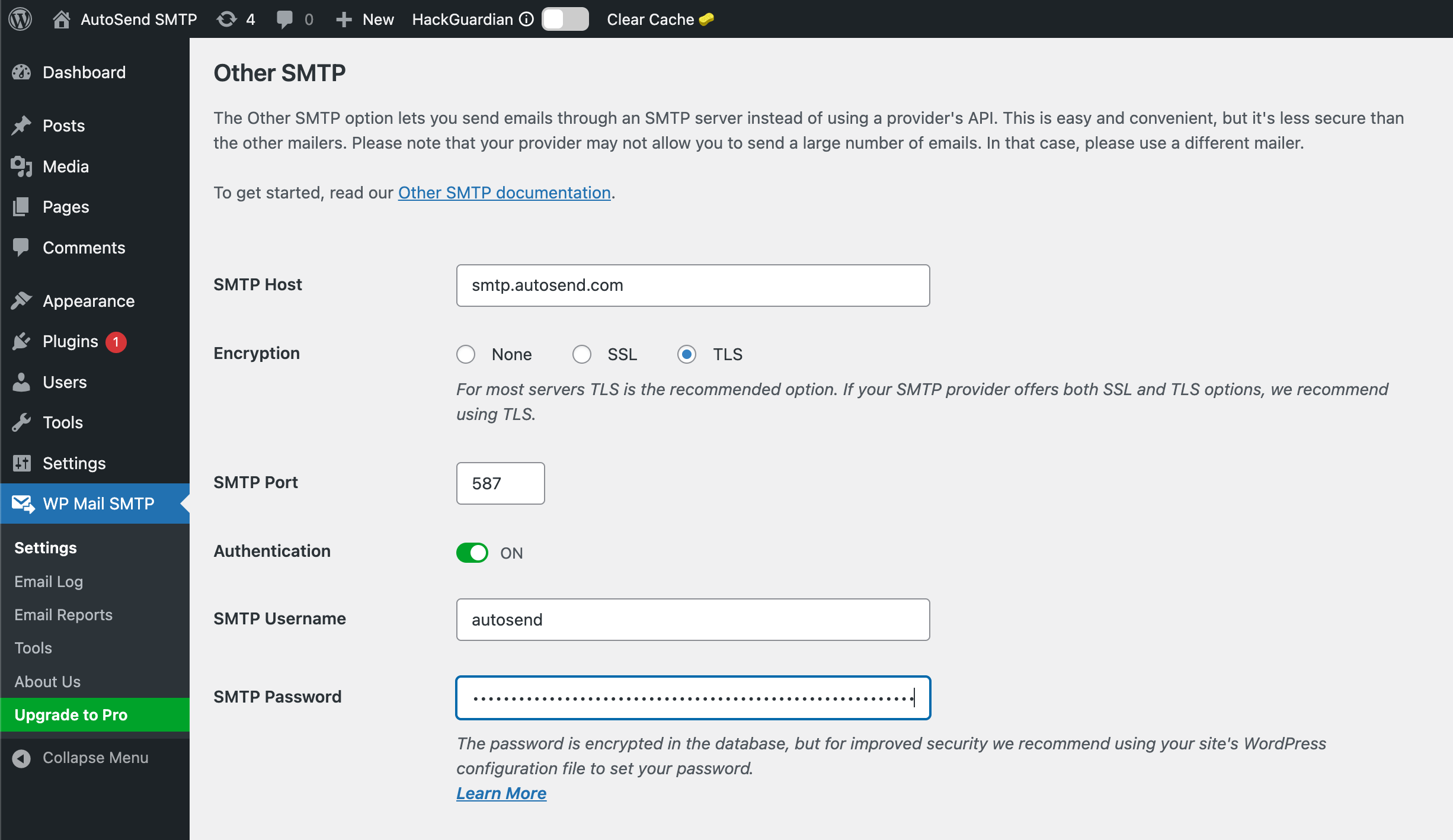
The SMTP password is no longer your API key. Create a project-specific SMTP key from the SMTP tab in Project Settings.
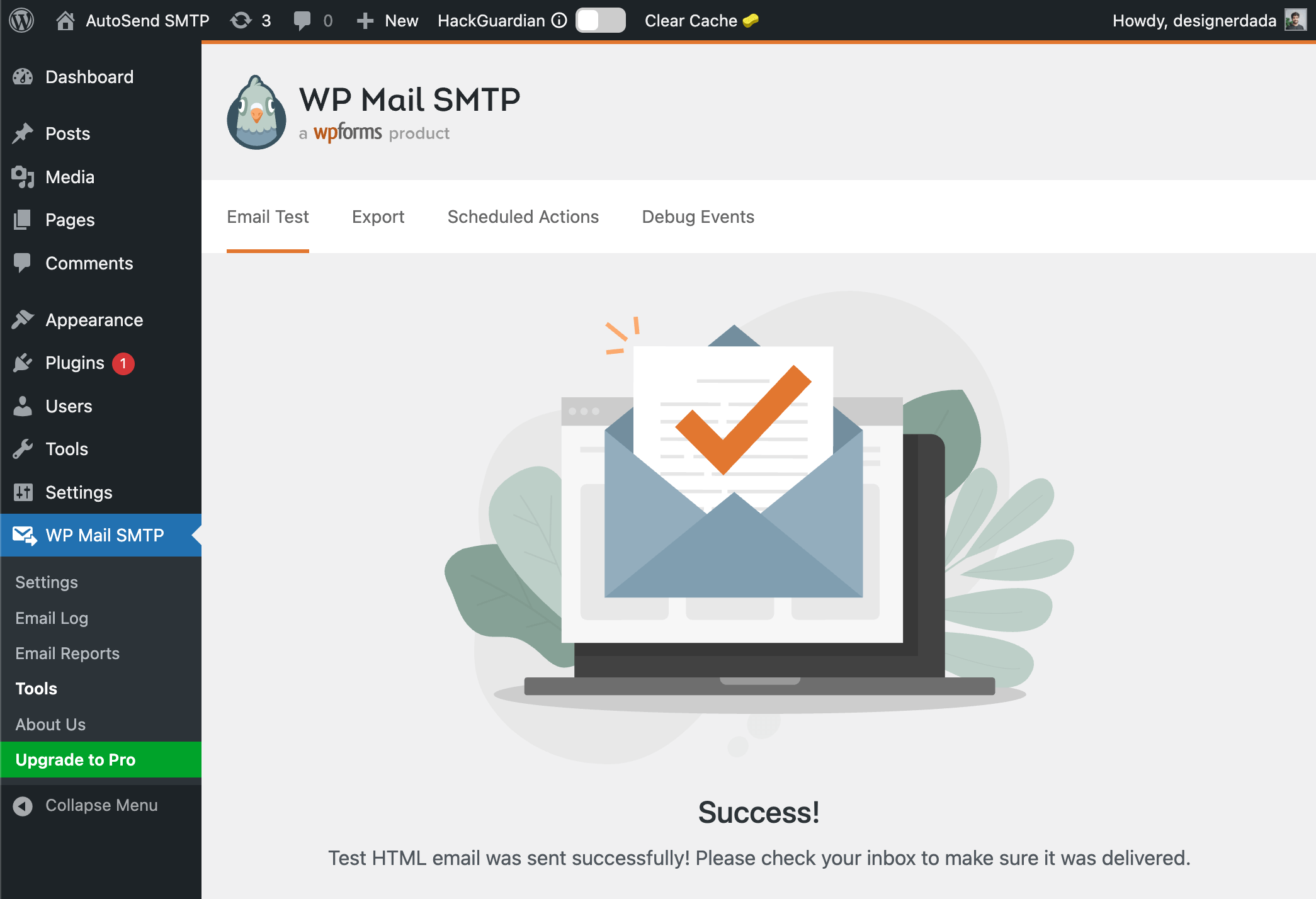
Send a Test Email
- Go to WP Mail SMTP > Tools > Email Test
- Enter a recipient email address
- Click Send Email
Troubleshooting
Emails not being sent
Emails not being sent
- Verify your SMTP credentials are correct - Check that your sender email domain is verified in AutoSend - Ensure Force From Email is enabled in WP Mail SMTP settings - Check if your hosting provider blocks outgoing SMTP connections
Authentication failed
Authentication failed
- Double-check your SMTP key is correct - Ensure you’re using
autosendas the username - Verify your SMTP key is active in the SMTP Settings - Make sure there are no extra spaces in the credentials
Connection timeout errors
Connection timeout errors
- Verify the server address is
smtp.autosend.com- Try using port465with SSL if port587fails - Contact your hosting provider to ensure SMTP ports are not blocked - Some shared hosts block outgoing SMTP; consider upgrading to a VPS
Plugin conflicts
Plugin conflicts
- Deactivate other SMTP or email plugins that may interfere - Check for caching plugins that might cache email settings - Test with a default WordPress theme to rule out theme conflicts
Emails going to spam
Emails going to spam
- Ensure your domain has proper DNS records (SPF, DKIM, DMARC) - Use a professional sender name and address - Check your domain reputation in AutoSend - Avoid spam trigger words in your email content
Next Steps

Verify Your Domain
Set up SPF, DKIM, and DMARC for better deliverability

Email Activity
Monitor your email delivery and engagement

Webhooks
Set up webhooks to track email events in real-time

SMTP Introduction
Learn more about AutoSend SMTP configuration