What are Campaigns in AutoSend?
Campaigns in AutoSend are one-time or scheduled marketing emails that you send to your contacts, lists, or segments. These are typically newsletters, announcements, or promotional emails designed to engage your audience.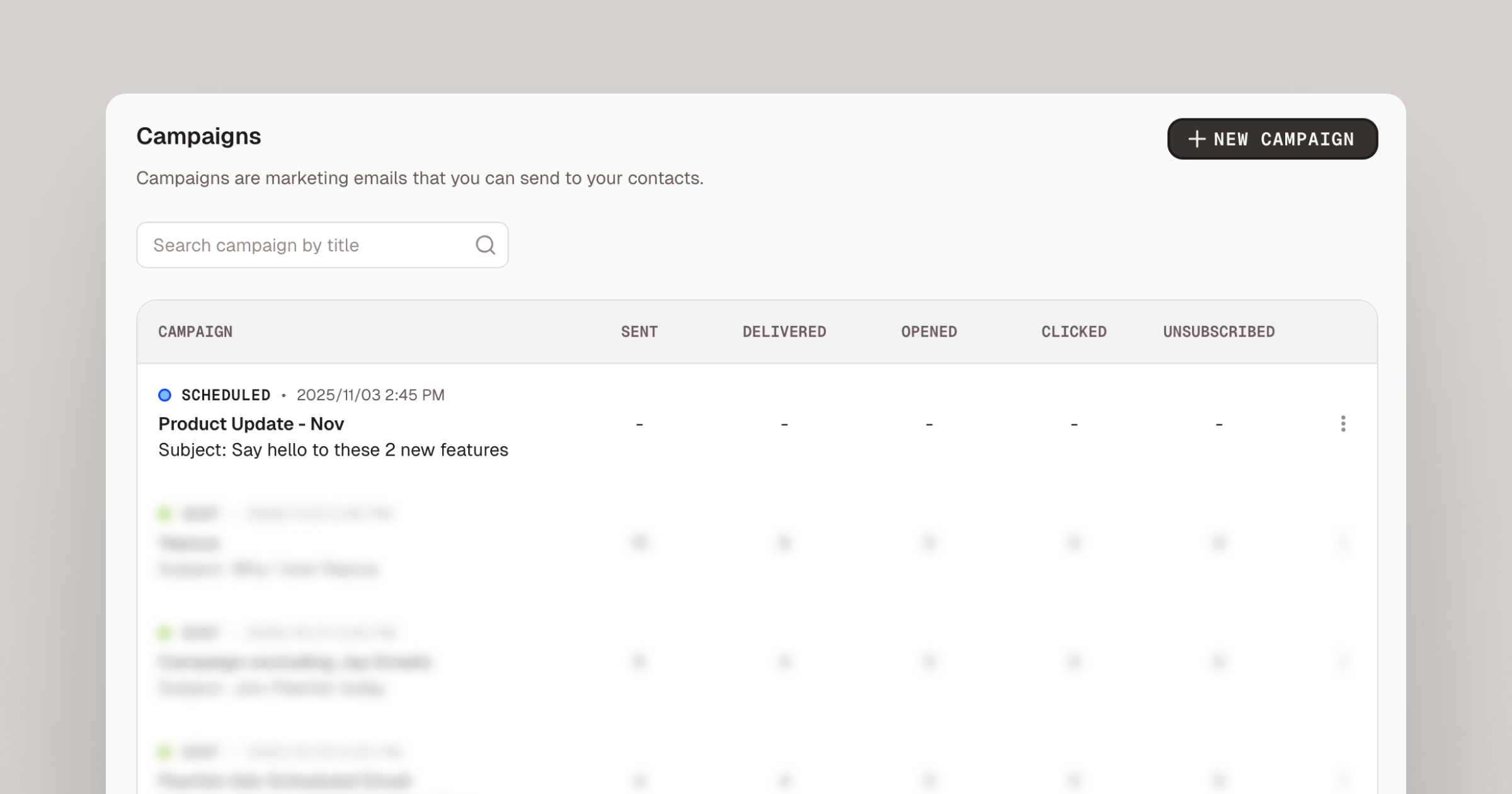
Creating a Campaign in AutoSend
1
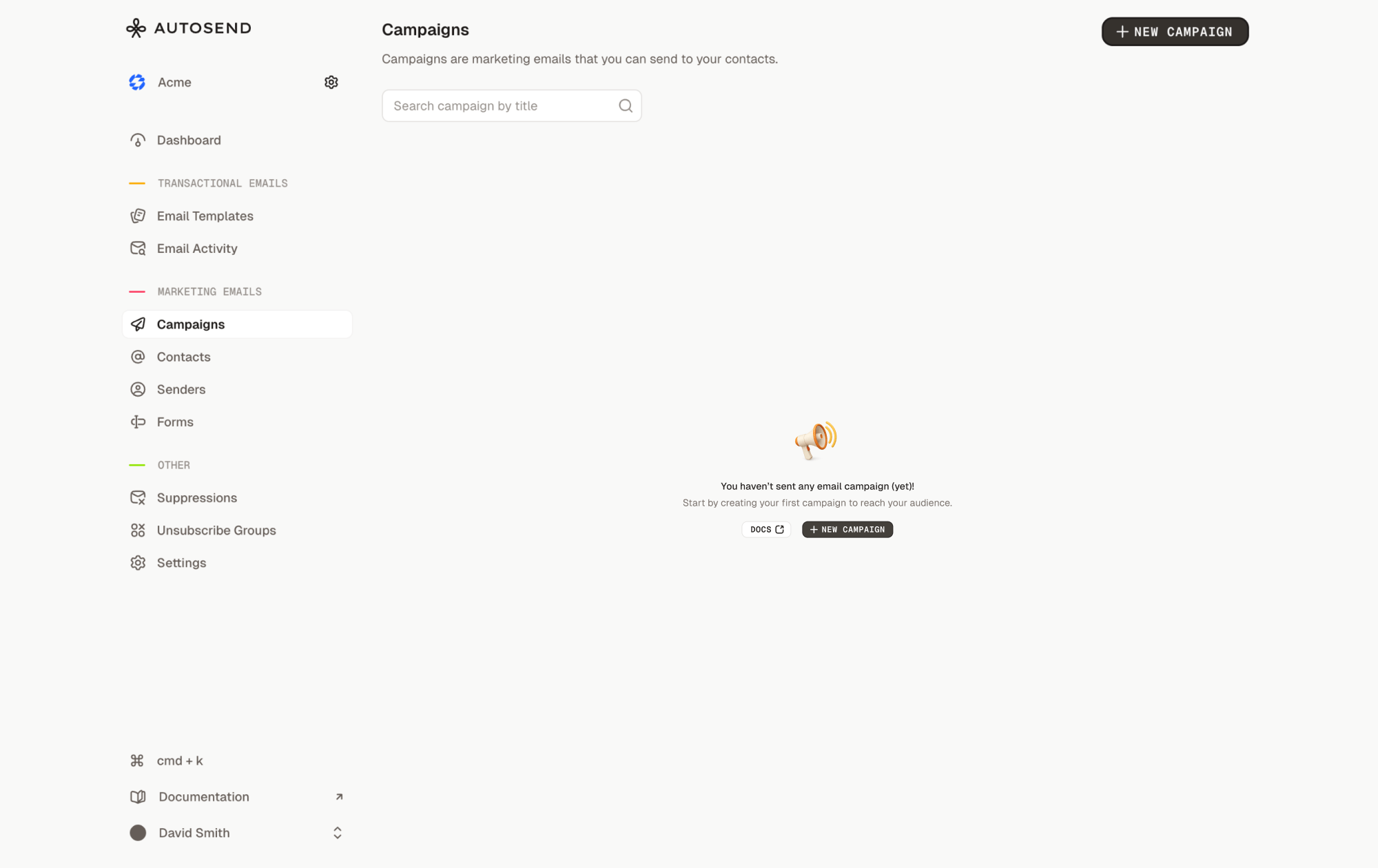
Create a New Campaigns from the Campaigns tab.
2
Designing the campaign
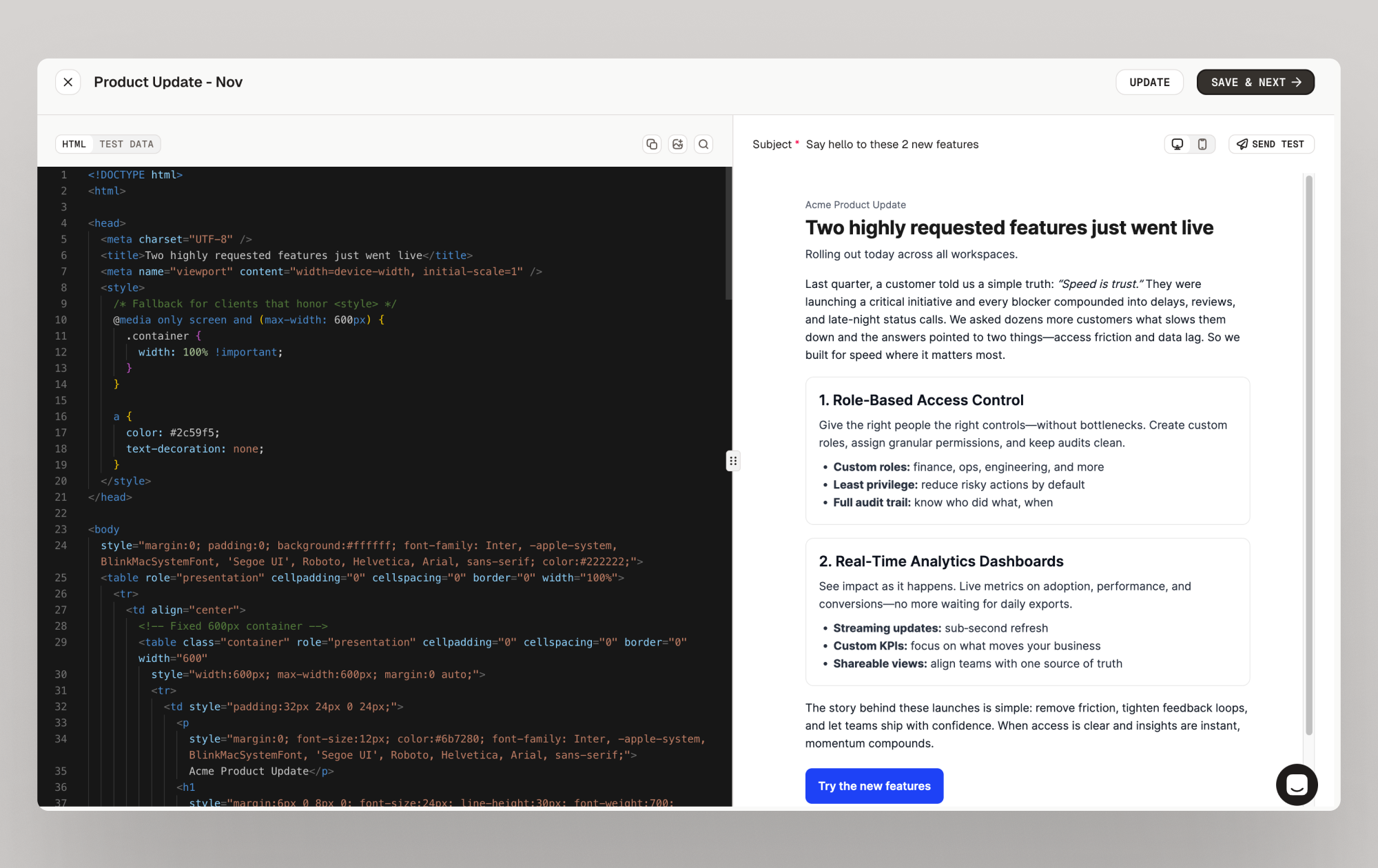
- Write responsive HTML with inline CSS for maximum compatibility.
- Use variables anywhere in the HTML to personalize content dynamically, for example:
{{first_name}},{{company_name}},{{email}}, etc. - Variables are wrapped in double curly braces and will be replaced with actual values when the email is sent.
- Keep your HTML clean and well-structured to ensure consistent rendering across email clients.
- Test your template thoroughly in both desktop and mobile views before deployment.
3
Email Details
After designing your email, fill in the campaign details. The mandatory fields are marked with a red asterisk (*).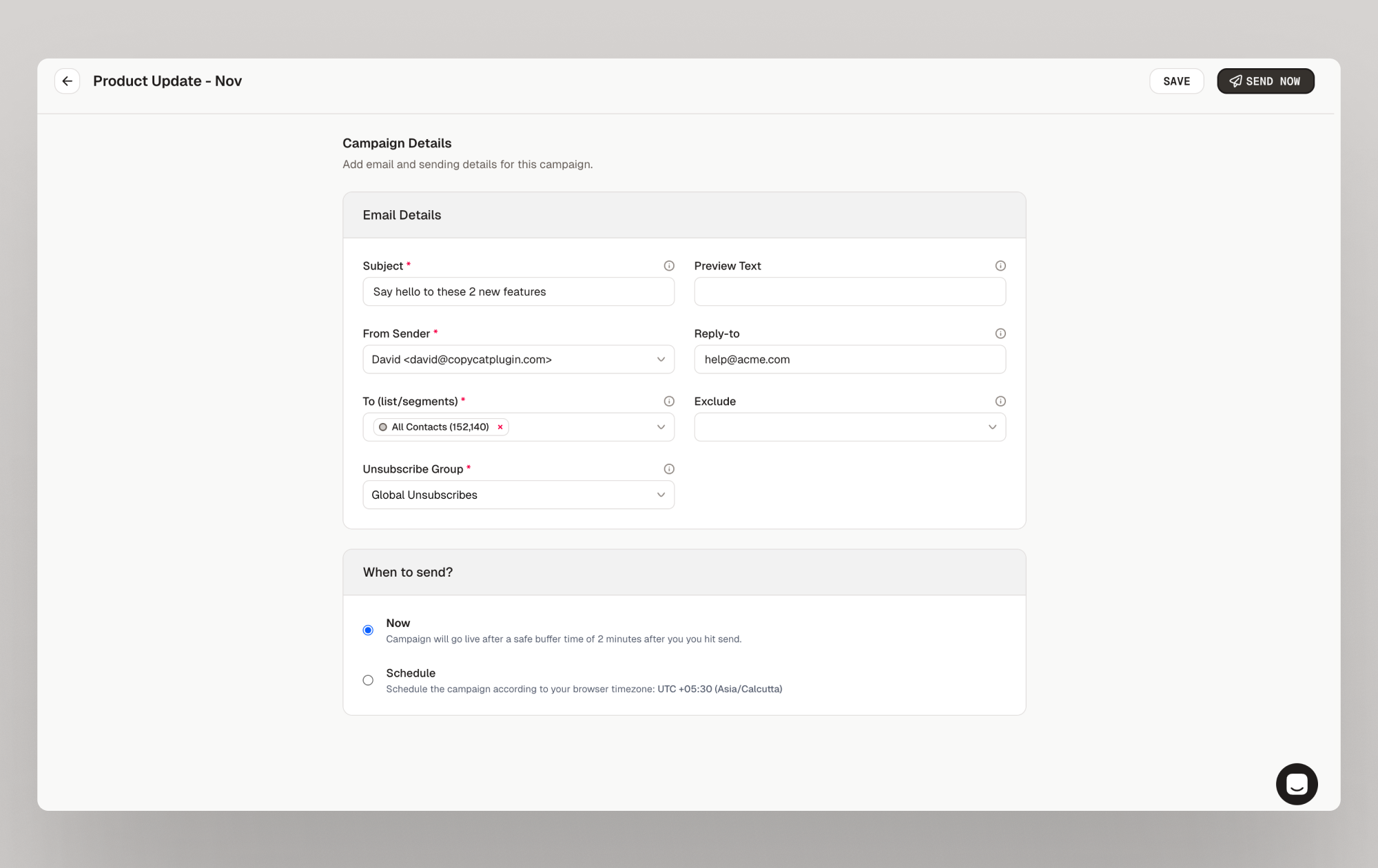
4
Sending Details
Once the campaign details are filled, select when you want to send the campaign.
- Click Send Now to send the campaign immediately.
- Or, Schedule for later to pick a specific date and time.
5
Review
Review all the details of your campaign. Make sure everything is accurate.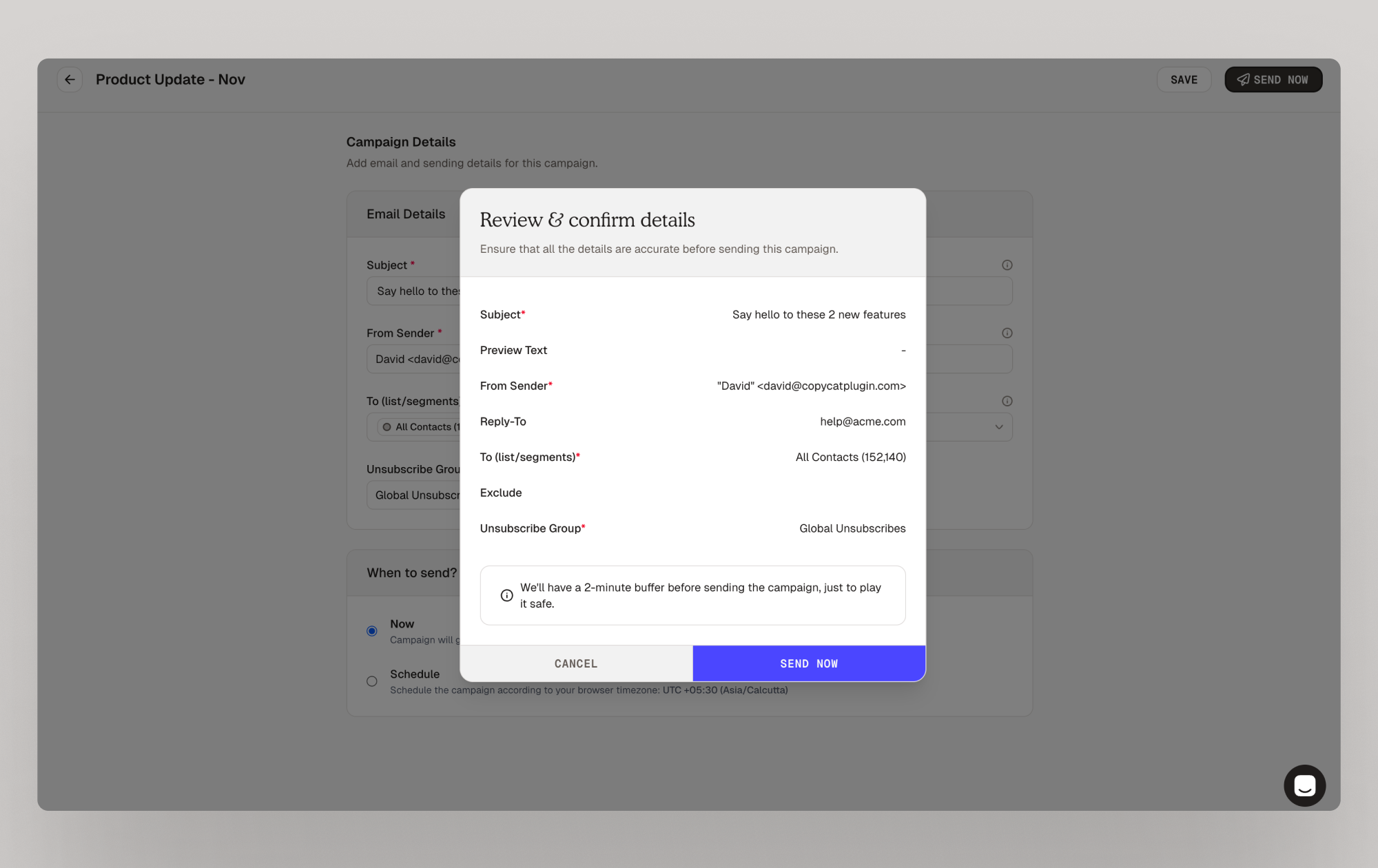 Once reviewed, Click on Send Now or Schedule Campaign to send or schedule for later respectively.Your campaign will be made live accordingly.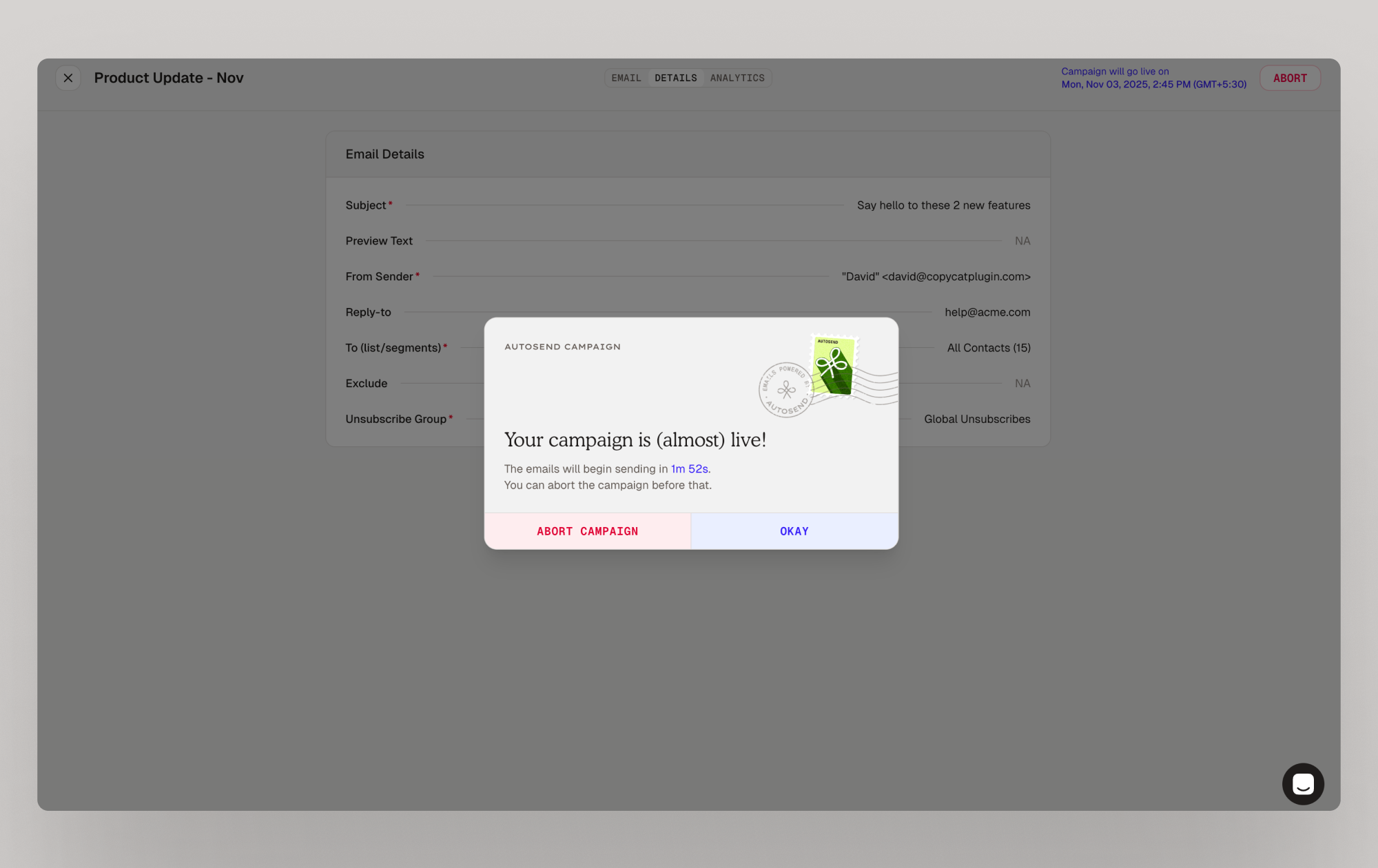
Testing your Campaign
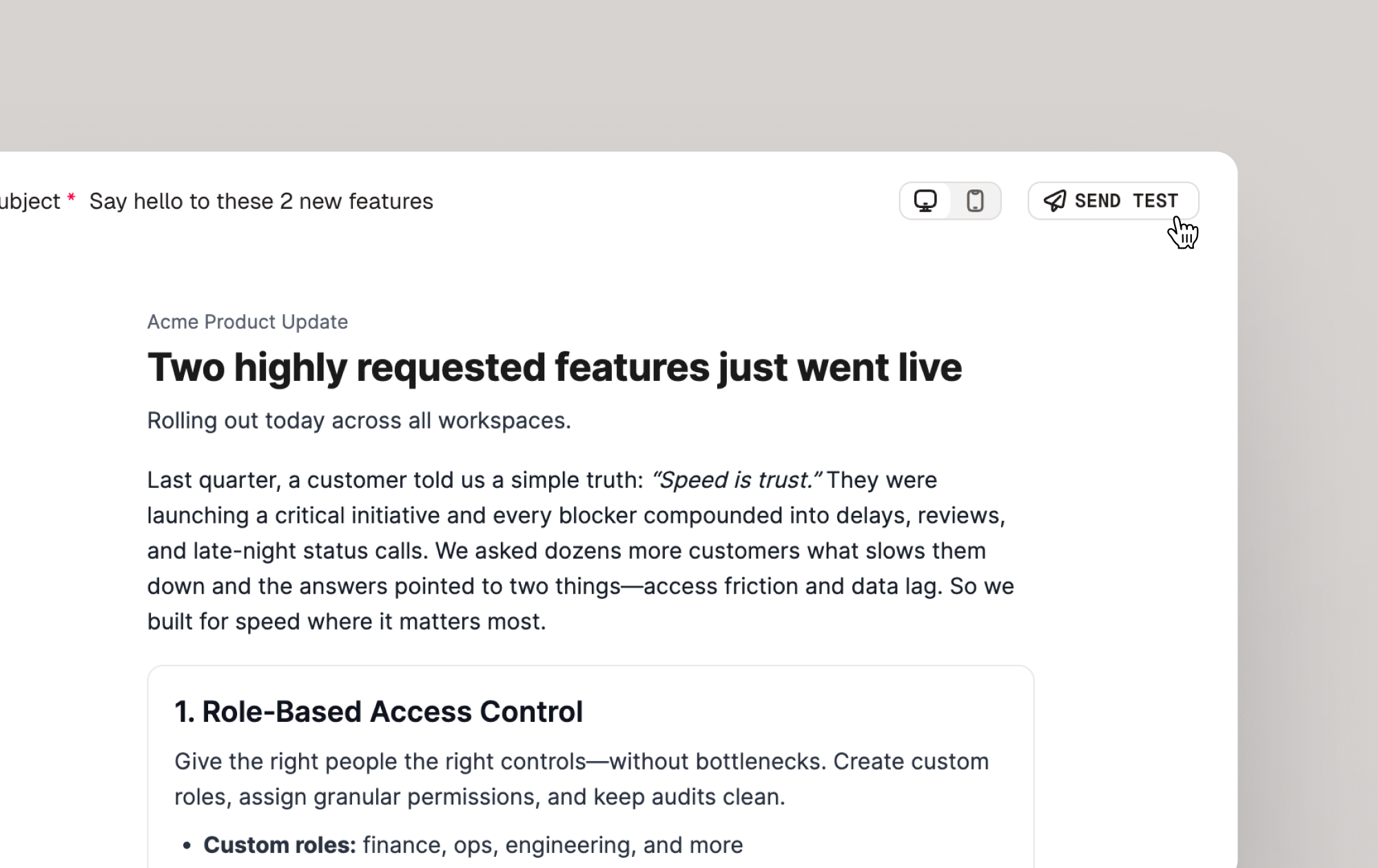
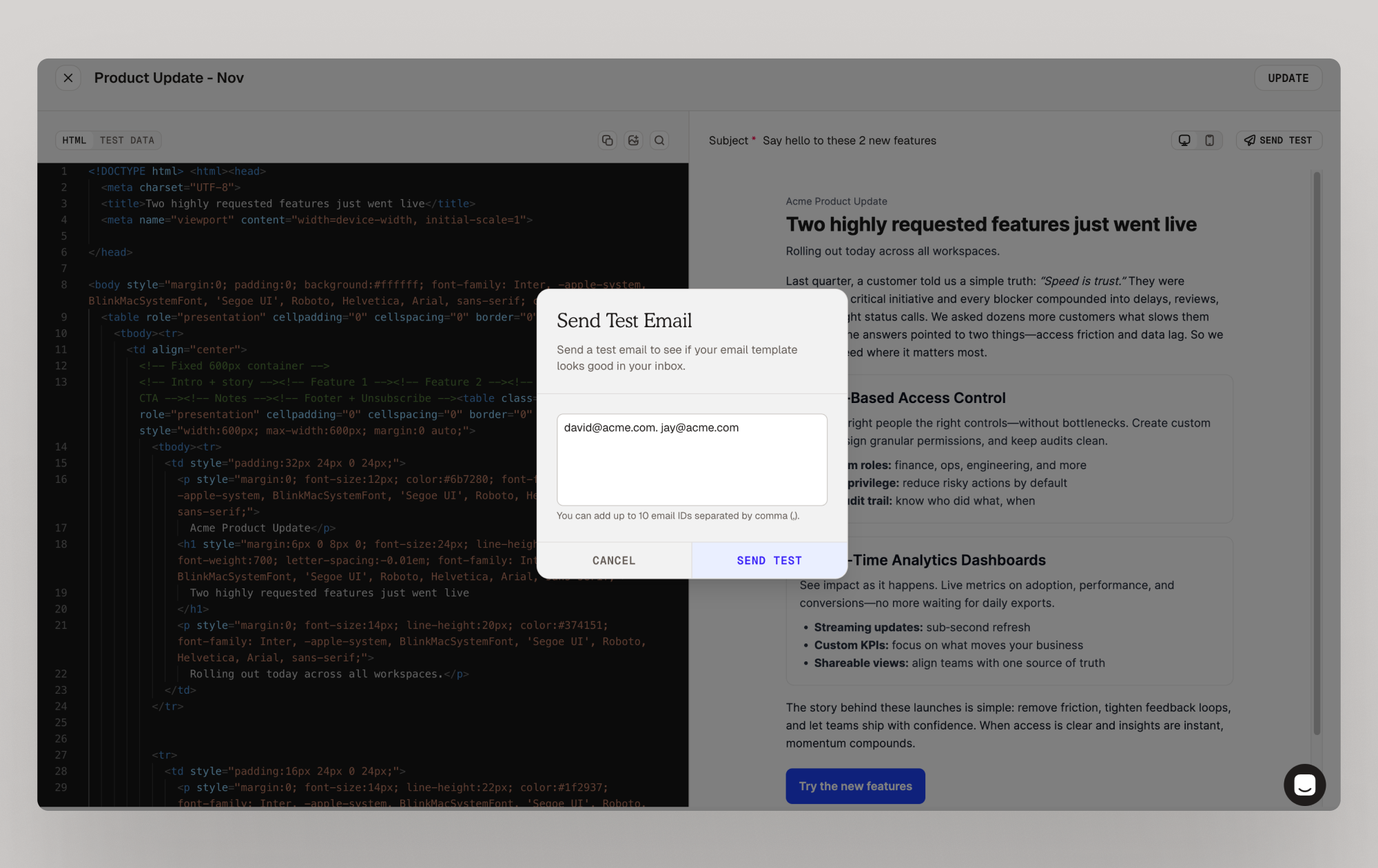
You can send a test email to check how your campaign appears across devices.