

Why Use Projects?
- Separate Environments: Keep Production, Staging, and Development completely isolated. Use separate API keys and senders per environment without risk of cross-contamination.
- Multiple Products: Indie hackers and founders building several products can keep each one separate, with different contact lists and senders, all under a single subscription.
- Multi-Tenant Platforms: Build CRMs, marketing tools, or Shopify apps where each of your customers sends from their own custom domain. Each customer gets their own isolated project.
- Agencies with Multiple Clients: Manage email for multiple clients under one AutoSend account. Contacts, senders, and campaigns stay separate per client with no risk of data mixing.
Creating a Project
Open the Project Switcher
Click the project name in the top-left corner of your AutoSend dashboard to open the project
switcher dropdown, then click “New Project”.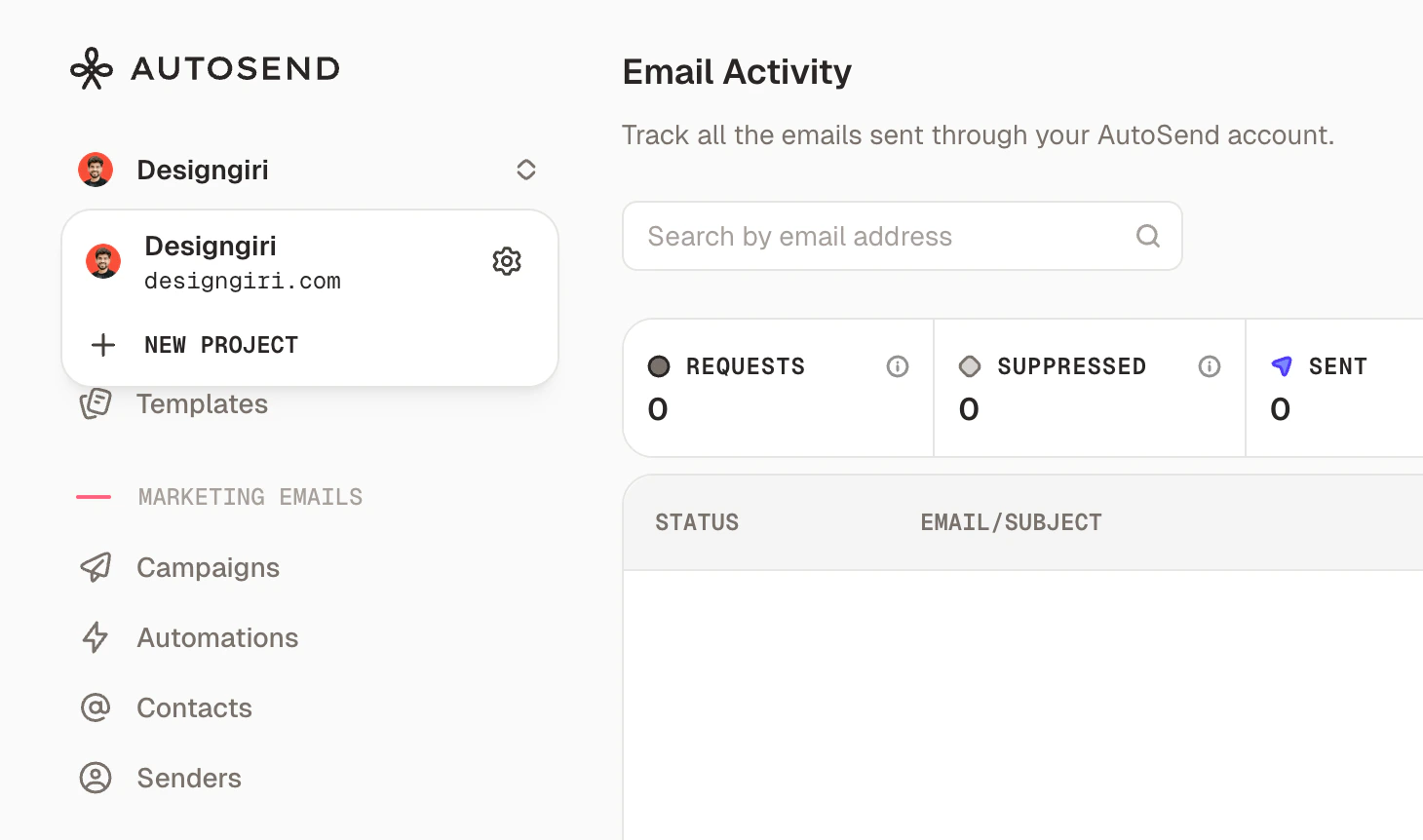
Name Your Project
Enter a descriptive name for the project - for example, 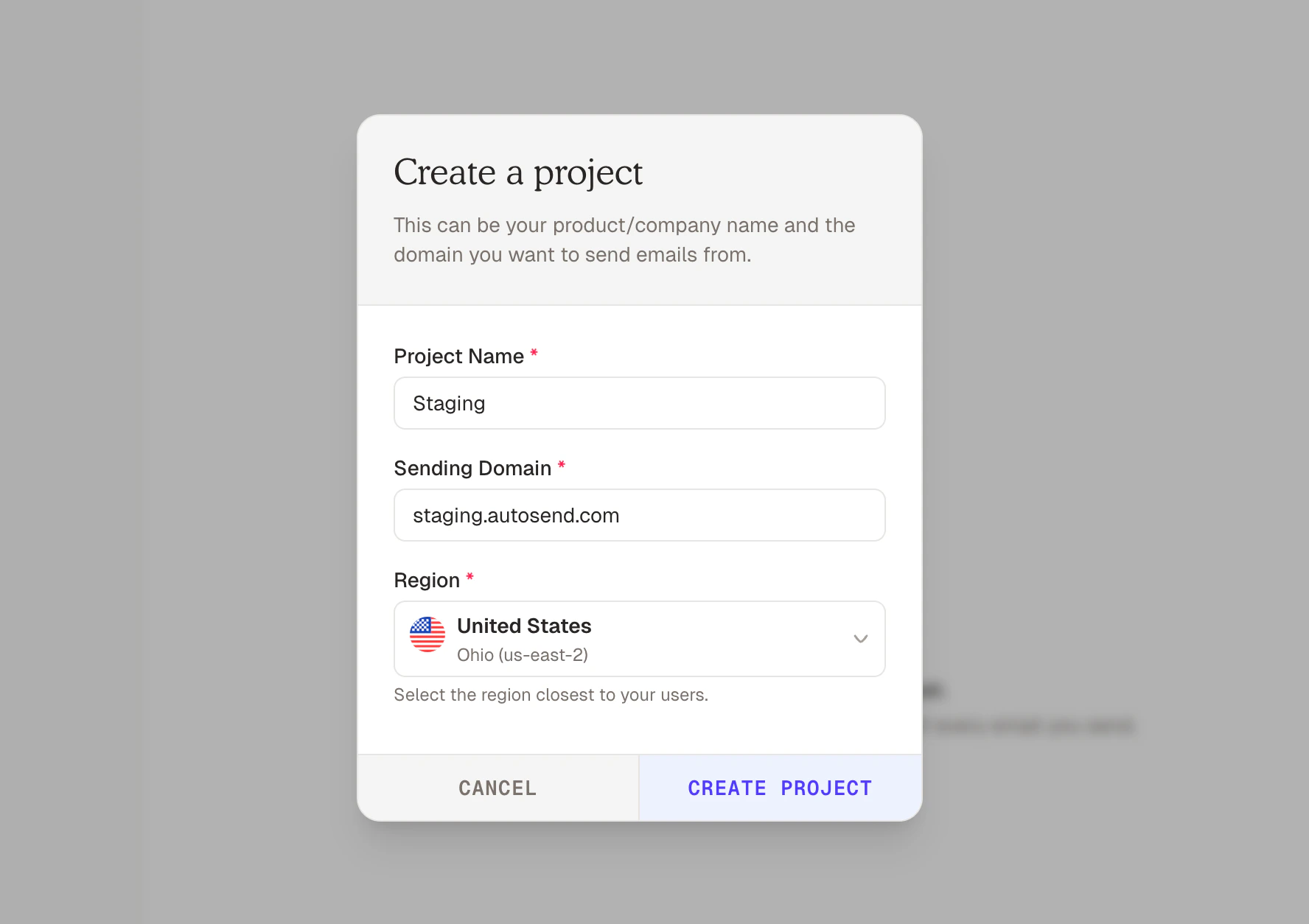
Production, Staging, or your
client’s brand name. Add a sending domain, select Region and click “Create Project”.Set Up Your Sending Domain
Your new project is ready. Head to Settings > Domains to get the DNS records and verify a sending domain for this project before you can start sending emails.
Switching Between Projects
Use the project switcher in the top-left of the dashboard to move between projects at any time. All data shown in the dashboard - contacts, campaigns, analytics, API keys - belongs to the currently selected project.What’s Isolated Per Project
Each project has its own separate:- API Keys: credentials scoped to that project only
- Contacts and Lists: subscriber data does not cross project boundaries
- Senders and Domains: verified sending addresses and domains
- Templates: transactional and marketing email templates
- Campaigns: marketing campaigns and their analytics
- Automations: email sequences and workflow configurations
- Webhooks: event notification endpoints
- Suppressions: unsubscribe and bounce lists
What’s Shared Across Projects
The following are shared at the account level across all projects:- Subscription and billing: one plan covers all your projects
- Monthly email send quota: the total sends are pooled across projects
- Team members: all team members on your account can access all projects
Plan Limits
Each plan includes a set number of projects:Building a multi-tenant system and need more than 20 projects? Reach out to
[email protected] and we’ll set up a custom limit for your
use case.
FAQs
Can I move contacts from one project to another?
Can I move contacts from one project to another?
Not directly - contacts are isolated per project by design. To migrate contacts, export them from the source project as a CSV and import them into the destination project.
Can I use different sending domains in different projects?
Can I use different sending domains in different projects?
Yes. Each project has its own verified senders and domains. You can verify
mail.client-a.com in
one project and mail.client-b.com in another, completely independently.What happens if I downgrade and have more projects than my new plan allows?
What happens if I downgrade and have more projects than my new plan allows?
Your existing projects remain active and usable - nothing is deleted. However, you won’t be able
to create new projects until the number of projects is within your new plan’s limit.
Can my team members access all projects?
Can my team members access all projects?
Yes. Team members are added at the account level and have access to all projects under the
account.
What's the difference between a Project API key and an Account API key?
What's the difference between a Project API key and an Account API key?
AutoSend has two types of API keys:
- Project API key: Scoped to a single project. Use this for sending emails, managing contacts, campaigns, and all day-to-day operations within that project. An API key from Project A cannot access Project B.
- Account API key: Has extended scope across your entire account. Use this when you need to programmatically create, update, or delete projects. Requests made with an Account API key must include the target
projectIdin the payload to specify which project to operate on.
Can I delete a project?
Can I delete a project?
Yes. You can delete a project from the project settings. Deleting a project permanently removes
all associated data - contacts, templates, campaigns, API keys, and email history. This action
cannot be undone.
I'm building a multi-tenant product. Is there a limit to how many projects I can have?
I'm building a multi-tenant product. Is there a limit to how many projects I can have?
The Scale plan supports up to 20 projects. If you’re building a product where each of your customers needs their own isolated project, contact [email protected] - we support custom project limits for multi-tenant use cases.