


Overview
Tally is a form builder for creating signup forms, waitlists, surveys, and lead capture forms. AutoSend has a native Tally Forms integration that automatically syncs your form submissions with contacts in AutoSend, with no code required. Once synced, you can use those contacts to send campaigns, trigger automations like a welcome sequence, or build segments based on their form answers.How it works
- You connect your Tally account to AutoSend with your Tally API key.
- You pick a Tally form and the contact list its submissions should be saved to.
- You map the form fields to contact properties in AutoSend.
- From then on, every new submission is automatically saved as a contact in the selected list. If a contact with the same email already exists, it is updated instead of duplicated.
Email is a mandatory field for a contact to be stored in AutoSend. Make sure your Tally form
includes an email field, and that it is mapped to the contact’s email property.
Prerequisites
Before you begin, make sure you have:- An AutoSend account
- A Tally account with at least one form that collects an email address
Connect Tally Forms with AutoSend
Open the Integrations page
Go to Integrations in your AutoSend dashboard and click
Connect on the Tally Forms card.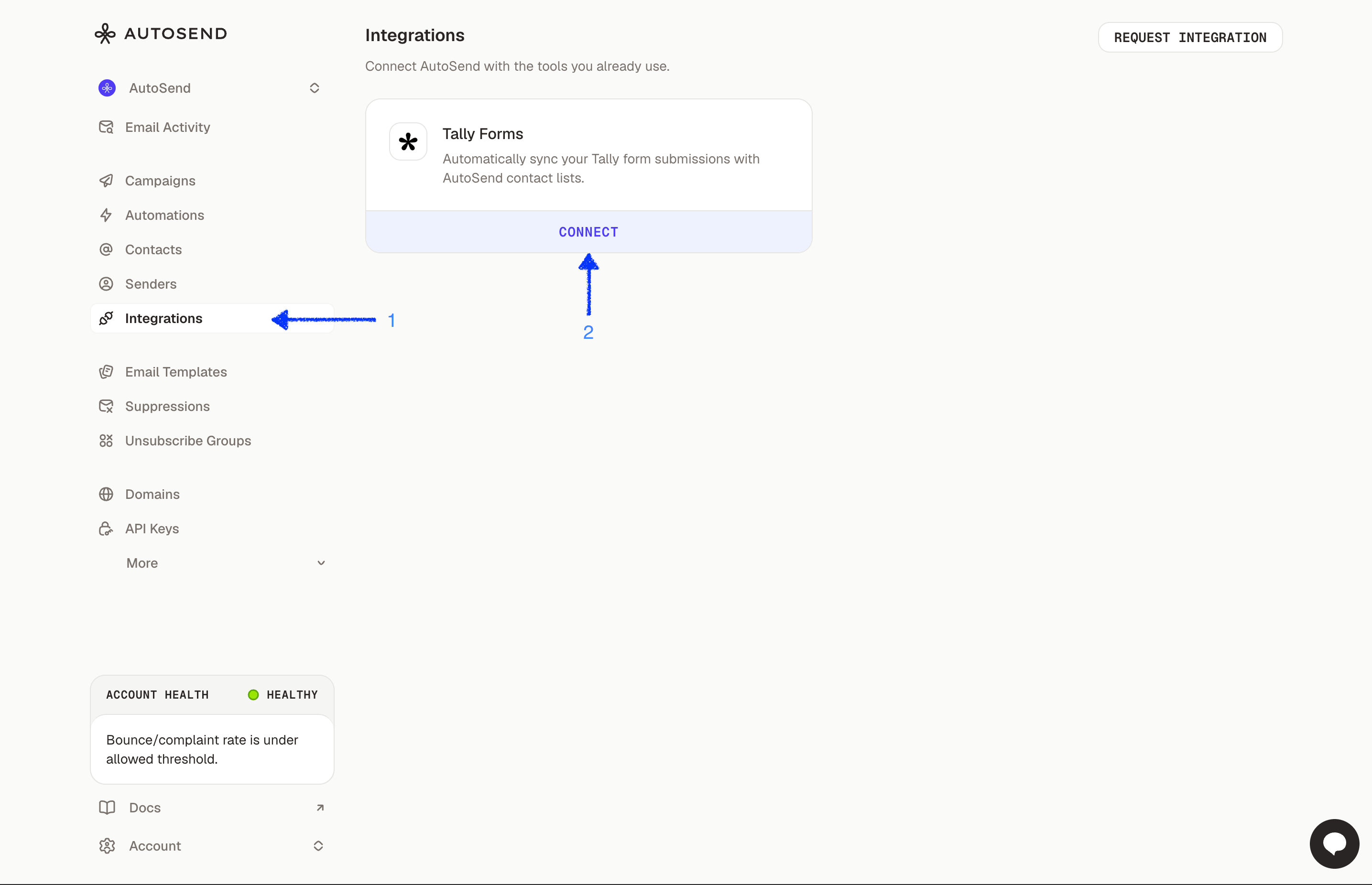
Enter your Tally API key
In the modal that opens, enter your Tally API key. You can create one from Tally’s API keys
settings. The key starts with 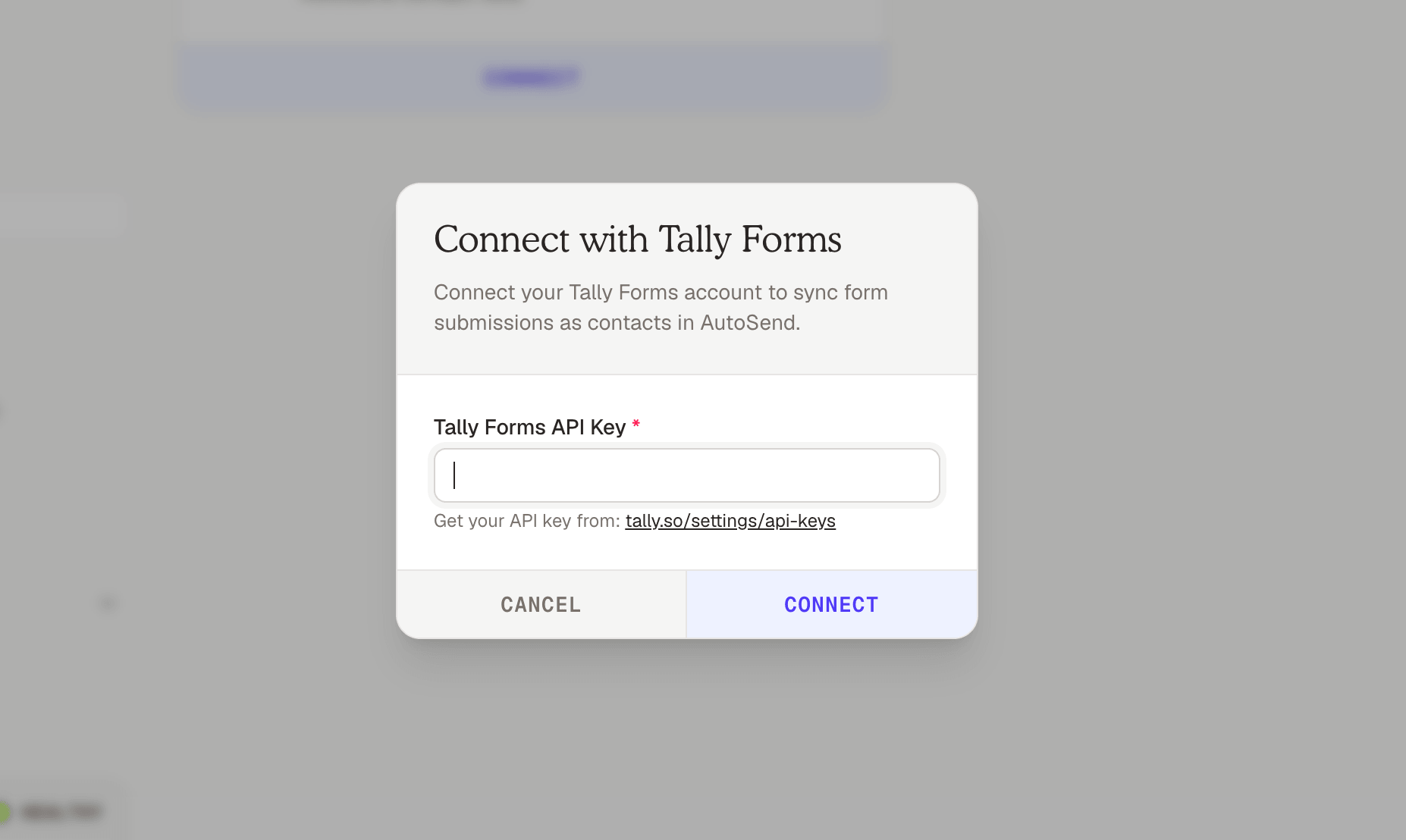
tly-.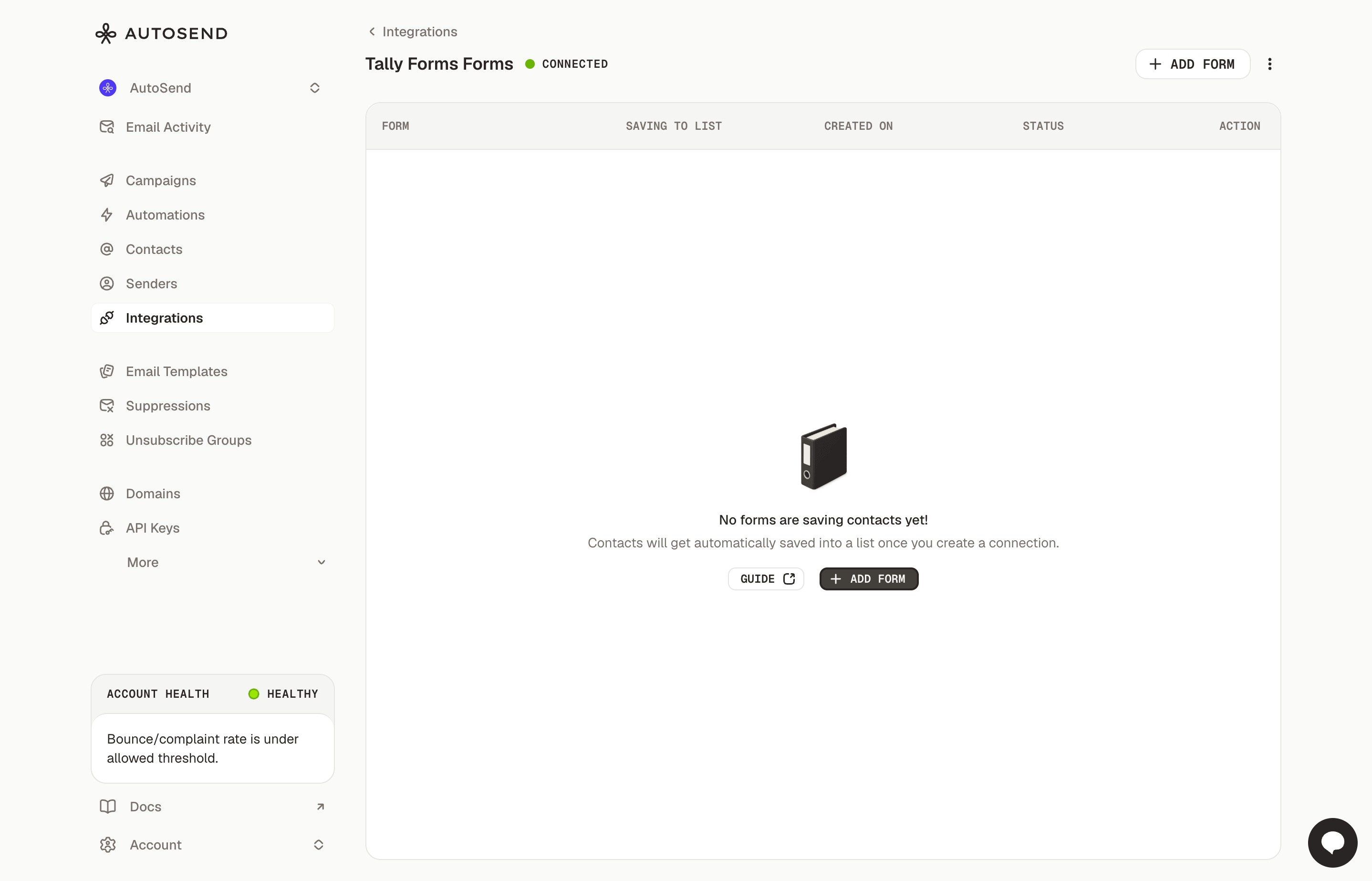
Sync a form with a contact list
Next, connect a specific Tally form to a contact list in AutoSend.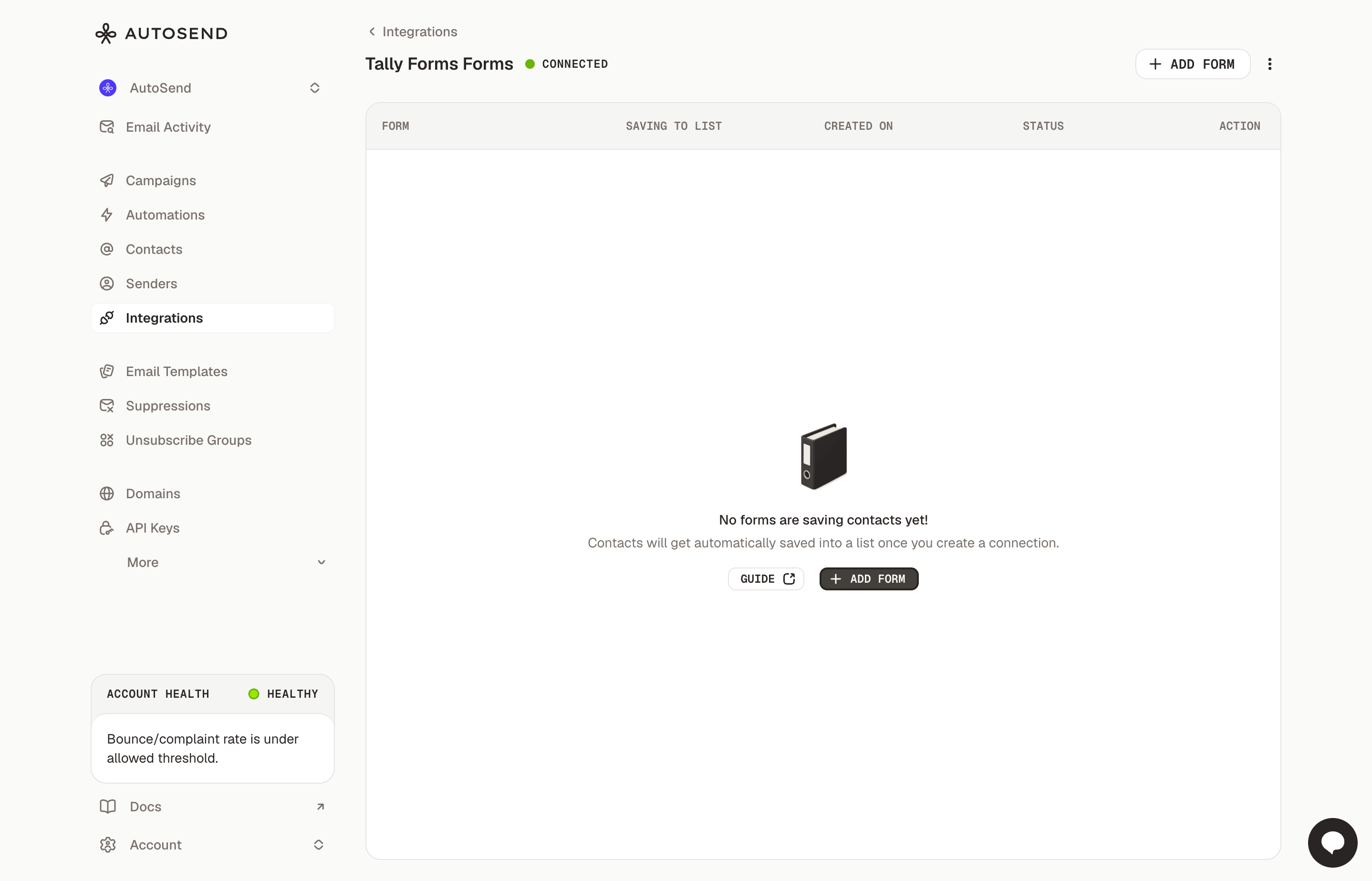
Select the form and contact list
Select the Tally form whose submissions you want to sync, and choose the AutoSend contact list to save contacts in.Contacts are saved to All Contacts by default. Choosing a specific list also triggers any live automations attached to that list, which is useful for sending a welcome email to new signups.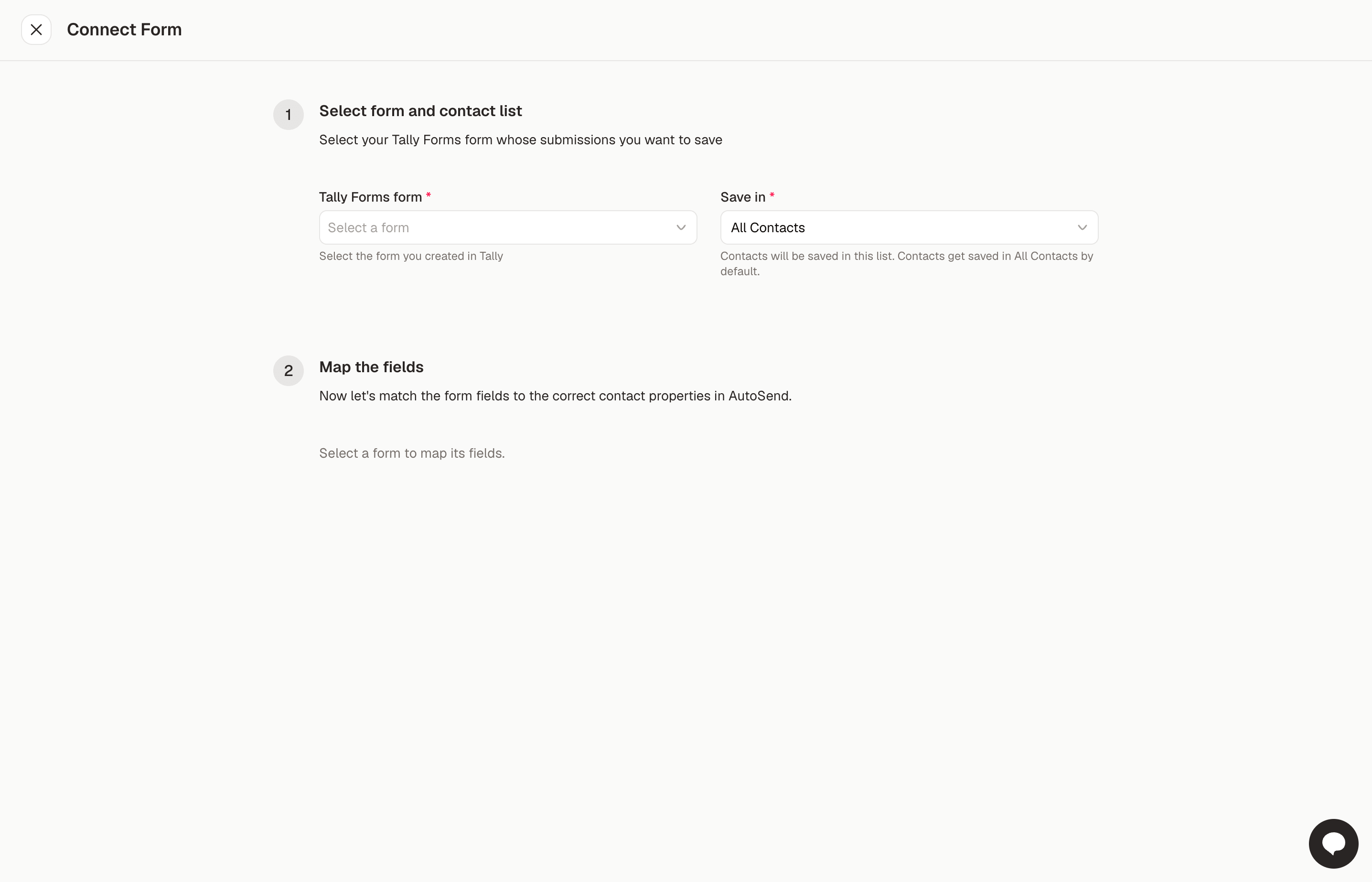
Map the form fields
Match each Tally form field to the correct contact property in AutoSend. The email field is required, and other answers can be mapped to properties like first name, last name, or your own custom properties.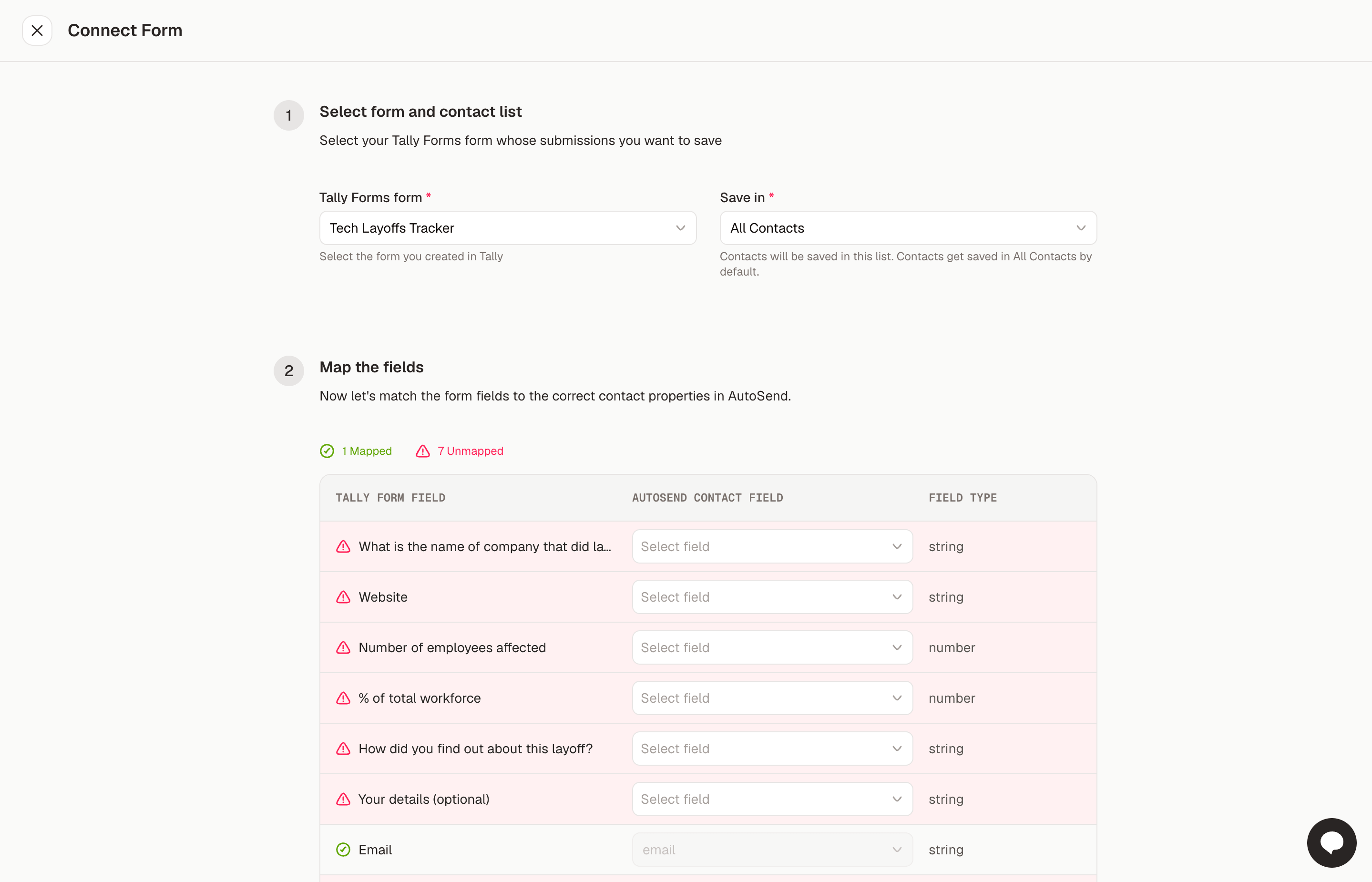
A contact is only stored in AutoSend if the submission includes an email address. Fields you
leave unmapped are not synced.
Done
Save the connection. From now on, every new submission to this form is synced as a contact in AutoSend.You can repeat these steps to sync multiple forms, each with its own contact list and field mapping. The integration page shows all connected forms along with the list they save to and their sync status.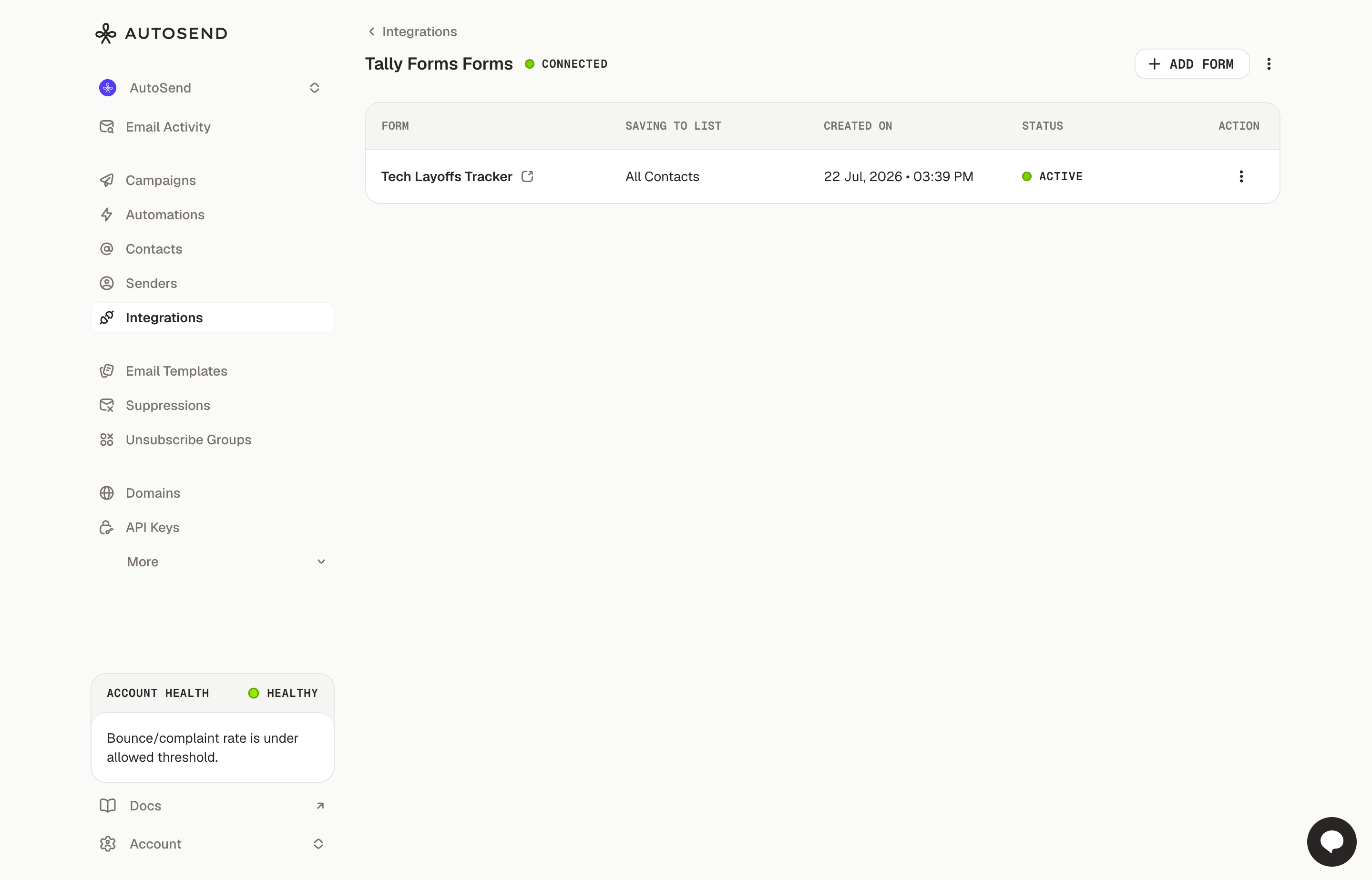
Test the integration
Submit a test response to your Tally form, then check the Contacts ↗ page in your AutoSend dashboard. The respondent should appear as a contact in the selected list within a few seconds.Troubleshooting
Contacts are not appearing in AutoSend
- Make sure the submission includes an email address. Submissions without an email are not stored as contacts.
- Check that the form’s status on the Tally Forms integration page is active.
- Confirm your Tally API key is still valid. If you revoked it in Tally, reconnect the integration with a new key.
Form answers are missing on the contact
- Only mapped fields are synced. Open the form’s field mapping and make sure each answer you want stored is mapped to a contact property.
- To store answers that don’t match a built-in property, map them to custom contact properties.
Next steps
Contact Lists
Organize synced respondents into lists for targeted campaigns.
Email Automations
Trigger a welcome sequence when a contact joins a list.
Segments
Build segments from form answers stored as contact properties.
Campaigns
Send one-off marketing emails to your synced contacts.