

Usage Limits
Every AutoSend plan includes a monthly email sending limit. You can send emails up to your plan limit during the billing cycle. Once you reach the limit, sending is paused until the next cycle begins or until you add more capacity through email credits.Notifications
AutoSend emails workspace Admins automatically as you approach your limit:- At 90% of your plan limit: a heads-up so you have time to upgrade or top up before sending is paused.
- At 100% of your plan limit: confirmation that sending is paused on your account.
What gets paused
When you hit your limit, both transactional and marketing emails stop sending. Active automation will pause sending until capacity is available again.How to keep sending
You have two options when you reach your plan limit:- Upgrade your plan: move to a higher tier to unlock a larger monthly limit. See the pricing page.
- Buy email credits: top up your account with email credits that add to your sending capacity for the current cycle and beyond.
Your effective sending limit each cycle is plan limit + email credit balance. As long as the
total is above zero, sending continues.
Email Credits
Email credits let you purchase additional sending capacity in advance, on top of your plan. They are useful when you need extra headroom for a campaign, want a buffer against unexpected spikes, or simply prefer to pay for usage upfront. Buy credits from Account Settings > Usage in the AutoSend dashboard.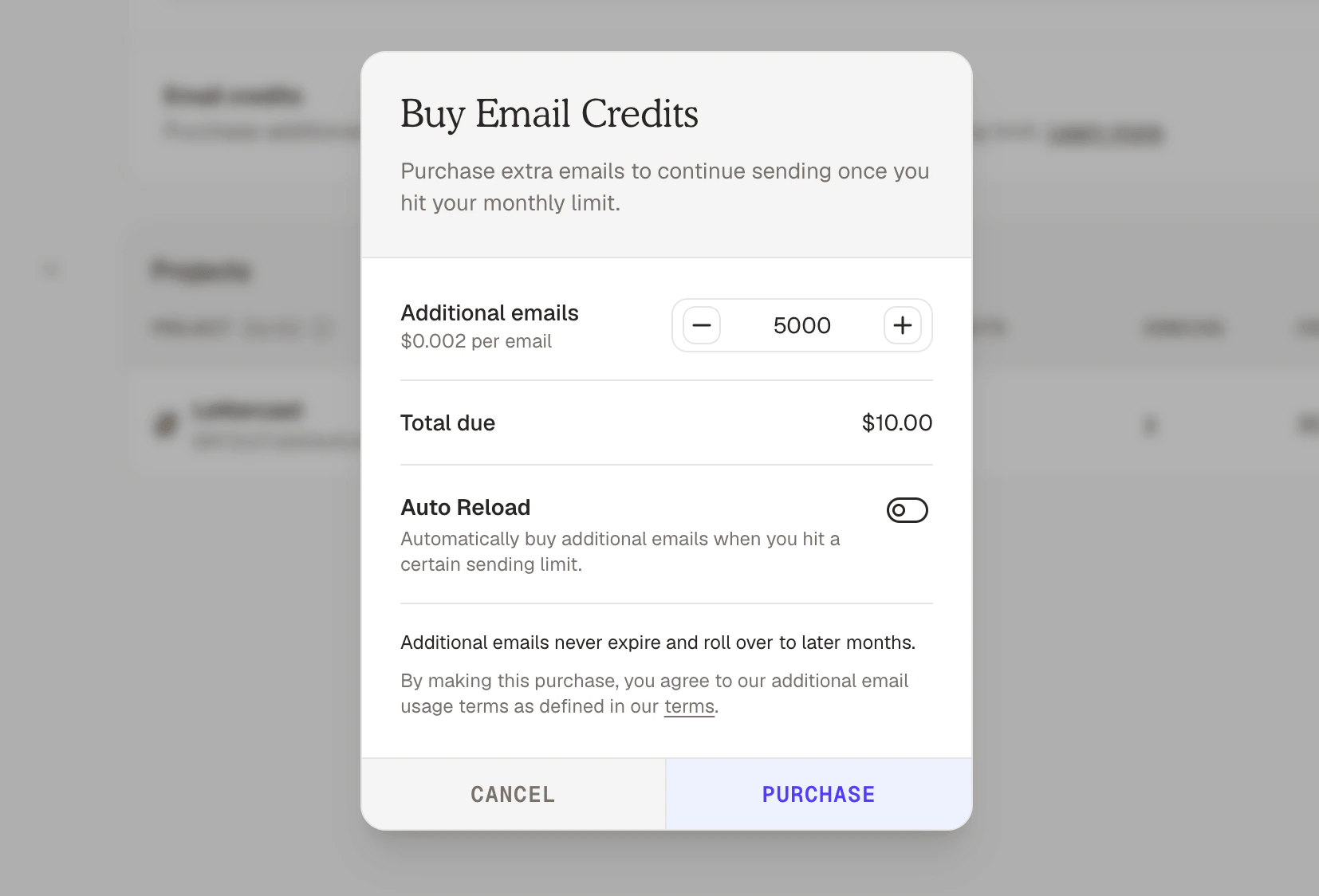
How email credits work
- Top-up in advance: buy credits whenever you want from the Usage page.
- Rollover and never expire: unused credits stay on your account indefinitely and carry over from one billing cycle to the next.
- Stack with your plan: credits are consumed only after your plan’s included emails for the current cycle are used.
- Non-refundable: credits cannot be refunded once purchased.
- Non-transferable: credits are tied to your workspace and cannot be moved to another account.
Auto-reload
Auto-reload tops up your email credits automatically when your balance gets low, so sending never pauses unexpectedly. You can enable auto-reload from the Email Credits section on the Usage page. When configured, AutoSend will:- Watch your remaining sending capacity (plan limit + credit balance).
- Trigger a top-up as soon as your balance drops to the threshold you set.
- Charge your default payment method and add the configured amount of credits to your account.
Auto-reload uses the default payment method on file in Billing. Make
sure your card is valid to avoid failed reloads.
FAQs
What happens when I hit my plan limit?
What happens when I hit my plan limit?
Sending is paused on your account until the next billing cycle begins or until you add capacity through an upgrade or email credits. AutoSend notifies Admins by email at 90% and 100% of the limit.
Do unused emails from my plan roll over?
Do unused emails from my plan roll over?
No. Plan emails reset at the start of each billing cycle. Only email credits roll over and
never expire.
When are email credits consumed?
When are email credits consumed?
Email credits are consumed only after you exhaust the emails included with your plan for the
current billing cycle.
Can I get a refund on unused email credits?
Can I get a refund on unused email credits?
No. Email credits are non-refundable. They also cannot be transferred to another workspace.
How does auto-reload decide when to top up?
How does auto-reload decide when to top up?
Auto-reload triggers when your remaining sending capacity drops to the threshold you set. The
configured amount of credits is then purchased using your default payment method.
Who can buy credits or change auto-reload settings?
Who can buy credits or change auto-reload settings?
Only workspace Admins can purchase credits, enable auto-reload, or change billing details. See Team roles and permissions for the full role breakdown.